Foreign-Currency Bills
Imports are bought in USD or EUR at an exchange rate agreed with the supplier or the bank. That agreed rate is entered once, on the purchase order, and Odoo carries it through to the bill and the payment. Paid at the same rate, a foreign bill closes with no forex gain or loss.
Odoo's currency rate table is not maintained here (USD has sat at 58.00 since 08/05/2025). Every step below uses the agreed rate instead, so that stale rate never decides a PHP amount.
Step 1 — Exchange Rate on the purchase order
On a PO in a foreign currency, an Exchange Rate field appears under Currency. Enter the agreed rate (PHP per 1 unit of the foreign currency, e.g. 58.61 for USD).

The Exchange Rate locks once the PO is confirmed. Enter it while the PO is still an RFQ.
Step 2 — The bill carries the rate
Click Create Bill on the PO. The bill gets the PO's rate in Other Info → FX Rate → Agreed FX Rate, and when it is posted, Accounts Payable is booked at that rate (e.g. USD 98,300.34 × 58.61 = ₱5,761,382.93).
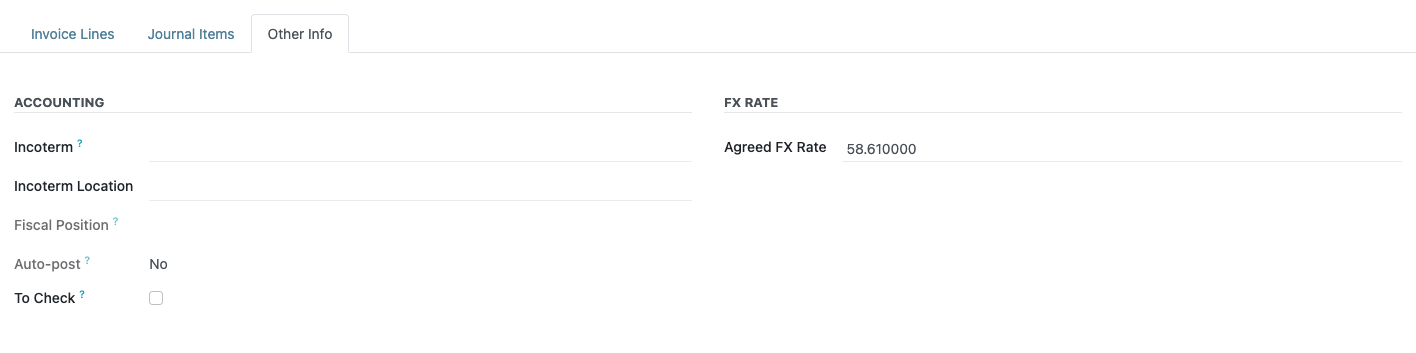
The FX Rate group only shows on bills in a foreign currency. Changes to the field are logged in the bill's chatter.
A foreign bill entered without Create Bill has no rate copied in. Open Other Info and fill in Agreed FX Rate before you post, so the bill is booked at the agreed rate.
Step 3 — Register Payment
Open the bill and click Register Payment. For a foreign bill the dialog has a Forex Rate field, already filled with the bill's agreed rate.
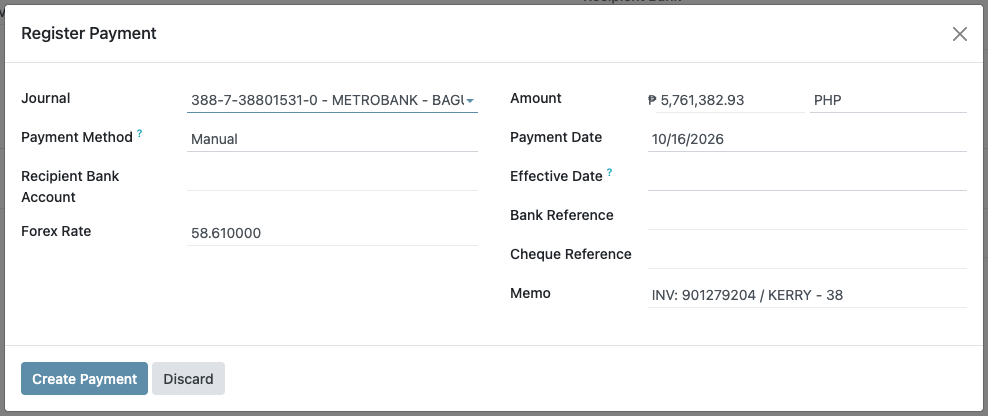
- Choose the bank Journal.
- Check that Forex Rate shows the agreed rate (e.g. 58.61), not 0.
- Paying from a PHP bank: check that Amount is the bill's PHP value (foreign amount × agreed rate).
- Click Create Payment.
Left at the proposed rate, the payment clears the bill exactly: the bill shows Paid, with no exchange-difference entry and nothing left open on the payment. Several bills paid together, each booked at its own agreed rate, also close exactly.
When the bank paid at a different rate
Change the Forex Rate to the rate the bank actually used. The PHP Amount recalculates and the dialog shows a Payment Difference. Choose Mark as fully paid and post the difference to 770103 REALIZED FOREX GAIN or 770105 REALIZED FOREX LOSS. The difference is recorded on the payment entry itself; the bill still closes at its agreed rate.
Paying from a USD or EUR bank account
When the bank journal is in the same foreign currency as the bill, the Amount is in that currency and the Forex Rate is the rate Odoo uses to value the payment in PHP.
Do not create the payment. Fill in the bill's Agreed FX Rate (Other Info tab) and report the bill so it can be checked. This should not happen: a posted foreign bill without an agreed rate falls back to the rate it was booked at, so the dialog still proposes the right PHP amount.
Reference
| Concern | File |
|---|---|
PO exchange_rate; copied to the bill on Create Bill | bc17/blu_purchase/models/purchase_order.py (_prepare_invoice, action_create_invoice) |
Bill manual_currency_rate (Agreed FX Rate), booking at that rate on post, booked-rate fallback | bc17/blu_account/models/account_move.py (action_post, _get_agreed_fx_rate) |
Register Payment forex_rate, amount, writeoff handling, reconciliation at the agreed rate | bc17/blu_account/models/account_payment_register.py |
| Rate override used by all three steps | bc17/blu_account/models/res_currency.py (_get_conversion_rate, manual_fx_* context) |