Withholding Tax on Invoices and Bills
Some customers withhold tax when they pay us, and we withhold tax when we pay some suppliers. In Odoo the withholding is a tax on the invoice or bill line, next to the VAT. This page covers:
- which withholding taxes to use, and how Odoo computes them (on the amount net of VAT, as BIR requires)
- printing a Sales Invoice that shows the withholding, with the S.I. per BIR RR 6-2026 button
- recording a withholding after the invoice is posted, with Post WHT to Invoice/Bill
The withholding taxes
| Used on | Tax | Rate |
|---|---|---|
| Customer invoices | 1% WC-SALE OF GOODS | 1% |
| Customer invoices | 2% WC-SALE OF SERVICES | 2% |
| Customer invoices | 0.5% WC-CREDIT CARDS | 0.5% |
| Vendor bills | 1% WC-SUPPLIER OF GOODS / 2% WC-SUPPLIER OF SERVICES | 1% / 2% |
| Vendor bills | 2% WC-CONTRACTORS, 5% WC-RENTALS, 10% / 15% WC-PROFESSIONAL FEES, 10% / 15% WC-BROKERAGE FEES, 10% WC-COMMISSIONS, 15% WC-REBATES | as named |
Put the withholding tax on each line in addition to the VAT tax, and match it to what the line is: goods get the goods rate, services the services rate.
How the withholding is computed
Withholding is computed on the amount net of VAT, on customer invoices and on vendor bills, whether the line uses VAT Inc. (price includes VAT) or 12% (VAT added on top).
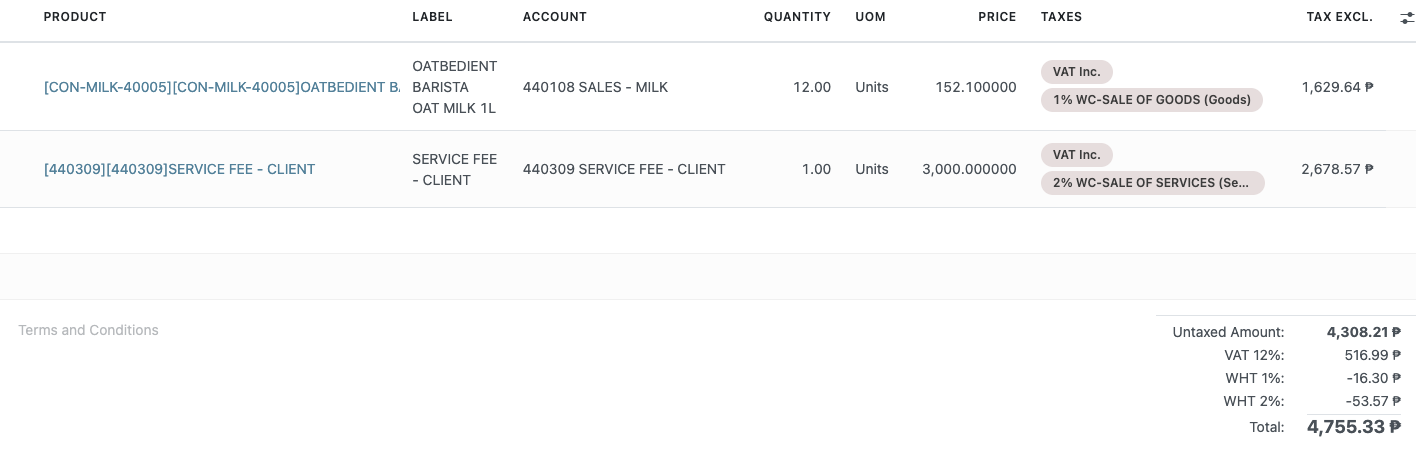
Example: 12 × oat milk at 152.10 (VAT Inc.) with 1% goods withholding, plus a service fee of 3,000.00 (VAT Inc.) with 2% services withholding.
| Goods line | Service line | |
|---|---|---|
| Line amount, VAT-inclusive | 1,825.20 | 3,000.00 |
| Net of VAT (Tax Excl.) | 1,629.64 | 2,678.57 |
| Withholding | 1% × 1,629.64 = 16.30 | 2% × 2,678.57 = 53.57 |
Odoo lists each rate in the invoice totals (WHT 1%, WHT 2%) and the Total already has them deducted. That Total is what the customer actually pays.
Before 10/14/2026, a line with a VAT-inclusive tax had its withholding computed on the price with VAT (18.25 and 60.00 in the example above). Invoices and bills posted before then keep the amounts they were posted with. A draft made before that date also keeps its old figure: remove the withholding tax from the line and add it back, and Odoo recomputes it.
Printing the Sales Invoice for a withholding customer
A customer invoice has three Sales Invoice print buttons:

| Customer | Button to use |
|---|---|
| Withholds tax (a WC- tax is on the invoice lines) | S.I. per BIR RR 6-2026 |
| Does not withhold | S.I. New Layout, as before. The BIR RR 6-2026 button also works for them: it prints the same figures with 0.00 in the withholding box. |
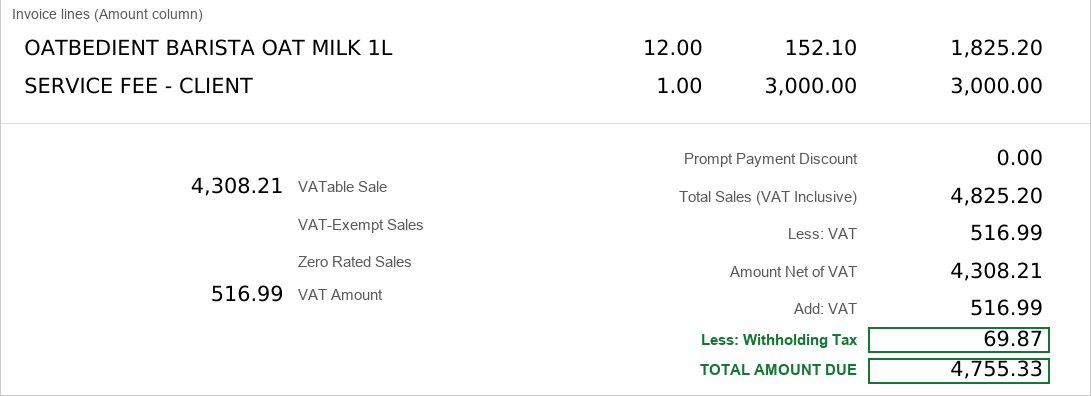
S.I. per BIR RR 6-2026 prints:
- each line at its full VAT-inclusive amount
- the full VAT in Less: VAT, Add: VAT and the VAT Amount box
- the total withholding of the invoice, all rates together, in Less: Withholding Tax
- TOTAL AMOUNT DUE net of the withholding, the same as the invoice Total in Odoo
To print:
- Open the customer invoice. Add the withholding tax to each line before printing.
- Click S.I. per BIR RR 6-2026. The SI opens in the i-net viewer, like the other SI buttons.
- Load the pre-printed SI form and print.
S.I. New Layout does not separate the withholding from the VAT: for a withholding customer it prints the line amounts and the VAT already reduced by the withholding, and leaves the withholding box blank. Use S.I. per BIR RR 6-2026 for any invoice with a WC- tax on its lines.
The withholding figure sits in the narrow row between Add: VAT and TOTAL AMOUNT DUE. Do a test print on an actual pre-printed SI form the first time to check the alignment.
Recording a withholding after posting — Post WHT to Invoice/Bill
When the withholding was not put on the invoice lines (for example, the customer withheld only at collection), record it with a separate entry:
- Open the posted invoice or bill. It must be Not Paid or Partially Paid.
- Click the ⚙ (gear) next to the invoice number → Post WHT to Invoice/Bill.
- Enter the Date and the withholding Amount, then click Post WHT.
Odoo posts a Miscellaneous Operations entry and applies it to the invoice or bill:
| Document | Entry |
|---|---|
| Customer invoice | Dr 115105 Creditable Withholding Tax / Cr Accounts Receivable (reference CWT on INV-…) |
| Vendor bill | Dr Accounts Payable / Cr 220114 Withholding Tax Payable - Expanded (reference EWT on BILL-…) |
The Amount field opens with the invoice's whole remaining balance, not the withholding. Type the actual withholding amount before you click Post WHT.
A withholding recorded this way is a separate journal entry, so it does not appear on the printed Sales Invoice. For the withholding to print, it has to be on the invoice lines before printing.
Run it on one invoice or bill at a time; selecting several in the list is refused.
Reference
| Concern | File |
|---|---|
SI print buttons (print_invoice_2025, print_invoice_2025_wht), Post WHT action | bc17/blu_account/models/account_move.py, bc17/blu_account/views/account_move_views.xml |
| Post WHT wizard | bc17/blu_account/wizard/post_wht_wizard.py |
| SI layout with withholding | inet/blu/si_2025_wht.rpt (lines from view v_invoice_line_gross in inet/sql/blu_report_views.sql) |
| Withholding base | Tax setting Affect Base of Subsequent Taxes switched off on VAT Inc. (sales) and VAT Inc. - 12% (purchases) |