Customers, Branches and Addresses
A customer in Odoo is one record: the company (or individual) you sell to. Its branches, its billing address and its contact persons are kept under that record, on the Contacts & Addresses tab. They are not customers in their own right.
Since 08/19/2026 Odoo enforces this:
- Contacts lists show top-level records only. A Delivery Address, Invoice Address, Other Address or contact person does not appear as a separate card or row in Contacts or in the Customers and Vendors lists.
- They cannot be picked as the customer (or vendor) of a quotation, invoice, payment, purchase order, repair order or any other business document.
- They are picked where an address belongs: the Invoice Address and Delivery Address of an order, the Delivery Address of an invoice, and the address on a delivery.
Encoders were picking an address, such as "TEAM SIX …, Delivery Address", as the Customer on quotations. Those orders and invoices then belonged to the address and not to the company, so the customer's sales, receivables and statement were split. By 08/2026 this had happened on 849 sales orders, 1,225 invoices and 289 payments.
How it looks
Search Contacts for a customer and you get the company only. Its branches and contact persons are not listed beside it:

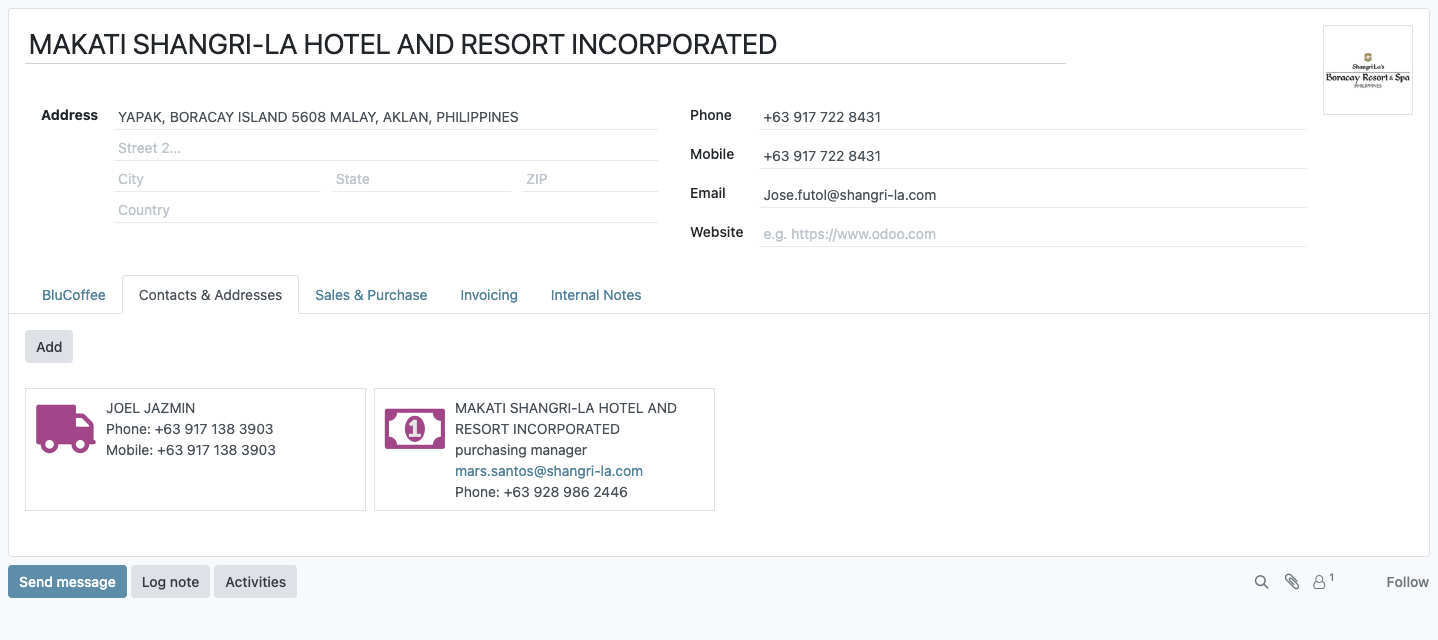
Open the customer and they are all on the Contacts & Addresses tab. The icon on each address card shows its type, for example a truck for a Delivery Address and a bill for an Invoice Address:
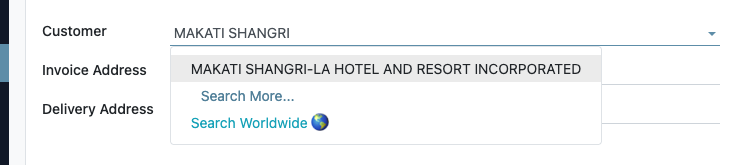
On a quotation, the Customer field offers the company and nothing under it:
Add a delivery or invoice address
Do this when a customer opens a new branch, or bills to a different address from where you deliver. Do not create a new contact for the branch.
-
Go to Contacts and open the customer.
-
Open the Contacts & Addresses tab and click Add.
-
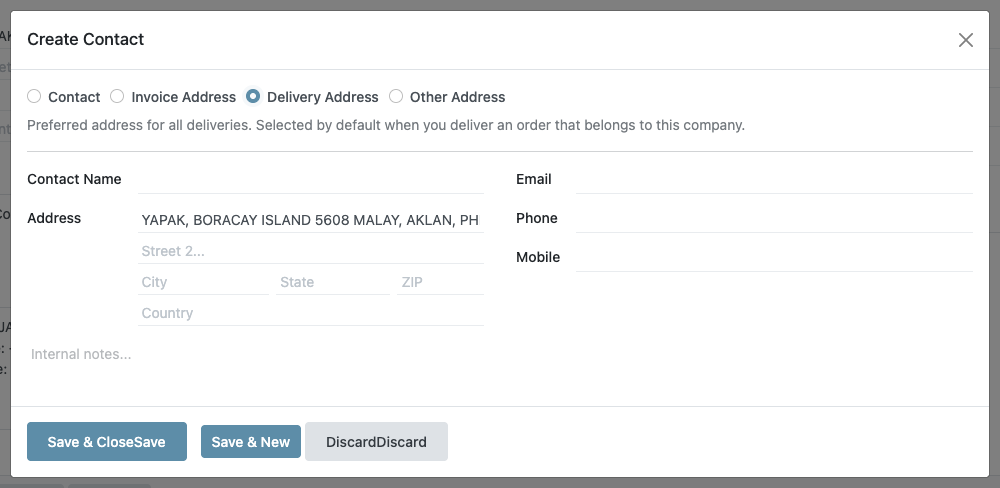
Choose the type at the top:
Type Use it for Delivery Address A branch or site you deliver to. Selected by default as the Delivery Address of new orders. Invoice Address Where invoices go, when it is not the main address. Selected by default as the Invoice Address. Contact A person at the customer (purchasing, receiving, accounts payable) Other Address Any other address you want on file -
Fill in the name (for example the branch name or the receiving person), the address, phone and email. The address starts as a copy of the customer's, so change it to the branch's.
-
Click Save & Close, then save the customer.
Search Contacts for the name and the TIN first. If the company is already there, add the branch to it as a Delivery Address instead of creating a second customer.
Pick the address on an order
On a quotation, choose the Customer first. Odoo then fills in the Invoice Address and Delivery Address with the customer's default addresses. To deliver somewhere else, open Delivery Address and pick from the list:
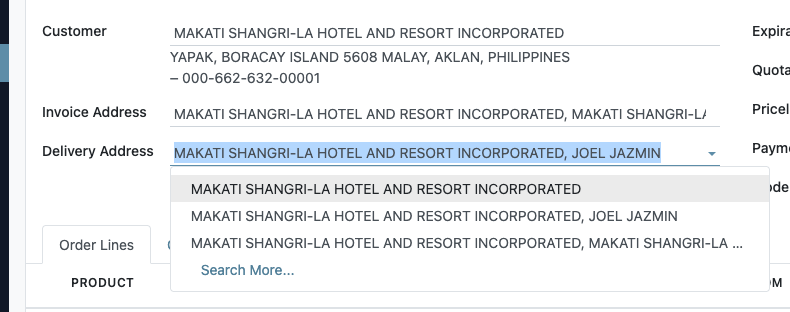
- The list offers only this customer and its own addresses. Another company's address cannot be picked.
- The fields are pick only. You cannot create or edit an address from here. If the branch is missing, add it to the customer first (above).
- With no Customer chosen yet, both lists are empty.
- The Delivery Address on a customer invoice works the same way.
The Delivery Address is carried onto the delivery (DR), so the warehouse and the driver see the branch's address.
Fields that still take an address
The restriction is on the fields that say who the business partner is. Fields that are meant to hold an address are left open on purpose:
| Still picks child addresses and contacts | Why |
|---|---|
| Invoice Address and Delivery Address on a sales order | They are the customer's addresses (limited to that customer, as above) |
| Delivery Address on a customer invoice | Same, limited to the invoice's customer |
| Contact (delivery address) on a delivery or receipt | Deliveries go to a branch. About 1,950 deliveries already point at a Delivery Address. |
| Destination Address on a stock move | Same as the delivery |
| Address of a warehouse | A warehouse's address record |
| Recipient of a Viber campaign | Messages go to the person, who may be a contact under a company |
Everything else that names a customer or vendor offers top-level records only, including sales orders, invoices and bills, journal items, payments and Register Payment, bank statement lines, purchase orders, vendor price lists, CRM leads, repair orders, assets, recurring payments, the BIR 2307 wizard, Sub-D records and outgoing Viber messages.
Existing records
The rule changes only what the dropdowns offer. Nothing was rewritten:
- Orders, invoices and payments created before 08/19/2026 with an address as the customer still show that address and still work.
- Moving them to the parent company is a separate data clean-up that Blu Coffee has not yet decided on.
- Statement of Accounts. Running Print → Statement of Accounts from a branch address prints the statement of its parent customer, so you get the full statement whichever record you start from.
Reference
| Concern | File |
|---|---|
| Top-level-only domain on partner fields | bc17/blu_base/models/partner_id_domain.py (plus blu_crm_sales, blu_purchase, blu_subd, blu_8x8) |
| Contacts / Customers / Vendors lists | bc17/blu_base/views/res_partner_action_domain.xml |
| Order address pickers | bc17/blu_crm_sales/views/sale_order_view.xml |
| Invoice Delivery Address picker | bc17/blu_account/views/account_move_views.xml |
| Contacts & Addresses tab | bc17/blu_base/views/res_partner_view.xml |
The rule is parent_id = False, not the address type. A contact person under a company has type Contact, so filtering on type would miss them, and a few real customers are top-level records typed as Invoice or Delivery Address.