Expiring Stock Watch-List & Daily Alert
Blu Coffee's inventory and warehouse staff no longer have to dig through lot records to find stock that is about to go bad. bc17 keeps a live Expiring Stock list of every batch/lot that still has quantity on hand and is either already expired or expiring within the next 9 months. Items are grouped by notif group (e.g. DAVINCI, CONSUMABLES) so urgency stands out at a glance. The same list is reachable from a phone through a no-login web link, and a short grouped summary lands as a Viber alert every morning at 9:00 AM for staff who opt in.
It reuses the same 8x8 messaging plumbing as Receipt Notifications and Auto-RFQ.
| Module | Provides |
|---|---|
bc17/blu_reports/ | The blu.expiring.stock SQL-view model, the Reports → Expiring Stock list, the public token-based web page, the daily alert cron, the Receives Expiring-Stock Alerts preference on res.users, the recipients config screen, and the Include to expiring notifs / Group in notifs fields on product.template |
bc17/blu_8x8/ | Viber delivery of the daily summary through the 8x8 chat-apps API |
What counts as "expiring"
A lot/batch shows up on the watch-list only when all of the following hold:
- its product has Include to expiring notifs ticked (see Setting up products below);
- the lot has an Expiration Date entered;
- it still has quantity on hand (qty > 0);
- it is not in a scrap location;
- its expiration date is already past, or falls within the next 9 months — 9 calendar months counted from today.
Setting up products
Two fields on the product form (Inventory tab, only visible when Tracking is By Lots) control whether and where a product appears on the watch-list:
| Field | Type | Purpose |
|---|---|---|
| Include to expiring notifs | tickbox | When ticked, this product's lots are picked up by the Expiring Stock list and Viber alert. Default: off. |
| Group in notifs | text | The bucket this product is grouped into in the list and the daily Viber (e.g. DAVINCI, CONSUMABLES, GELATO FLAVOURINGS). Free-text — products that share a value group together. |
These fields sit just before Track Expiration Dates in the Inventory tab.
A convenient convention is to set Group in notifs to the product's root parent category — e.g. for a product under DAVINCI / POWDERS / FLAVORINGS - IMPORTED, the group becomes simply DAVINCI. That keeps the Viber alert compact and the public page intuitive.
The Expiring Stock list
Reports → Expiring Stock opens the backend list. Each row is one lot/batch in one location:
| Column | Meaning |
|---|---|
| Group | The Group in notifs value from the product form |
| Product | The product the batch belongs to |
| Lot/Batch | The lot or serial number |
| Expiration Date | The date entered on the lot |
| Days Left | Calendar days until expiry — negative once expired |
| Qty On Hand | Quantity still in stock for that lot |
| Location | Where the stock is sitting |
Rows are colour-coded so problems stand out at a glance:
- Red — the batch is already expired.
- Amber — the batch is expiring soon (within 9 months but not yet past).
Filters and grouping
- Already Expired — narrows the list to batches past their date.
- Expiring within 9 months — narrows to batches still in date but inside the 9-month window.
- Group By → Notif Group — roll up by the Group in notifs value.
- Group By → Product — roll up by product.
- Group By → Location — roll up by warehouse location.
Filter by Already Expired first thing in the morning — those batches need a disposal or write-off decision before anything else. Then switch to Expiring within 9 months to plan what to push or rotate.
The public web page
The same live list is published at a no-login web link. Open it on a phone or share it in a chat — there is no Odoo password prompt.
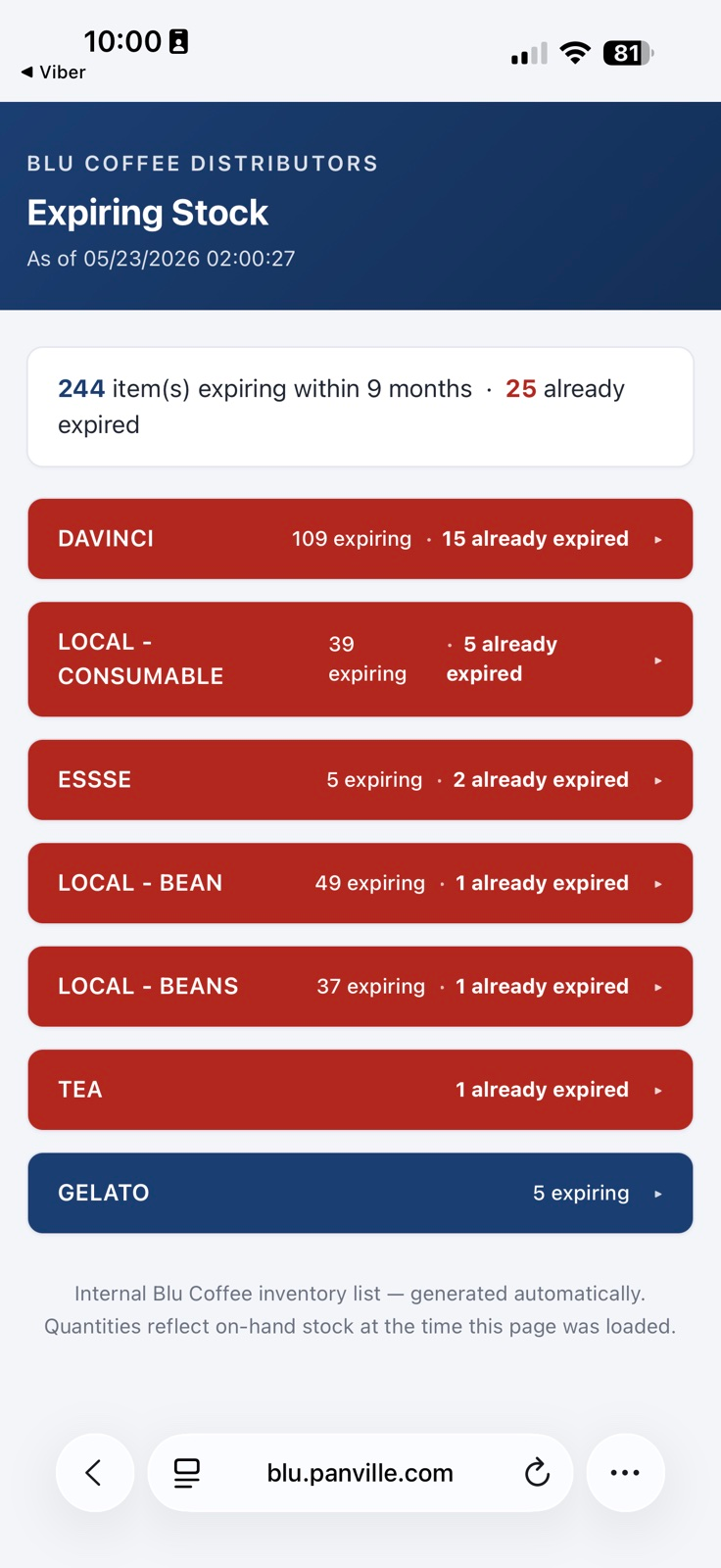
The page renders one collapsible card per notif group, sorted urgency-first (groups with the most already-expired items at the top, with a red header). Tap any group header to drill down to the lots in that group.
- The link carries an unguessable token, so it is not discoverable by typing a plain URL.
- Anyone who has the link can open it. It deliberately needs no login so warehouse staff can check it on the floor.
- The page shows the same live data as the backend list — group, product, lot, quantity, location.
Because there is no login, the link reveals product names, quantities, and storage locations to anyone who receives it. Treat the link as semi-sensitive — share it within the team, not in public channels.
The daily Viber alert
Every day at 9:00 AM Manila time bc17 sends a short Viber message to opted-in users — a per-group breakdown plus the public link:
Hi Team,

Daily expiring-stock alert:

DAVINCI — 110 expiring · 15 already expired
CONSUMABLES — 150 expiring · 8 already expired
ESSSE — 6 expiring · 2 already expired
GELATO FLAVOURINGS — 5 expiring
SHELL — 3 expiring

Total: 274 expiring within 9 months · 25 already expired

View the full list:
https://…/<token>

— Blu Coffee Inventory
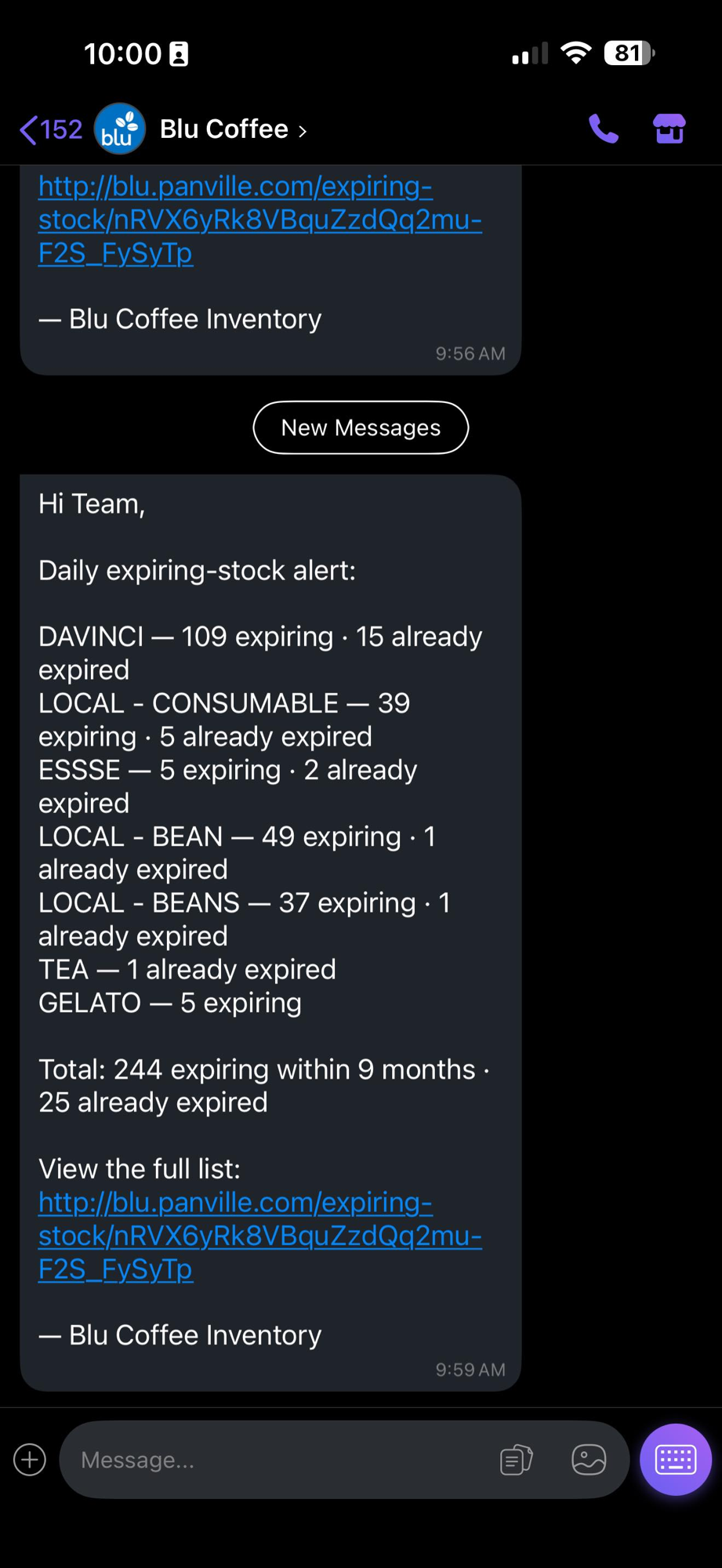
Groups are sorted urgency-first (most already-expired at the top). The detail lives on the page, not in the message — tap the link to drill in.
| Setting | Value |
|---|---|
| Schedule | Daily, 09:00 Manila (Asia/Manila) |
| Channel | Viber via 8x8 (chatapps.8x8.com) |
| Recipients | Users with Receives Expiring-Stock Alerts ticked and a mobile number on file |
Sends are best-effort: if a user has no mobile number, or the 8x8 API hiccups, that one send is skipped and logged — it never blocks the rest of the run.
Opting in
Each Odoo user controls whether they get the daily Viber from their own user form.
Settings → Users → (pick a user) → Preferences tab → Receives Expiring-Stock Alerts.
Managing recipients in bulk: open Blu Reports → Inventory → Expiring-Stock Recipients — an editable list of every internal user where you can tick Receives Expiring-Stock Alerts and fill in any missing mobile numbers for everyone from one screen. (This screen is for Settings administrators.)
A user receives the 9:00 AM Viber only when both are true:
- Receives Expiring-Stock Alerts is ticked on their user form, and
- their partner record has a mobile number on file.
The backend Reports → Expiring Stock list and the public web page are always available regardless of this checkbox — opting in affects the daily Viber only.
Limitations and caveats
The watch-list is only as complete as your setup. Two prerequisites:
- The product has Include to expiring notifs ticked.
- The lot has an Expiration Date entered.
If product-level Track Expiration Dates isn't turned on, incoming stock does not get an expiration date automatically — a date has to be entered manually on each batch. Until you turn it on, a batch with no date entered will not appear, even if its product is flagged.
- Opt-in. Only products with Include to expiring notifs ticked appear on the list.
- Manual dates only (until you enable product-level expiration tracking). A lot appears only if someone typed an Expiration Date on it and it still has on-hand quantity.
- Recommended follow-up. Enable Track Expiration Dates (with a shelf life) on perishable products so new receipts are dated automatically and the list becomes self-maintaining.
- Scrap is excluded. Lots in scrap-flagged locations are not listed.
- The public page has no login. Anyone with the token link sees product names, quantities, and locations — see the warning above.
- Viber is best-effort. Only opted-in users with a mobile number are messaged; failed sends are logged, not retried, and never hold up the rest.
- "Within 9 months" means 9 calendar months counted forward from the current date.
Troubleshooting
| Symptom | Likely cause |
|---|---|
| A perishable batch is missing from the list | Its product doesn't have Include to expiring notifs ticked, or no Expiration Date is entered on the lot |
| A batch is missing even though it has a date | Its product isn't flagged, its quantity on hand is 0, or it sits in a scrap location |
| A batch with a far-off date isn't shown | Its expiry is more than 9 months away — outside the window by design |
| An item appears under the wrong group on the page or Viber | The Group in notifs value on the product is empty or different from what you expected — set it on the product form (Inventory tab) |
| A user didn't get the 9:00 AM Viber | Receives Expiring-Stock Alerts is unticked, or their partner has no mobile number |
| Nobody got the daily Viber | No users are opted in, or the 8x8 API key is missing — check the server log for the daily run |
| The public link won't open | Wrong or truncated token — re-copy the full link from the daily Viber or from a colleague |