Interactive Inventory Report
The Interactive Inventory Report answers two questions for any period:
- How much is on hand at the end of the To date?
- What came in and what went out between From and To, split by the kind of movement (purchase, sale, transfer, count, item request…)?
It shows quantities only. There are no peso values, so it will not tie to the stock valuation or the GL. For the accounts behind each item, use Inventory with COA / Journal.
Opening the report
Go to Executive Dashboard → Dashboard → Inventory tab and click Interactive Inventory Report.

Any internal user who can open the Executive Dashboard can run it.
Inventory → Operations → Inventory Reports → Interactive Inventory Report has the same name but still opens the older wizard version. The report on this page opens from the Executive Dashboard.
Running it

- Pick Warehouses, Locations and Products (all optional). Type a few letters and choose from the list. Each pick shows as a chip under the bar. Click its × to remove it.
- Set From and To.
- Tick Include Zero if you also want rows with no stock (see Reading it right).
- Click Generate. Nothing loads until you do, and changing a filter clears the results until you click Generate again.
| Filter | Notes |
|---|---|
| Warehouses | Active warehouses only. Covers every internal location under the warehouse, archived sub-locations (e.g. Output) included |
| Locations | Active internal locations only. Combined with Warehouses, only locations in both count |
| Products | Any product |
| From | Start of the movement window, 12:00 AM. Blank means the 30 days before To |
| To | End of the window, 11:59 PM, and the date the on-hand is taken. Blank means now |
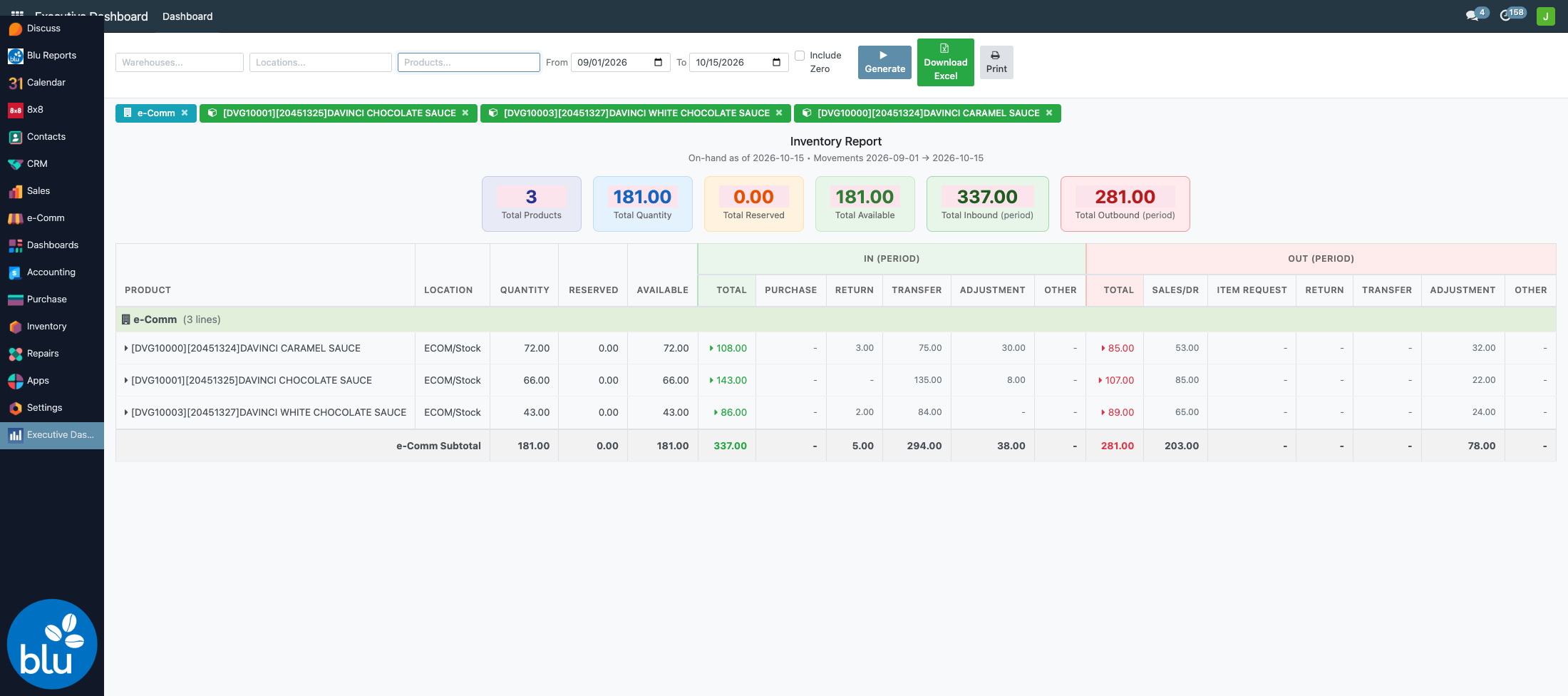
The cards at the top total the rows: products, quantity, reserved, available, and the period's inbound and outbound.
Columns
| Column | What it is |
|---|---|
| Product, Location | One row per product per warehouse, grouped by warehouse with a subtotal. Location lists every location in that warehouse holding the product |
| Quantity | On hand at the end of the To date (now, if To is blank). Negative stock is counted as negative |
| Reserved, Available | Quantity reserved for deliveries, and Quantity minus Reserved |
| IN (period) | Total that arrived in the warehouse between From and To, then split into Purchase, Return, Transfer, Adjustment, Other |
| OUT (period) | Total that left the warehouse between From and To, then split into Sales/DR, Item Request, Return, Transfer, Adjustment, Other |
How each movement is typed
Odoo checks these in order and stops at the first one that fits:
| # | The movement is… | IN column | OUT column |
|---|---|---|---|
| 1 | An inventory count or adjustment (Physical Inventory → Apply) | Adjustment | Adjustment |
| 2 | A scrap made by an Item Request (other scraps go to Other) | — | Item Request |
| 3 | From or to a vendor | Purchase | Return (to vendor) |
| 4 | From or to a customer | Return (from customer) | Sales/DR |
| 5 | From or to another warehouse | Transfer | Transfer |
| 6 | Anything else, e.g. repairs | Other | Other |
Drilling down
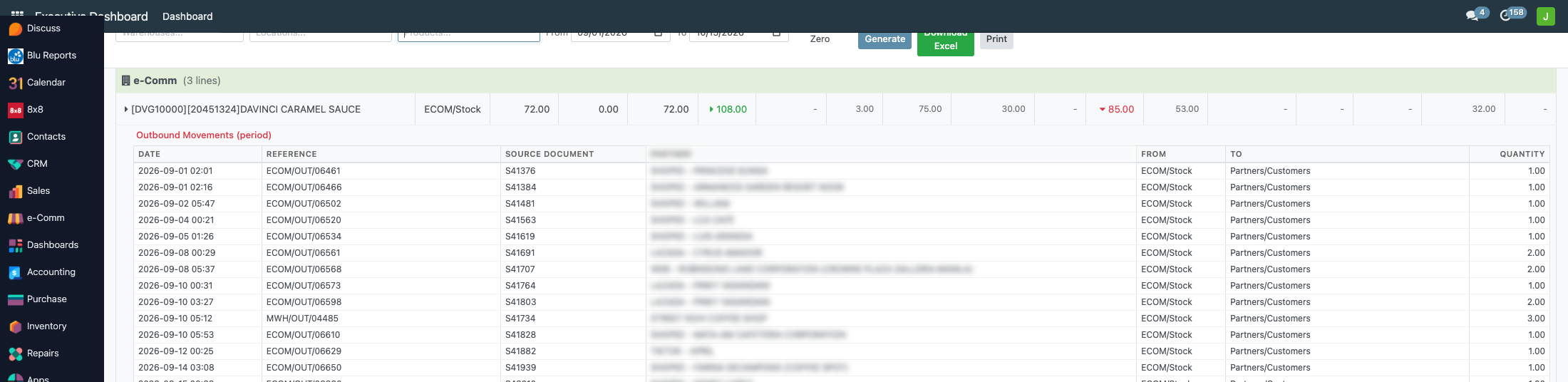
- Click a product with a ▸ arrow: stock by location and lot, with the sales orders holding reservations on it. The arrow only shows when the product sits in more than one location or lot.
- Click an IN or OUT total: the list of movements behind it — date, reference, source document, partner, from, to, quantity.
Excel and print
After Generate, two more buttons appear:
- Download Excel — the same rows and columns with the warehouse subtotals, and under each product its location and lot breakdown and its inbound and outbound movements.
- Print — prints the page as it is on screen (your browser's print dialog).
Reading it right
- Quantities, not pesos. The report will not tie to the stock valuation or the GL.
- There is no Opening column. Opening is roughly Quantity − IN + OUT.
- Moves inside one warehouse are not counted, e.g. MWH/Stock → MWH/Output. Only what crosses the warehouse boundary is IN or OUT.
- Transfers appear twice on an all-warehouse report: OUT at the sending warehouse and IN at the receiving one. Pick one warehouse to see its own flow.
- Counts land on their Count Date. A count entered late still shows in the right period, as Adjustment. See Inventory Count.
- Item request deductions land on the day Confirm & Scrap was clicked, not on the request's Date Requested.
- Movements show only on rows that have stock. If a product's stock in that warehouse is gone, its movements may be hidden. Tick Include Zero to bring those rows back.
- Reserved on a past date is today's reservation, so read it as approximate.
How the numbers are built
Reference
| Concern | File |
|---|---|
| Report data, movement typing, Excel export | common/executive_dashboard/models/inventory_interactive_report.py |
| Screen (filters, table, drill-downs) | common/executive_dashboard/static/src/inventory_interactive/ |
| Button on the dashboard's Inventory tab | common/executive_dashboard/static/src/xml/dashboard.xml |
| Counts dated on their Count Date | bc17/blu_stock/models/stock_move.py |