Inventory Count
Odoo has a built-in count procedure: Physical Inventory lists every product, location and lot on hand. Counters enter what they found, Odoo shows the difference, and an Inventory Administrator applies it. Applying moves the difference into or out of Virtual Locations/Inventory adjustment.
Blu Coffee adds a Count Date. A count often takes days to finish and encode. With a Count Date:
- the difference is taken against the stock Odoo had at the end of that day, not today's stock, and
- the adjustment is posted on that day, 11:59 PM, even if it is entered or applied later.
The 09/30/2026 count is an example: it was entered on 10/03/2026 and posted as of 09/30/2026, 11:59 PM. Deliveries and receipts made between the count and its entry stay as they are, so the warehouse can keep working while the sheets are being encoded.
| Step | Who |
|---|---|
| 1. Plan the count | Inventory Administrator |
| 2. Request a Count | Inventory Administrator |
| 3. Count and enter | Counters (Inventory Users) |
| 4. Review differences | Inventory Administrator |
| 5. Apply | Inventory Administrator |
| 6. Check | Accounting |
The count screen
Go to Inventory → Operations → Adjustments → Physical Inventory.
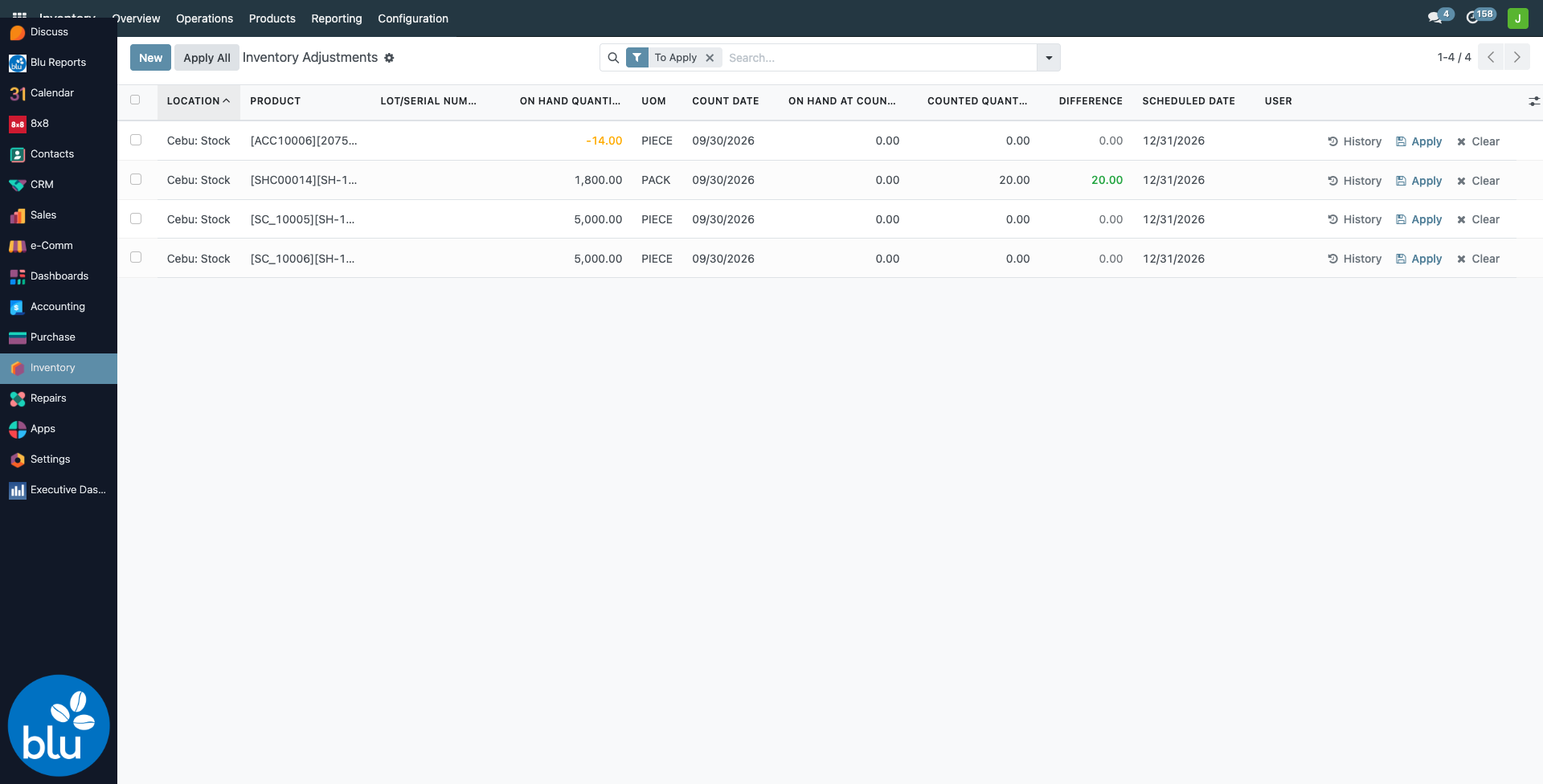
| Column | Meaning |
|---|---|
| On Hand Quantity | Today's stock |
| Count Date | The day the shelves were counted. Leave it empty to count as of now |
| On Hand at Count Date | What Odoo had at 11:59 PM on the Count Date: today's stock minus everything that moved after that day. Shown only when a Count Date is set |
| Counted Quantity | What the counters found |
| Difference | Counted minus On Hand at Count Date (minus today's on hand if there is no Count Date) |
| Scheduled Date, User | When the line is due to be counted, and by whom (set by Request a Count) |
| Accounting Date | Optional (show it from the column picker). Fills in from the Count Date when left empty |
In the screenshot all four lines were counted as of 09/30/2026. The two sleeve lines hold 5,000 today, but that stock was received after 09/30, so On Hand at Count Date is 0 and a count of 0 gives a difference of 0, not −5,000.
Step by step
1. Plan
Decide the Count Date and the scope (warehouse, locations, products). Use one Count Date per count, so every line posts on the same day. Hold transfers during the count if you can.
2. Request a Count
Filter the lines to count, select them and click Request a Count. Set the scheduled date and the counter.
3. Count and enter
Count the shelves and write the quantity per product, location and lot. Then, either:
- line by line — filter My Counts, type the Counted Quantity and the Count Date on each line; or
- import a sheet — gear icon → Import records. Useful columns: Location, Product, Lot/Serial Number, Counted Quantity, Count Date.
An imported count lands on the stock line already there for that product, location and lot. An imported 15 against 16 on hand posts −1, not +15. (Before 10/03/2026 an import created a new, empty line instead, which doubled stock on apply.)
On a line, Set copies the on-hand quantity into Counted — handy when most lines match. Clear undoes a count and its Count Date. History shows every adjustment already applied to that product and location.
4. Review the differences
Filter To Apply and check Difference = Counted − On Hand at Count Date. If a difference looks wrong, recount those lines and correct the Counted Quantity.
5. Apply
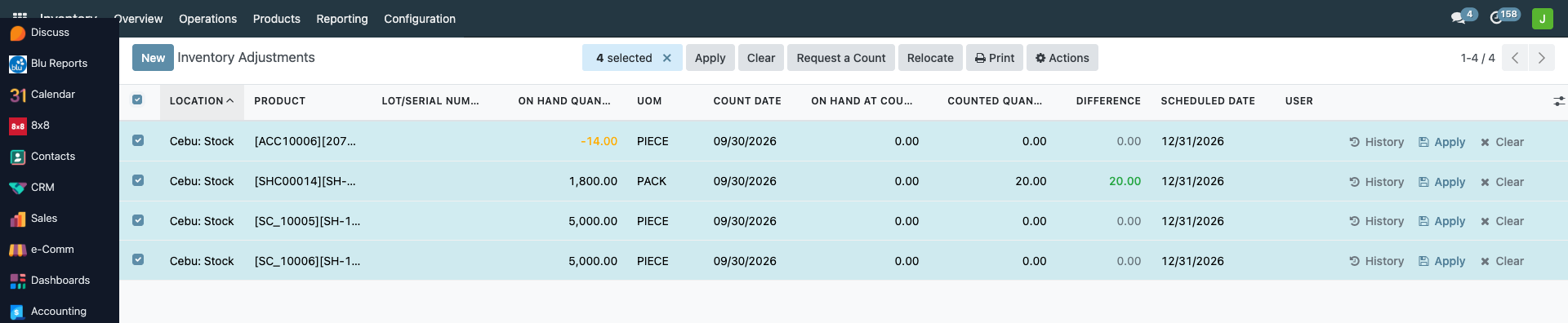
Select the lines and click Apply (or Apply All for everything counted).
Odoo asks for an Inventory Reason. Write something you will recognise later, e.g. Year-end count 12/31/2026, and click Update Quantities.
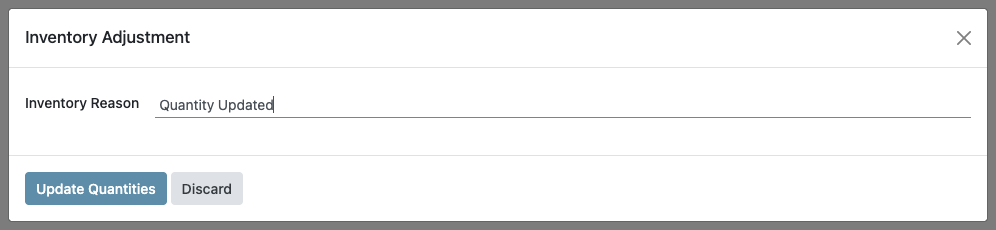
Odoo posts the adjustments dated the Count Date, 11:59 PM, and the accounting date defaults to the Count Date.
6. Check
Run the Interactive Inventory Report with To = the Count Date: the counts show there as Adjustment IN and OUT. Accounting then reviews the value difference.
Rules that trip people up
- Only an Inventory Administrator can Apply. Counters can enter, Set and Clear counts, and import them.
- The Count Date cannot be in the future, and cannot be earlier than the last count already applied to that product and location.
- Count lot-tracked products per lot. A count without the lot asks for confirmation before it applies.
- "Conflict in Inventory Adjustment" means something was posted on or before the Count Date after the count was entered, so the stock at the Count Date changed. Check it before choosing to keep the counted quantity. Moves dated after the Count Date do not trigger it.
- Applying a count makes no journal entry. Blu Coffee's stock valuation is periodic; the valuation records the change and Accounting reviews the peso effect.
Reference
| Concern | File |
|---|---|
| Count Date, On Hand at Count Date, dated apply, outdated rule, imported counts | bc17/blu_stock/models/stock_quant.py |
| Count moves dated 11:59 PM of the Count Date | bc17/blu_stock/models/stock_move.py |
| Count Date columns on the Physical Inventory list | bc17/blu_stock/views/stock_quant_views.xml |