Item Request — Management Sponsorship Workflow
Blu Coffee gives out machines, beans, and consumables for free — coffee stations at hotels, branded espresso bars at sales conferences, sample kits for key clients. The Item Request module captures that work as an approvable, traceable inventory movement:
- The items are removed from stock through a scrap-location move so cost lands on the books with the requestor's name on the journal entry.
- The head of the requesting department approves remotely via Viber — they tap a button on their phone, land on a mobile-friendly review page, and decide right there. They don't need an Odoo login.
- A signed ISO document must be attached before the inventory move is actually executed, giving Accounting a paper trail.
In short: it's inventory-scrapping mechanically, sponsorship-tracking commercially, Viber-approved operationally.
The Viber send reuses the API key and sub-account already configured for Viber marketing campaigns. If blu_8x8.blu_8x8_api_key or the messaging sub-account ID is empty in Settings → 8x8, the submit hook silently skips Viber (it still files the email).
State machine
Cancel is non-destructive at every stage except Done. Once a request is Done, the stock moves have already happened — the order stays Done and only a separate stock-correction can undo it.
End-to-end flow
Configuration — Departments
The approver's contact details live on the department. Open Inventory → Configuration → Department to manage the list.
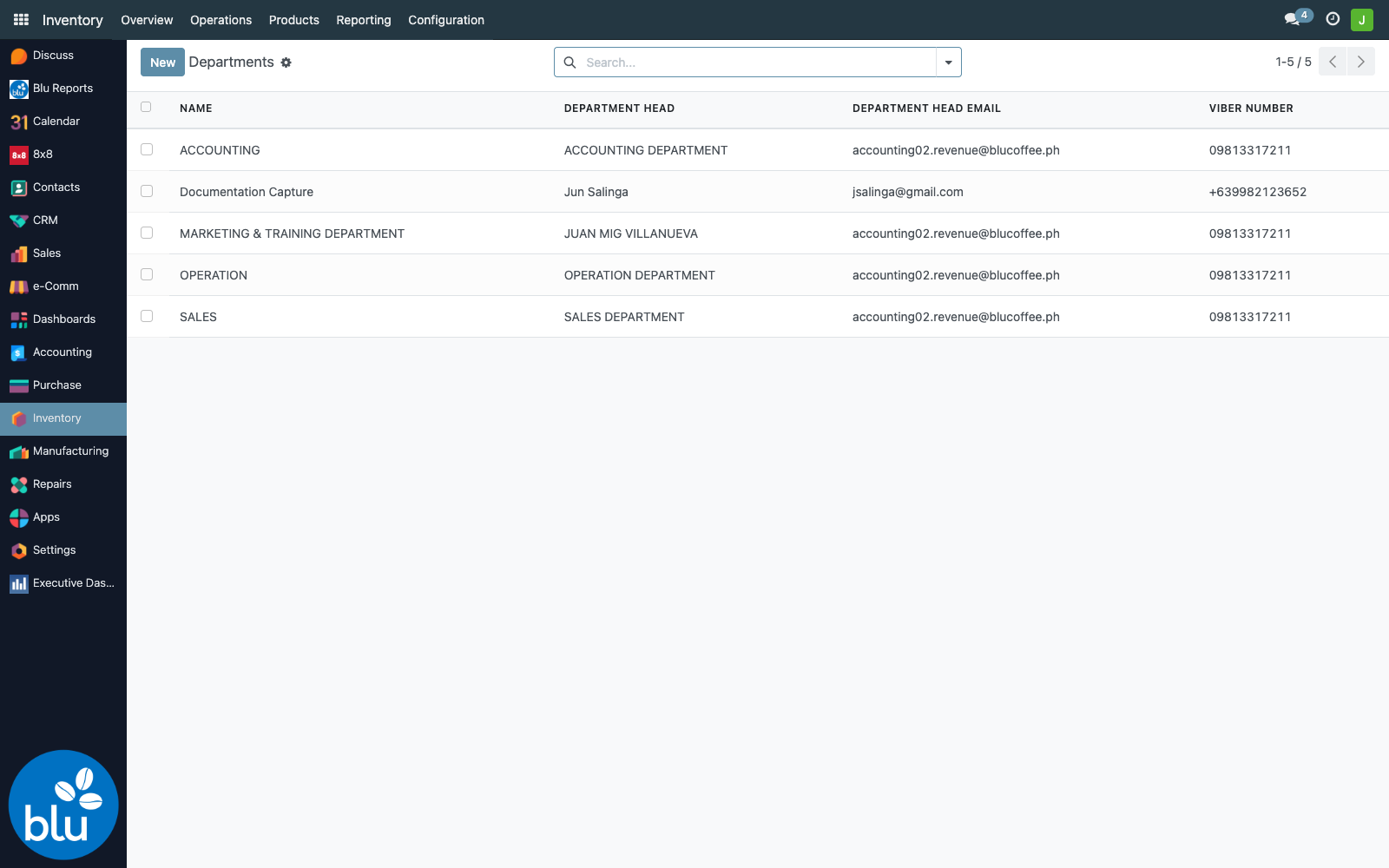
A department record has four fields that matter:
| Field | Purpose |
|---|---|
| Name | Department label (e.g. MARKETING & TRAINING DEPARTMENT). Required, unique. |
| Department Head | Display name — used to personalise the Viber message ("Hi Juan…"). |
| Department Head Email | Receives the approval email with the review-page button. If empty, no email is sent. |
| Viber Number | Where the Viber approval request lands. PH format accepted (09xx… or +639xx…). If empty or unparseable, the submit hook just skips Viber and logs a warning. |
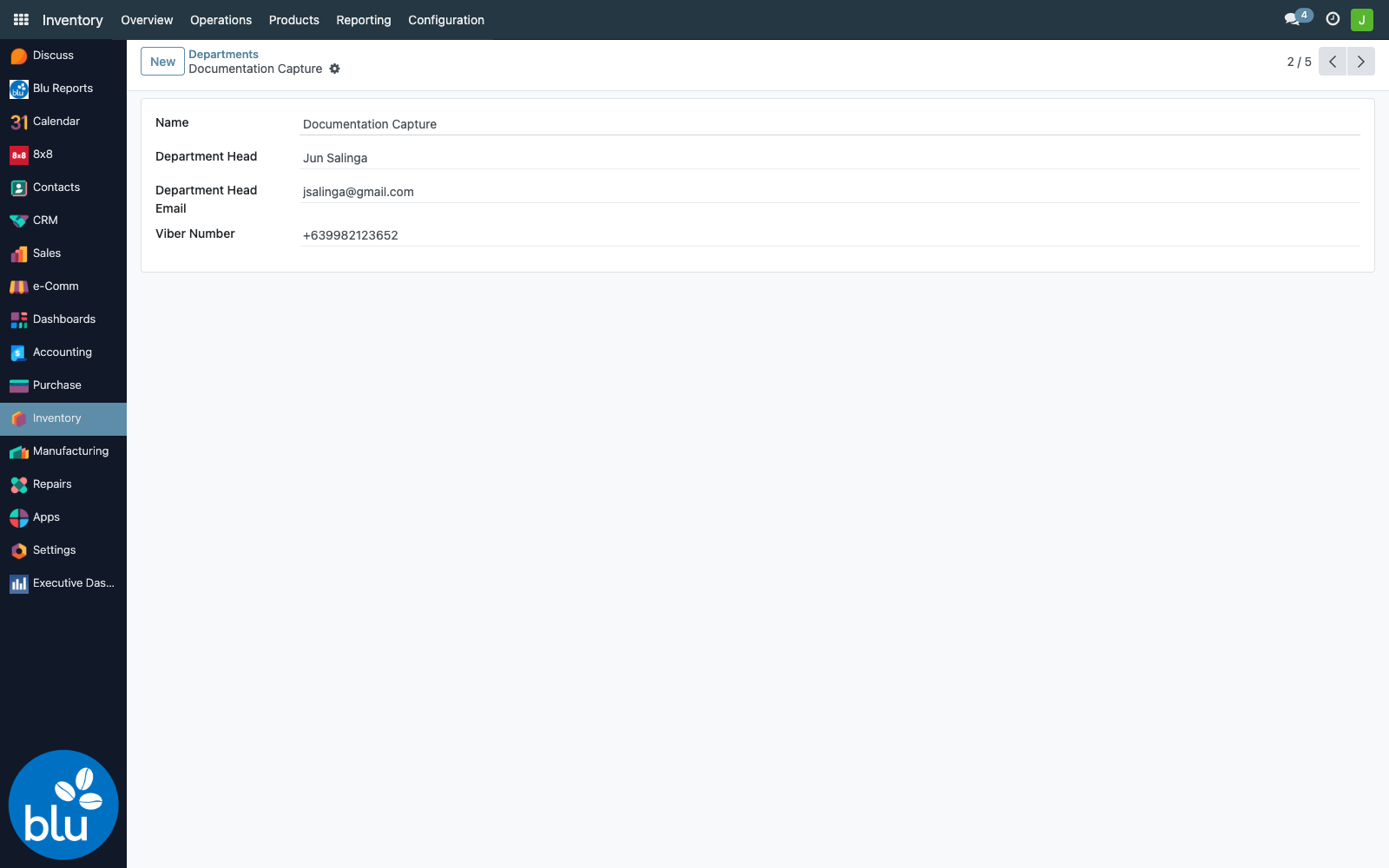
The Viber field is a single number — it's the phone that gets the "Review IR-####" button. Use a department-head phone or a shared sponsorship-approvals number. If you need a second pair of eyes, the approver can take a screenshot of the Viber message and forward it — the review URL is a public token-protected link, so anyone who has it can act on the request.
Creating a request
Inventory → Operations → Adjustments → Item Request → New lands you on an empty draft.
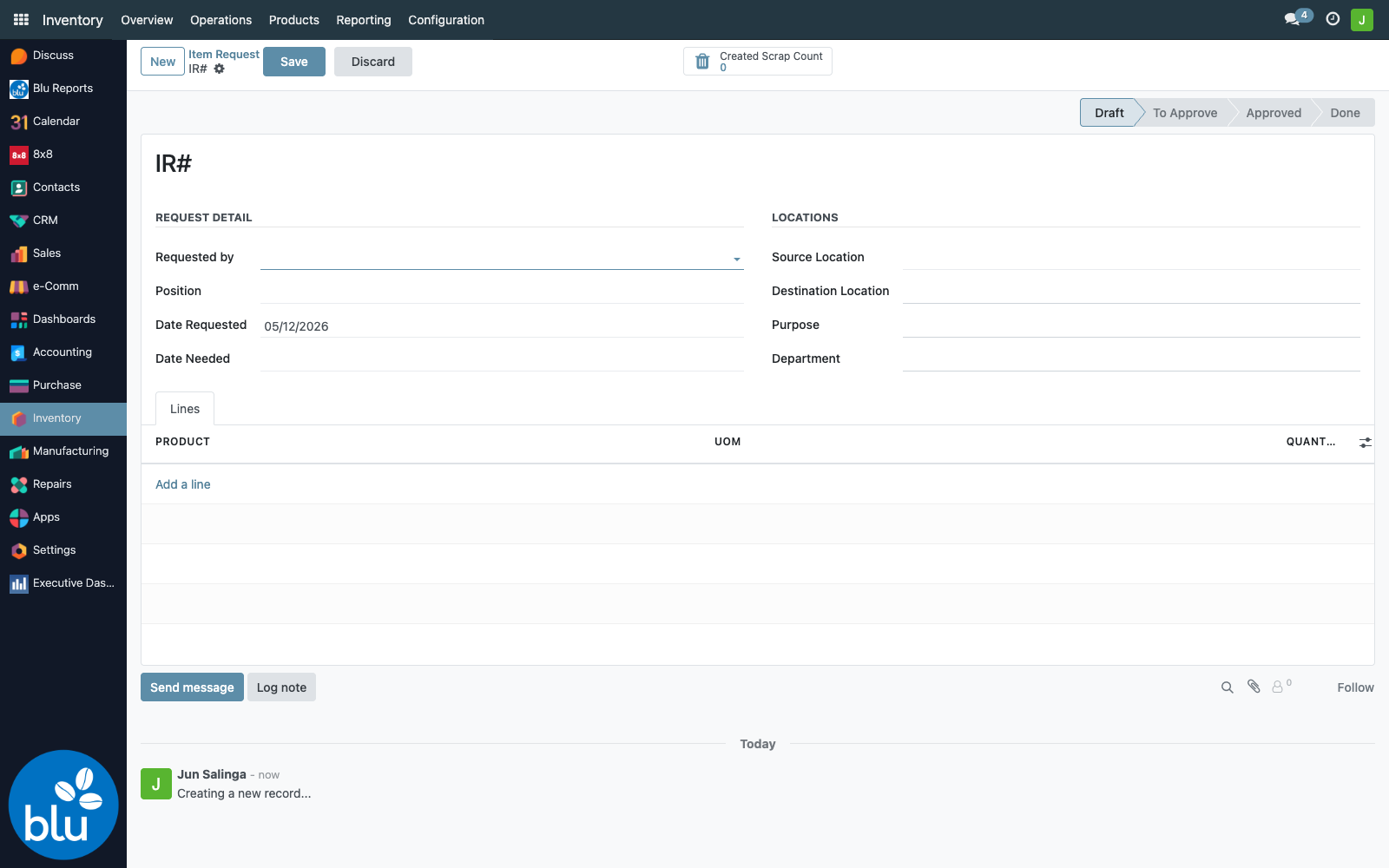
| Section | Fields |
|---|---|
| Request Detail | Requested by (partner picker — the person on whose name the cost will land), Position, Date Requested (defaults to today), Date Needed |
| Locations | Source Location (internal-usage stock with blu_active=True), Destination Location (must be a scrap-type location — typically Virtual Locations/Scrap), Purpose (required free-text), Department (required — picks the approver) |
| Lines | Product, UoM, Quantity. Optional per-line Source Location, Owner, Package. UoM must be in the same category as the product's default UoM. |
A filled draft looks like this — note the Submit button in the header and the Draft badge on the right:
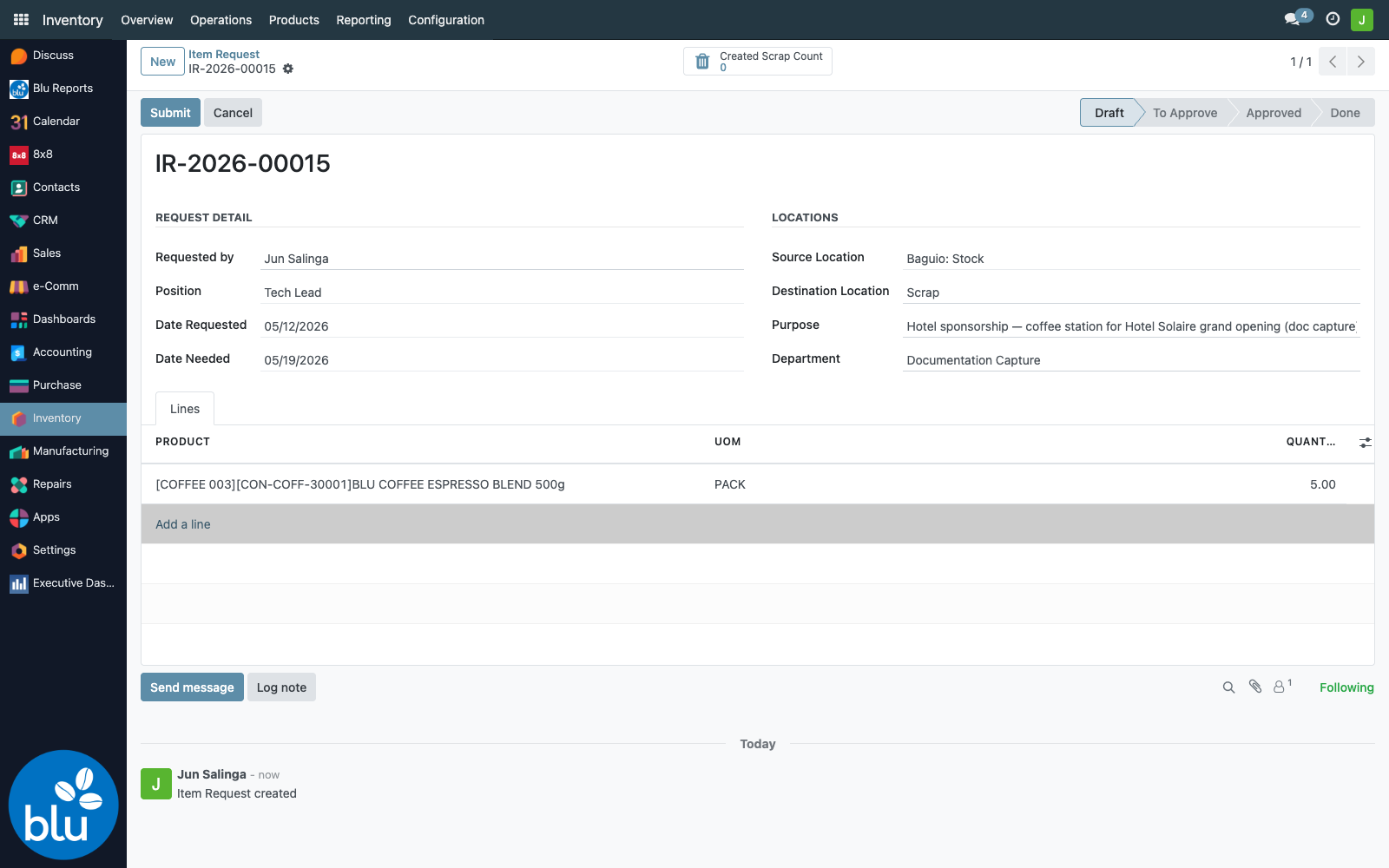
Click Submit. Two things happen, in parallel:
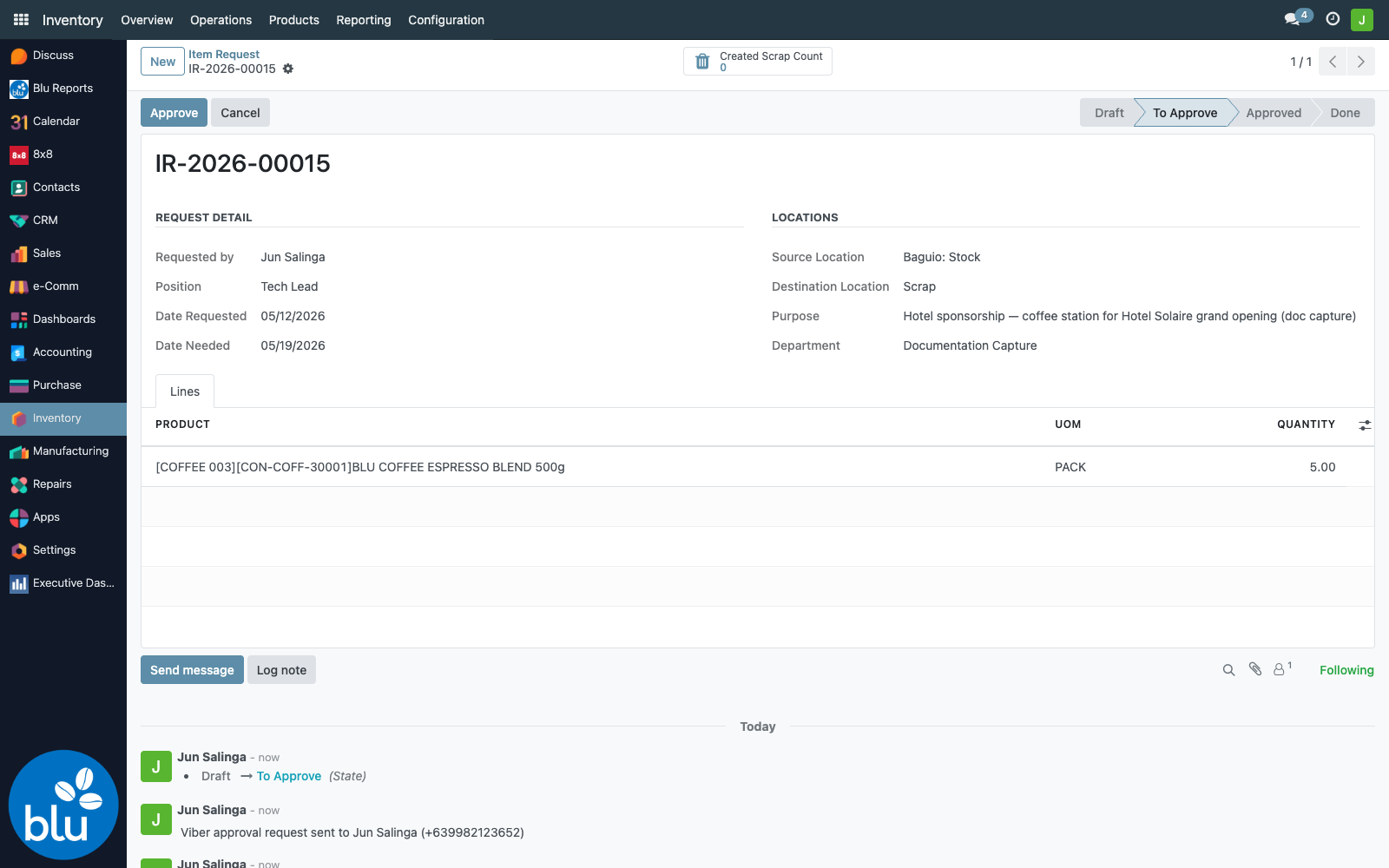
- The status badge moves from Draft → To Approve.
- The chatter logs a confirmation line: "Viber approval request sent to Jun Salinga (+639982123652)" — that's the proof your Viber payload was posted.
The approver's phone
The Viber arrives as a buttoned chat message from the Blu Coffee channel — personalised greeting, request summary, line items, a link to the PDF, and a single Review IR-#### button:
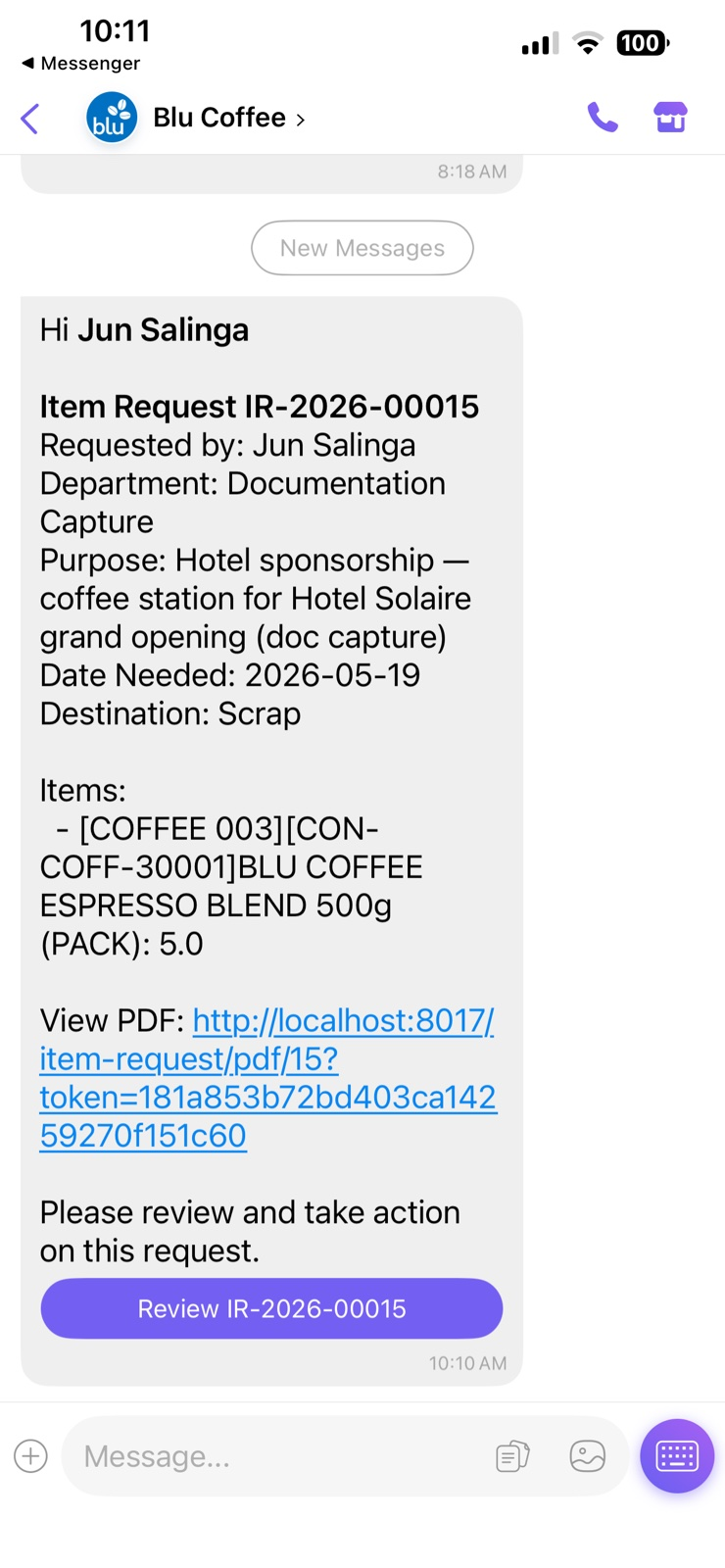
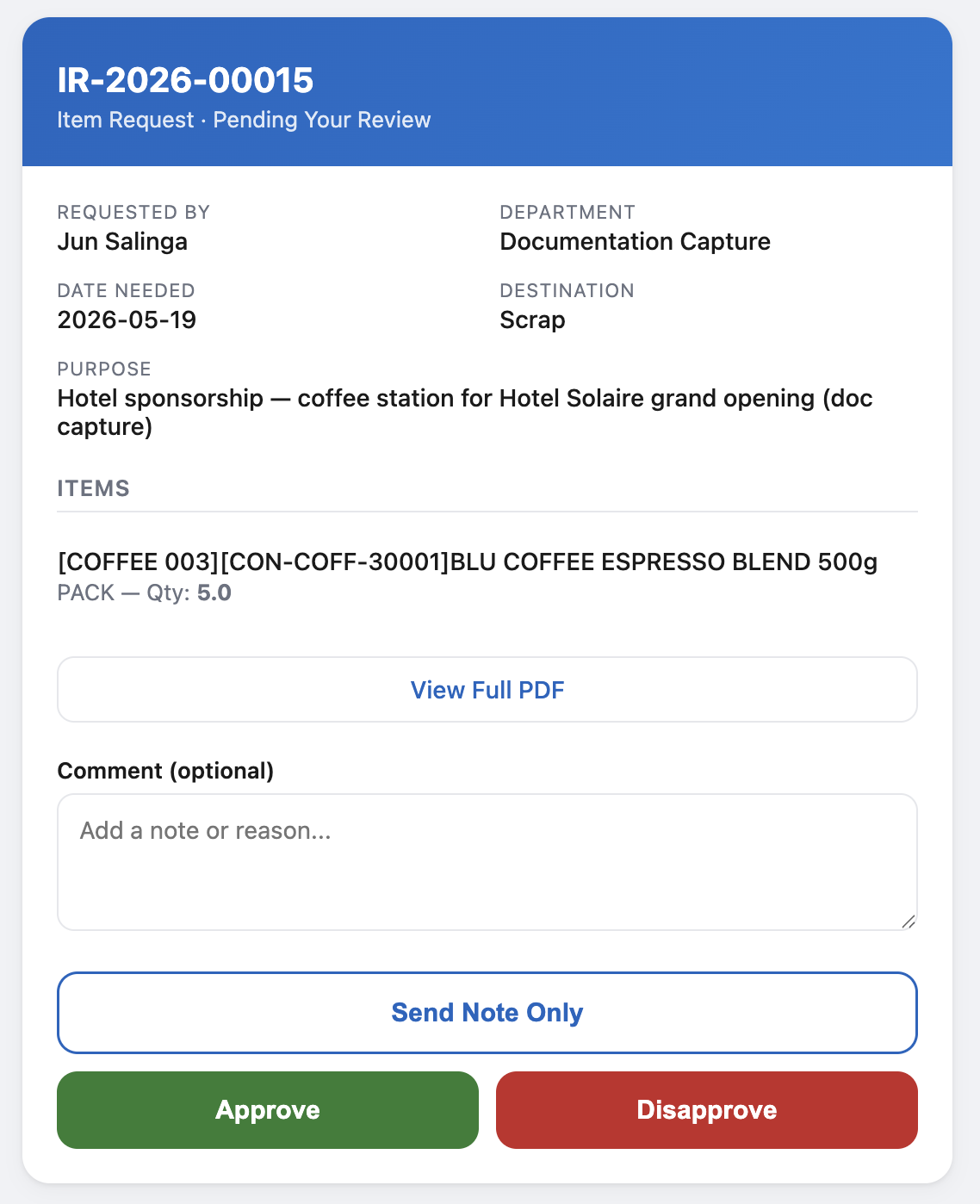
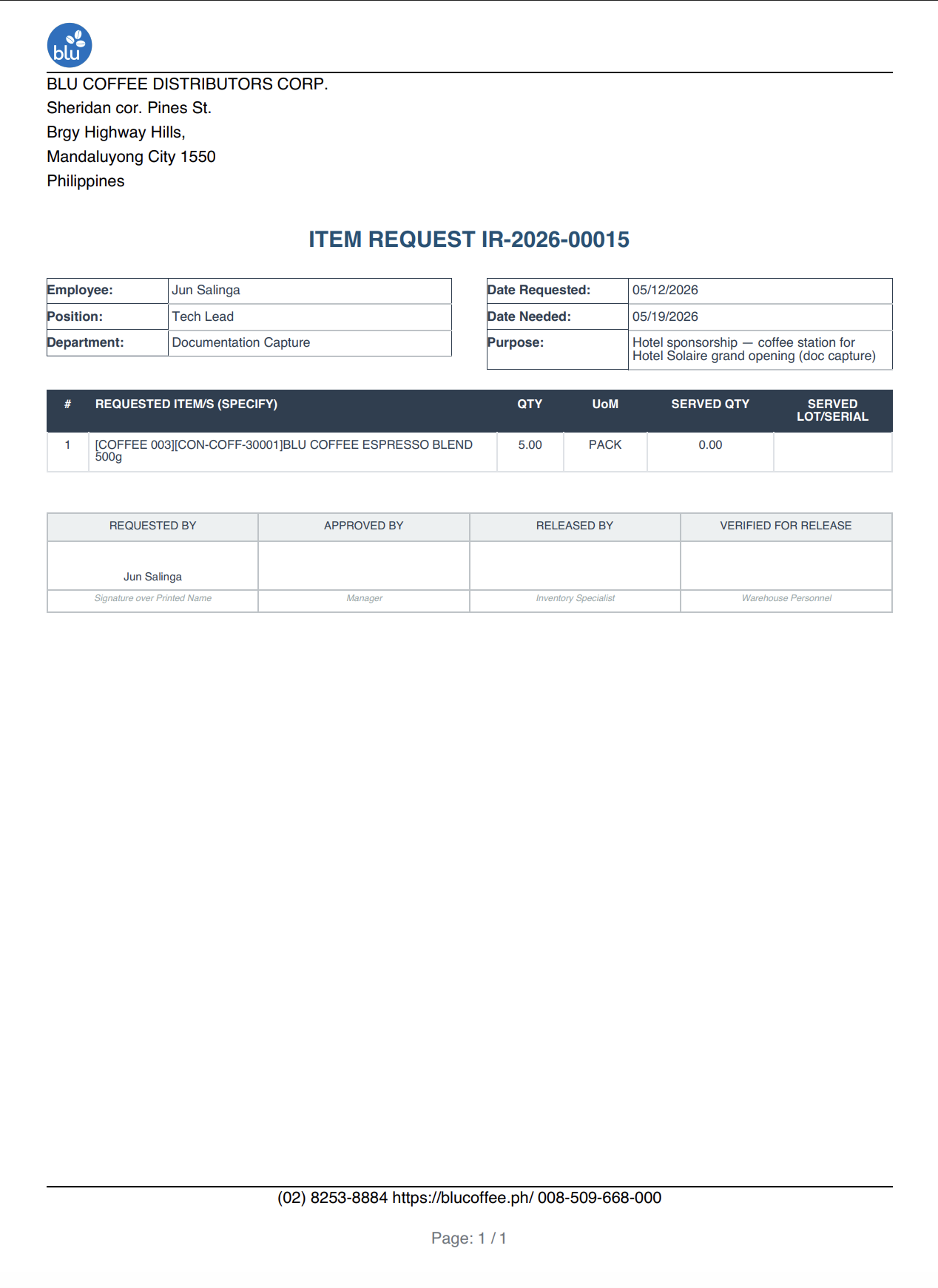
The chat-message text itself includes a plain-text View PDF: link — that's the same URL the View Full PDF button on the review card opens, and it works even if the recipient prefers to read the PDF first before opening the review card.
The review card gives the approver three actions:
| Button | Effect on the Item Request | Notifications fired |
|---|---|---|
| Approve | state → Approved. Optional comment saved as approval_comment and posted to chatter. | None (the chatter entry is the audit trail). |
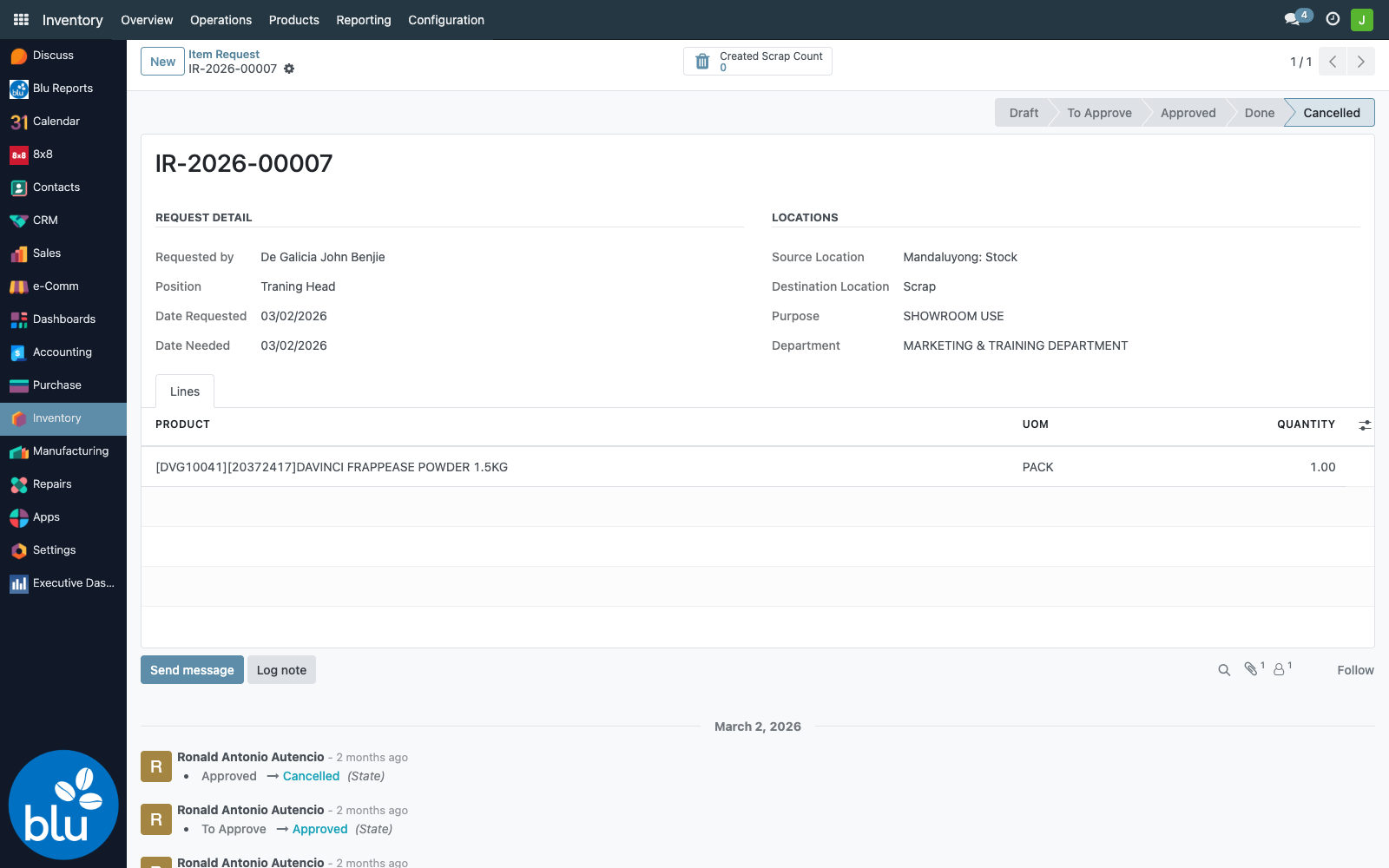
| Disapprove | state → Cancelled. Reason saved as approval_comment and posted to chatter. | None. |
| Send Note Only | state goes back to Draft. Comment is required. The note is sent to the creator via both Viber and email so they know what to fix. | Viber to creator's mobile + email to creator's address. |
Both /item-request/<id>/review and /item-request/pdf/<id> are auth='public' (no Odoo login required) and require the per-record access_token (UUID4 hex) as a query parameter. Tokens are generated on create and never regenerated — so anyone holding the URL can read or act. Don't forward it outside the approval chain.
After the approver acts, the public page renders a confirmation card (green tick for Approve/Note Sent, red for Disapprove) and the IR's state in Odoo is already updated. The approver doesn't need to do anything else.
States by example
For reference, here's what each state looks like in the Odoo backend.
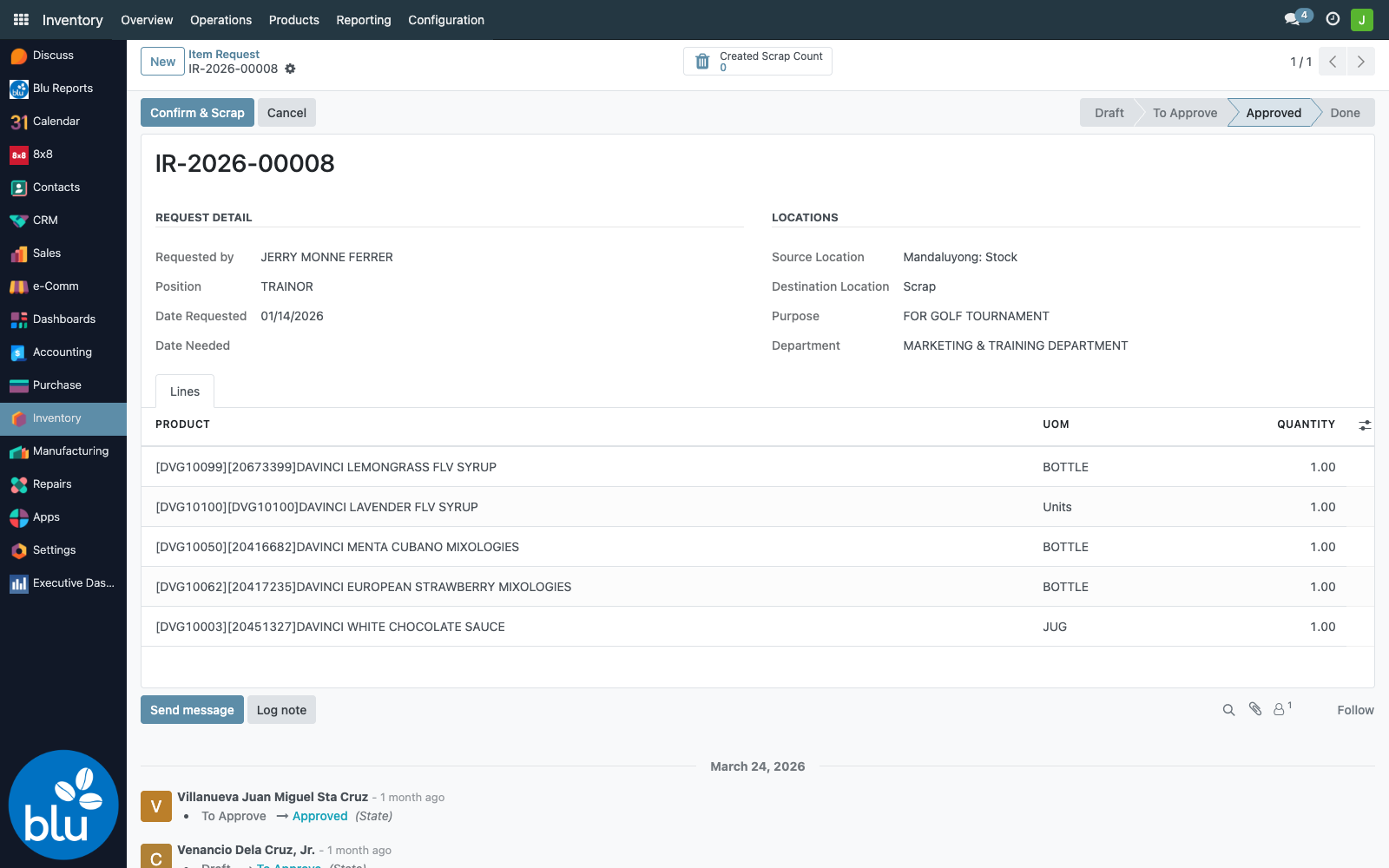
Approved — ready for the final inventory move
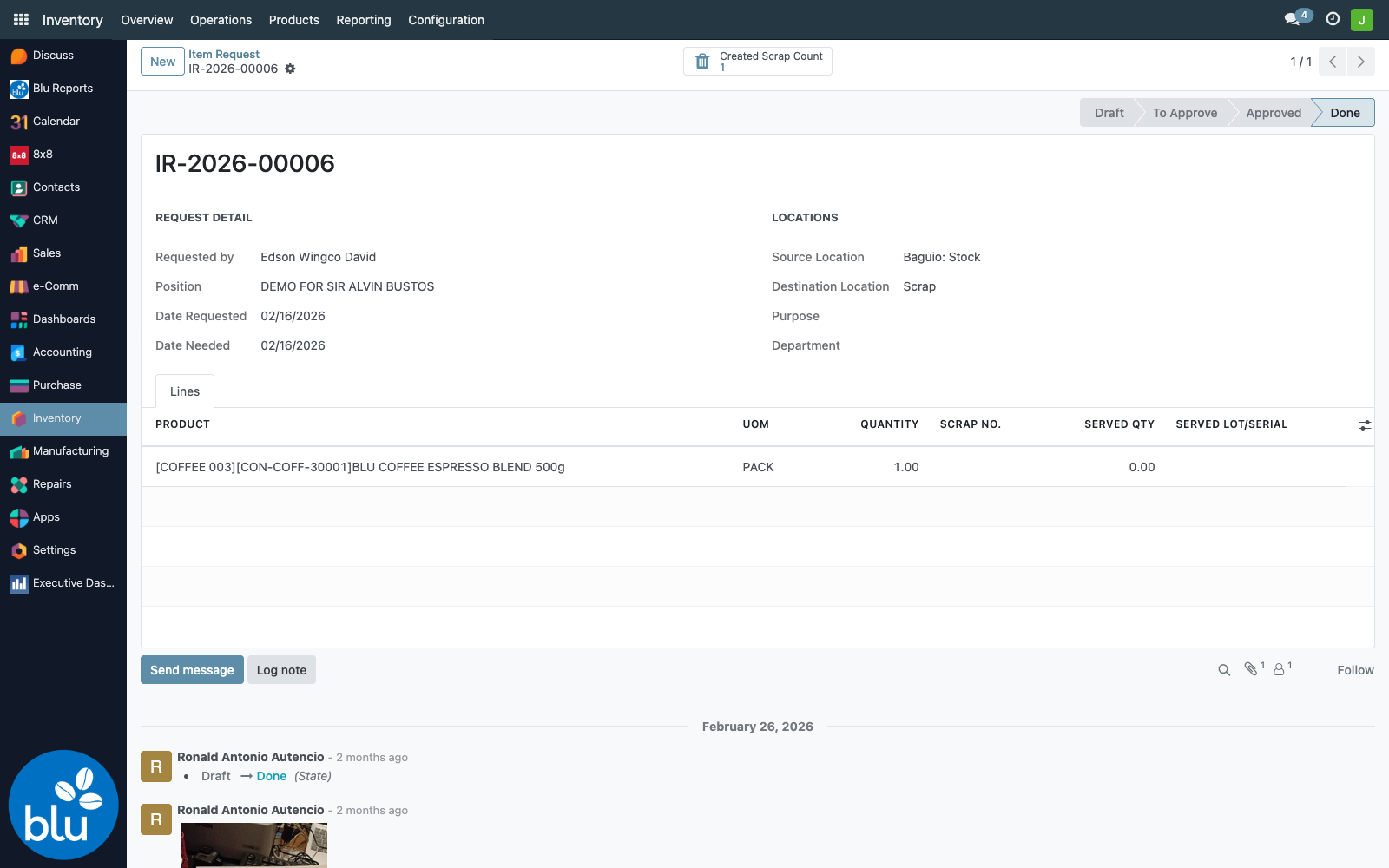
Done — inventory moved, journal entry posted
Cancelled — either disapproved by the head, or manually cancelled
Confirming & moving the inventory
Once the request is Approved, the creator (or an Inventory user with access) needs to do two things:
- Attach the signed ISO to the request — paperclip icon → Upload → PDF, JPG, or PNG. This is enforced by
action_confirm(); without an attachment in those mimetypes you get an error telling you to attach the file first. - Click Confirm & Scrap. This iterates every line and:
- Creates a
stock.scrap(linked back viabatch_order_idandorder_line_id) - Validates it immediately (stock leaves the source location, lands in the scrap destination)
- Writes
partner_id = requested_by_idandref = "IR-####/<product name>"onto the resulting journal entry and every journal item, so the cost is attributable in P&L reports
- Creates a
The IR's state flips to Done. The smart button at the top — Scrap Orders — opens the list of underlying stock.scrap records for traceability.
The regular Inventory → Operations → Scrap Orders menu is patched to filter out is_item_request=True so sponsorship moves don't pollute the day-to-day scrap list. To see them, drill in from the Item Request form via the smart button.
Item Request list — search & reporting
The list view supports the standard state filters plus a few useful groupings:
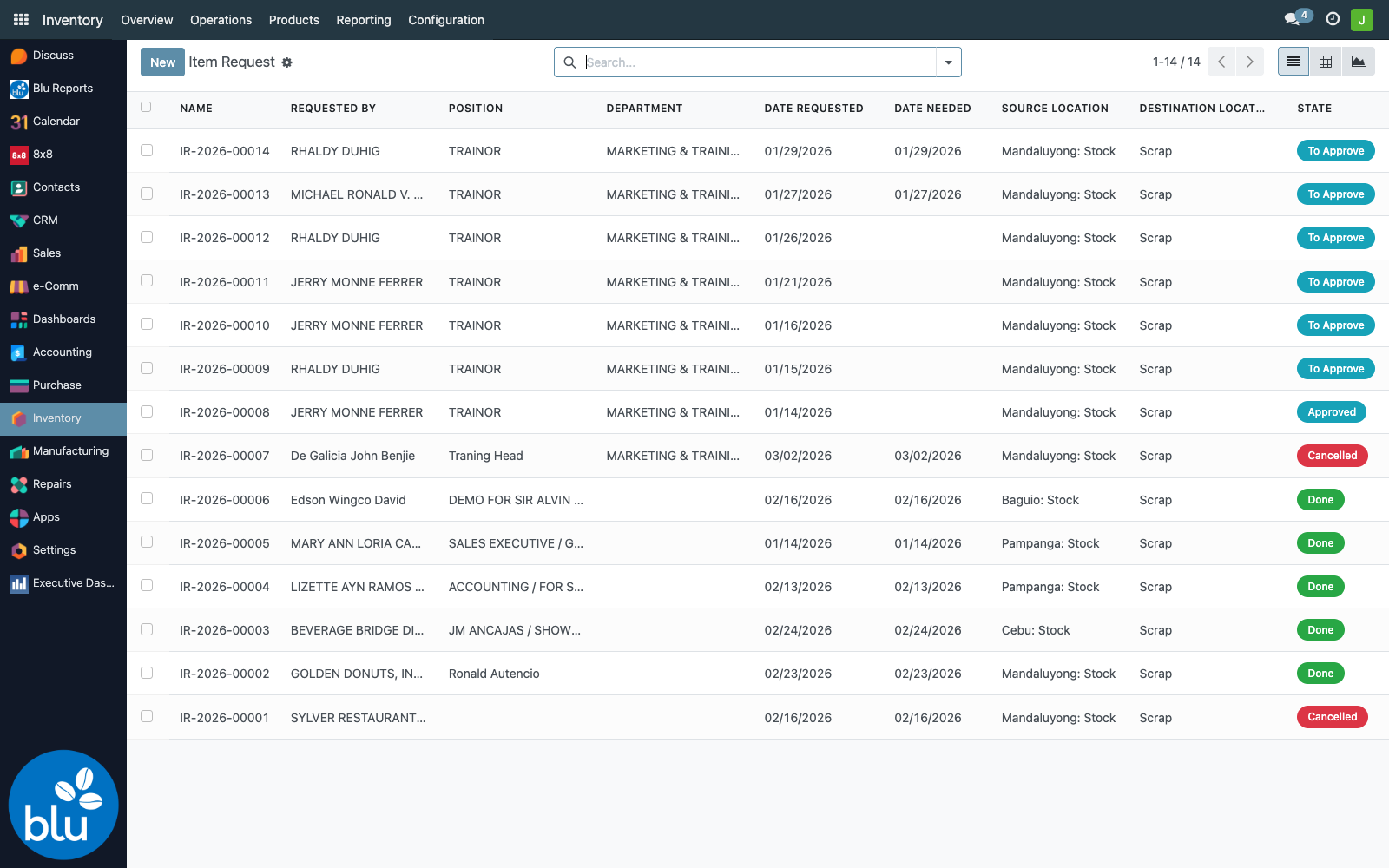
Pivot + Graph views are pre-declared on the action, so the same data feeds analytics out of the box — useful for tracking sponsorship spend per department or per requestor over time.
Reference — code & data map
| Concern | File |
|---|---|
| Main model (header + state machine + Viber/email hooks) | common/item_request/models/item_request.py |
| Line model | same file (StockScrapOrderLine) |
| Department lookup | common/item_request/models/department.py |
stock.scrap extension (batch_order_id, is_item_request) | common/item_request/models/stock_scrap.py |
| Public controllers (review page, PDF, approve/reject/note) | common/item_request/controllers/main.py |
| Backend views (form, list, search) | common/item_request/views/item_request_views.xml |
| Department views | common/item_request/views/department_views.xml |
| Email templates | common/item_request/data/mail_template.xml |
| QWeb PDF report | common/item_request/report/item_request_report.xml |
| Sequence (IR-YYYY-#####) | common/item_request/views/item_request_views.xml |
Public URLs
| URL | Method | Auth | Purpose |
|---|---|---|---|
/item-request/<id>/review?token=<access_token> | GET | public | Renders the mobile review card |
/item-request/<id>/approve?token=<access_token> | POST | public | Approves (state → Approved). Body: optional comment. |
/item-request/<id>/reject?token=<access_token> | POST | public | Disapproves (state → Cancelled). Body: optional comment. |
/item-request/<id>/note?token=<access_token> | POST | public | Sends note + flips state back to Draft. Body: comment required. |
/item-request/pdf/<id>?token=<access_token> | GET | public | Renders the QWeb PDF inline |
Settings touchpoints
| Where | Why |
|---|---|
| Settings → 8x8 → 8x8 API Key, Messaging App Sub-account ID | Used by _send_viber_approval() and _send_viber_note_to_requestor(). Empty → Viber silently skipped. |
| Settings → System Parameters → web.base.url | Embedded in the review/PDF URLs sent to the approver. Make sure this is the public host, not localhost:8017. |
| Inventory → Configuration → Department | Department head name, email, Viber number per department |