Trip Ticket
The trip ticket is the paper that goes out with the truck: which deliveries it carries, who is driving, who is helping. Until now it lived in Excel, and once the truck came back nothing in Odoo connected the returned DRs to the trip that made them.
This page covers the trip ticket in Odoo — planned and printed before dispatch, completed when it comes back. One record, two moments.
Validating a DR works exactly as it does today. A delivery does not wait for a trip ticket, and nothing here changes when stock moves. The trip ticket records what happened; it does not gate it.
Step 1 — Create the ticket
Go to Inventory → Transfers → Trip Tickets and click New.
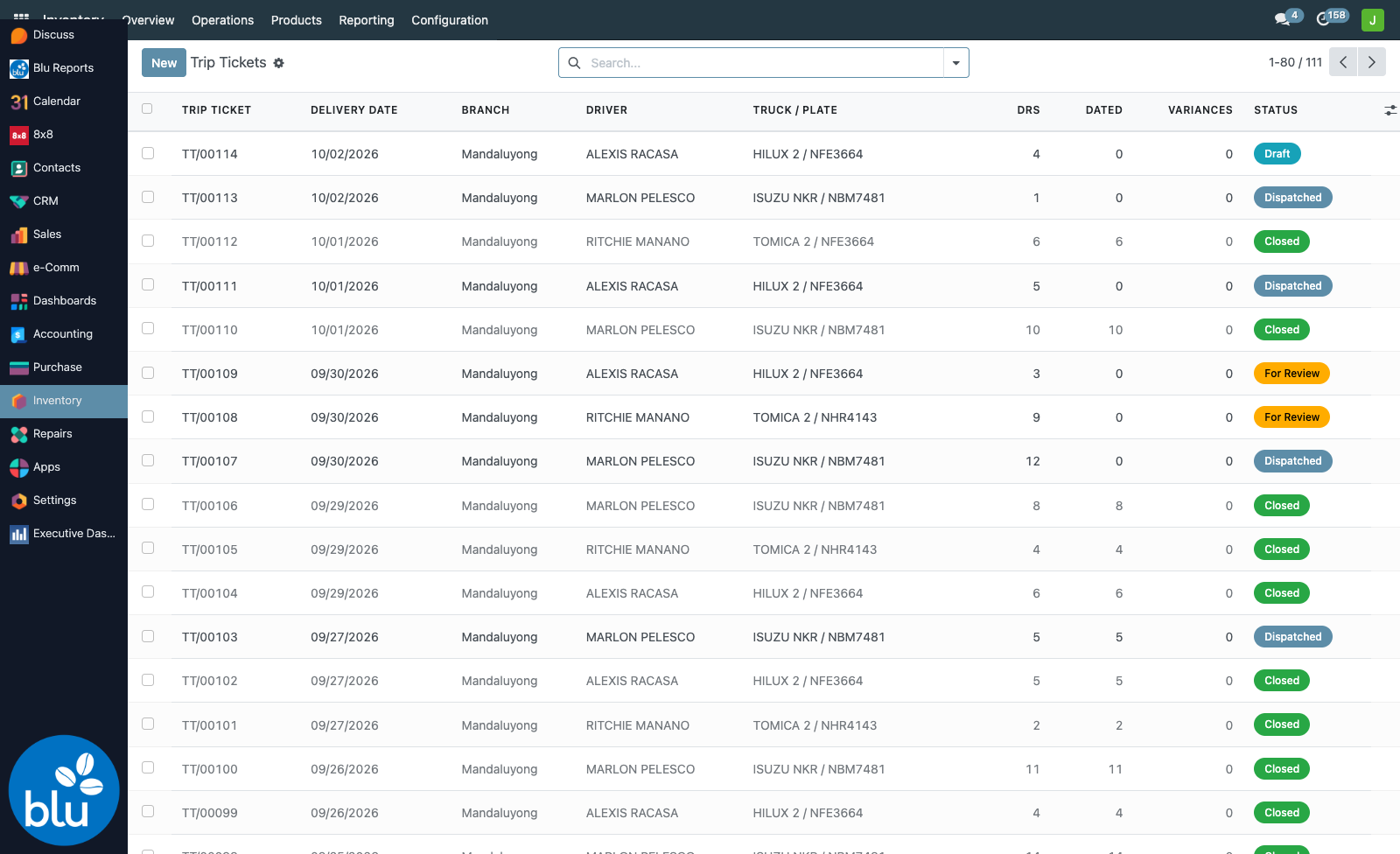
Fill the header once for the whole trip:

| Field | Notes |
|---|---|
| Delivery Date | The day the truck goes out |
| Departure | Optional. Use it when the same truck runs two trips in one day |
| Branch | Which warehouse the trip leaves from |
| Driver / Pahinante | From your Delivery Staff list |
| Truck / Plate | Free text, e.g. Isuzu ELF / ABC 1234 |
| Checker | Who checked the load before it left. Anyone on the Delivery Staff list. Printed on the ticket |
| Printed No. | Optional, if the paper ticket carries its own number |
Driver and pahinante are entered once per trip, not once per delivery — they belong to the truck, not to each DR.
Only people with Drives ticked in Inventory → Configuration → Delivery Staff appear there, and only those with Pahinante ticked appear in the helper list. Add the person or tick the box first.
Step 2 — Add the deliveries
On the Delivery Receipts tab, click Add Delivery Receipts:
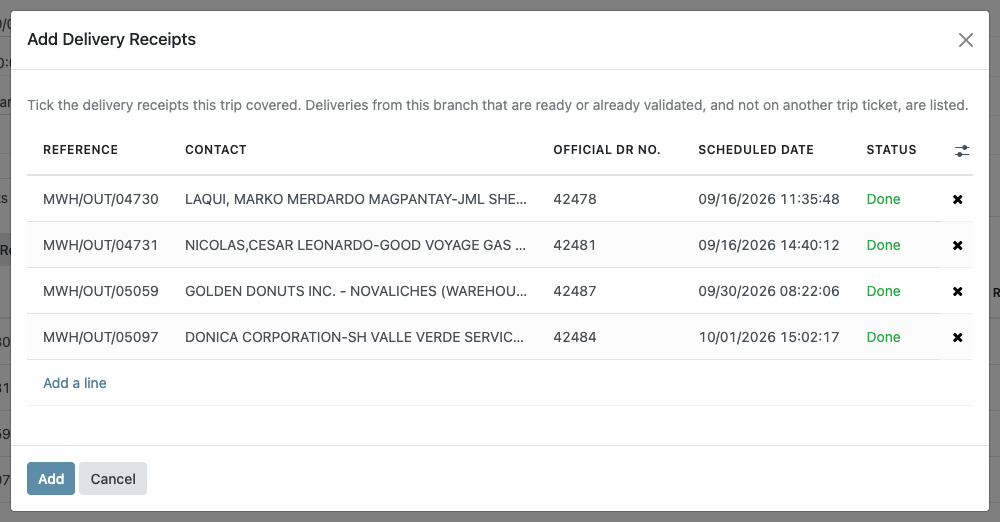
The list shows deliveries from that branch that are Ready or already Done (validated) and are not on another trip. The Status column tells you which is which. Tick the ones this truck is carrying and click Add.
Branches validate at different points. Mandaluyong usually validates the DR before building the trip, so its deliveries are Done; Cebu tends to leave them at Ready. Both are offered, so every branch can build its trips. Draft and cancelled deliveries are never listed.
If you tick a DR that is already on another ticket, Odoo stops you and names the other ticket. Untick a row and click Add again to take a delivery off this trip.
Then Submit for Review, print the ticket (next step), and click Dispatch when the truck leaves.
Step 3 — Print the trip ticket
The paper that goes out with the truck now comes from Odoo instead of the Excel sheet. On the trip ticket, click the gear icon next to the ticket number and choose Trip Ticket:
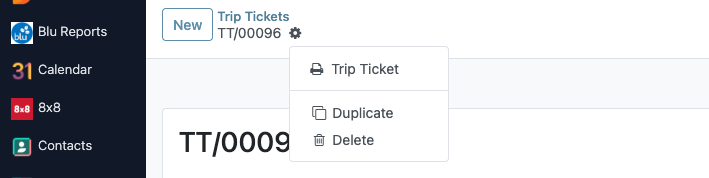
You get a landscape A4 PDF laid out like the old Excel sheet:
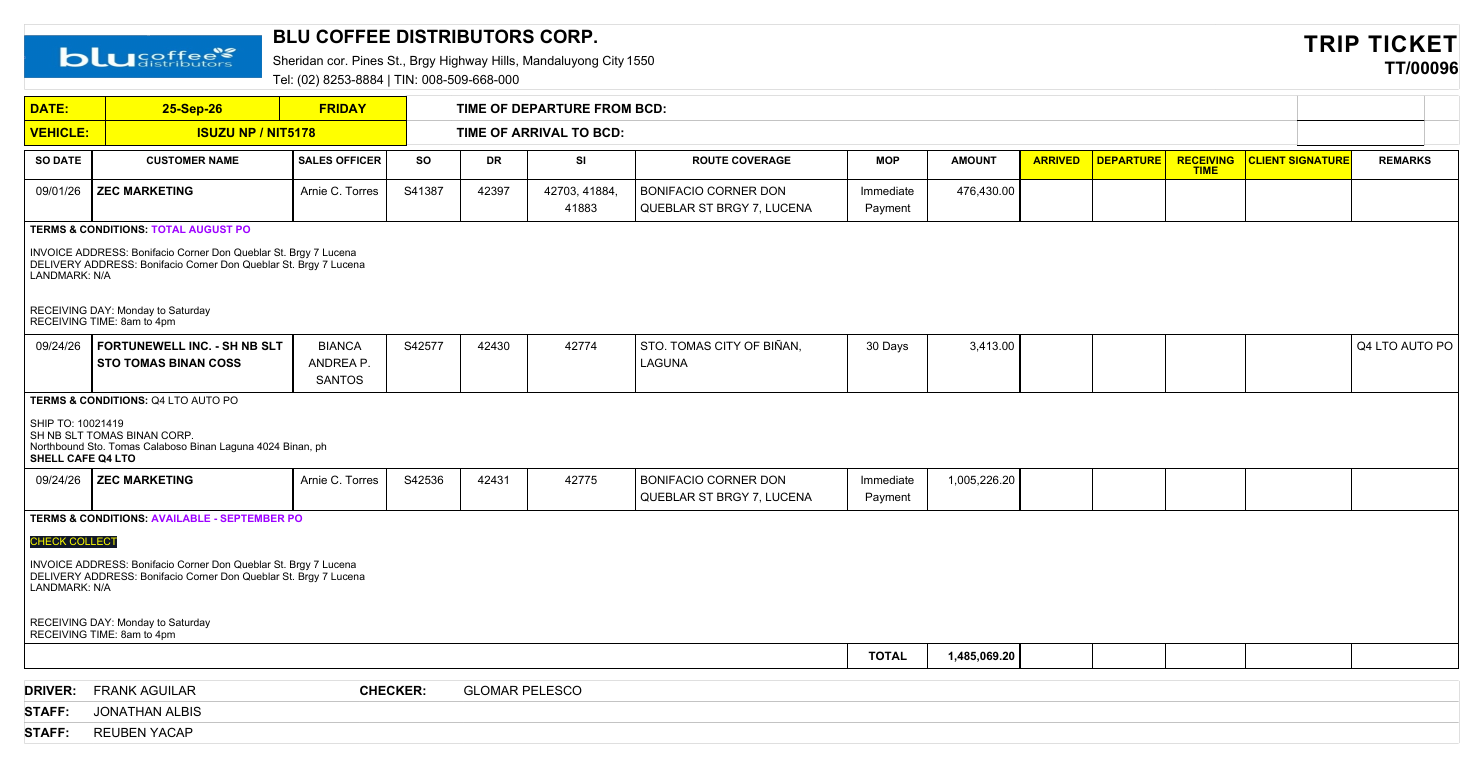
| Part of the sheet | Where it comes from |
|---|---|
| Letterhead | The company's name, address, phone and TIN, with the Blu Coffee wordmark |
| Date, day, Vehicle | The ticket's Delivery Date and Truck / Plate |
| SO Date, Customer Name, Sales Officer, SO | The sales order behind each delivery |
| DR | The official DR number, or the Odoo reference if no DR number is recorded yet |
| SI | The BIR SI number(s) of invoices raised for that delivery's lines — up to three, then "+n" |
| Route Coverage | The customer's delivery address when the customer has one; otherwise the customer's own address |
| MOP | The order's payment terms |
| Amount | The value of what is on this delivery — not the whole order total. An order split across two trucks is counted once, not twice |
| Remarks | The order's Customer Reference (usually the client's PO) |
| Terms & Conditions row | The Terms and Conditions written on the sales order — where the drop-to instructions, contact person and receiving hours usually are |
| Driver, Checker, Staff | The crew on the ticket header. Each pahinante prints as a Staff line |
The yellow columns — Arrived, Departure, Receiving Time, Client Signature — and the departure and arrival times at the top are left blank for the driver to fill in by hand on the road.
Route Coverage follows the customer's delivery address in Contacts. If a site is printing the head-office address, the customer has no delivery address recorded — add one under the customer's Contacts & Addresses tab (type Delivery Address) and print again. The drop-to notes in the order's Terms and Conditions print underneath as a backup.
Step 4 — Encode the trip when it comes back
When the trip ticket returns with the client-signed DRs, open it and go to the Delivery Receipts tab. Every delivery on the trip is one row:
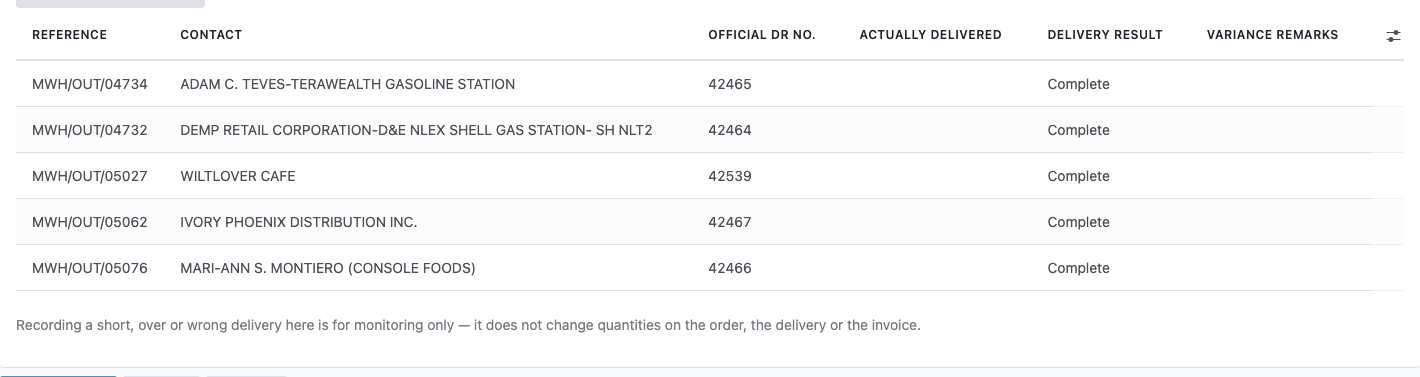
For each row, fill in:
- Actually Delivered — the date the client really received the goods
- Delivery Result — a dropdown: Complete, Short, Over, or Wrong Item. It starts at Complete
- Variance Remarks — what was short, over or wrong
You can tab straight across the rows without opening each delivery. A row marked Short or Wrong Item turns red, and Over turns amber, so variances stand out on the trip at a glance:
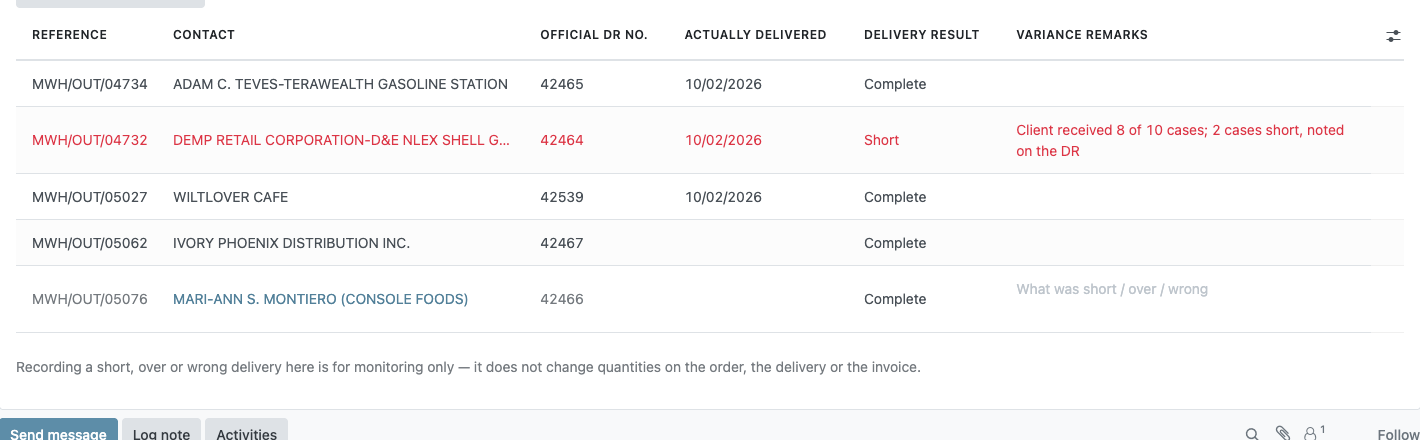
Marking a delivery Short is for monitoring only. It does not touch the sales order, the delivery, or the invoice — those stay exactly as they were. Correcting the paperwork is a separate decision, and the process for that is still being agreed with Accounting.
Step 5 — Post-validate and close
Click Post-Validate & Close. This stamps who checked the trip and when onto every delivery on it, and closes the ticket:


If any delivery on the trip has no Actually Delivered date, Odoo refuses to close and lists exactly which ones need it. Fill those in and try again.
What Sales sees
Once a trip is post-validated, the trip ticket number and the real delivery date flow up to the order. On the Sales Orders and Quotations lists you get a Trip Ticket column, and a second SLA measured against the actual delivery:
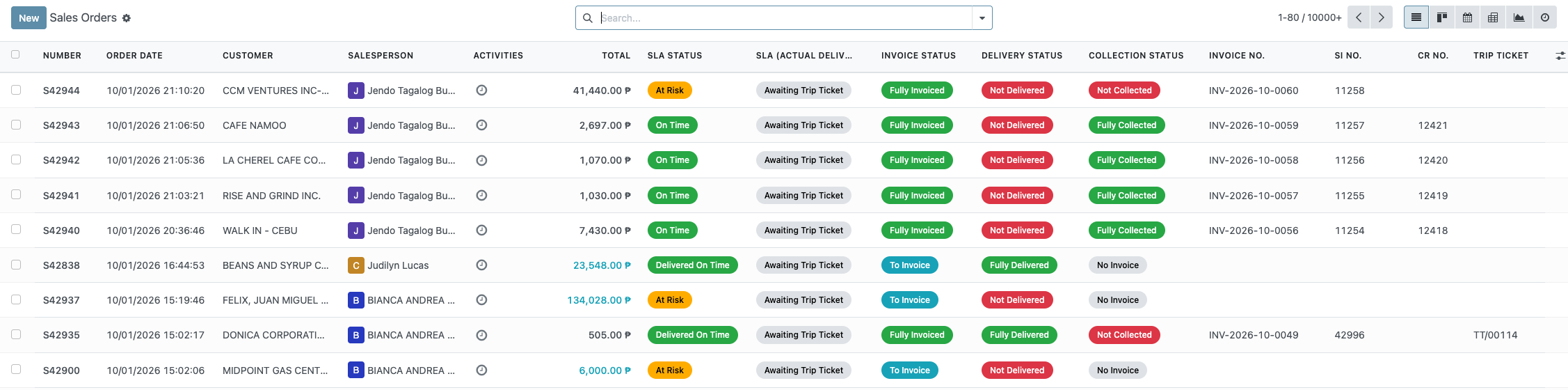
The same information shows on the warehouse side: the Delivery Orders list carries Actually Delivered, Delivery Result and Variance Remarks columns, read-only, plus the second SLA. See Delivery Orders — SLA at a Glance.
There are now two SLA columns, and they answer different questions:
| Column | Measures | Changes? |
|---|---|---|
| SLA Status | Order confirmed → DR validated | No. Unchanged, and still feeds the existing reports |
| SLA (Actual Delivery) | Order confirmed → client actually received | New. Shows Awaiting Trip Ticket until the trip is post-validated |
It is wired into existing reporting, so recalculating it would restate figures that have already been circulated. The trip ticket adds a second measure alongside it rather than changing the first.
Deliveries still waiting to be checked
Nothing forces a post validation to happen. A delivery can go out, come back, and simply never be checked — which is exactly the gap this list closes.
Inventory → Transfers → Awaiting Post Validation shows every delivery that has gone out but has not yet been post-validated against a returned trip ticket. Oldest first, so the ones that have been sitting longest are at the top:
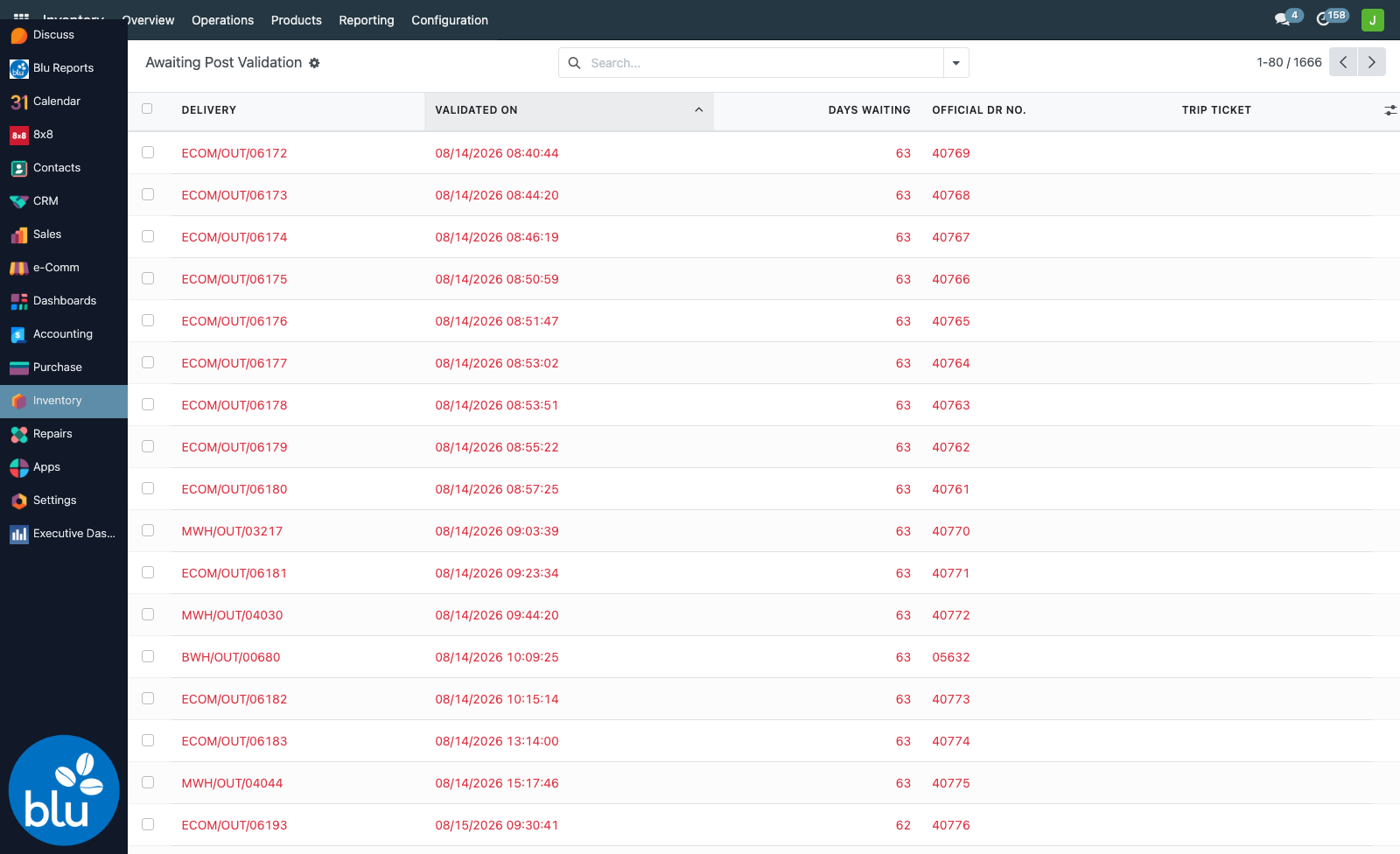
The Days Waiting column counts from the day the delivery was validated, and colours itself as it ages:
| Days waiting | Shown as |
|---|---|
| 0–2 days | Normal |
| 3–6 days | Amber |
| 7 days and over | Red |
A delivery leaves this list the moment its trip is post-validated. If the list is empty, everything that went out since the cut-off has been accounted for.
Every delivery made before the trip ticket system went live has no post validation, and there are roughly 26,000 of them. Including those would bury the handful that actually need attention, so the list only counts deliveries validated on or after a cut-off date.
The cut-off lives in Settings → Technical → System Parameters under blu_stock.post_validation_from. Moving it changes what the list covers — no code change needed. Set it back if you ever want to work through an older backlog.
Finding trips that still need work
The search filters on the Trip Tickets list:
- Not Closed — trips still open
- Dispatched — out with the truck right now
- Missing Delivery Date — trips that cannot be closed yet
- Has Variance — trips where something was short, over or wrong
- Today — today's trips
Group By offers Delivery Date, Branch, Driver and Status — so "which driver had the most variances this month" is a two-click question.
Who can do what
| Action | Who |
|---|---|
| See trip tickets | Everyone with Inventory access |
| Create, encode, close | Delivery Accountability Encoders and Inventory Administrators |
| Delete | Inventory Administrators only |
It is the same group used for Delivery Accountability — in practice Venancio, Ronald, and whoever else post-validates.
If something is not working
The driver or pahinante list is empty. Nobody has the Drives / Pahinante toggle ticked in Delivery Staff.
A delivery is missing from the Add wizard. It is still waiting for stock (not yet Ready), draft or cancelled, from a different branch, or already on another trip ticket.
I can't pick Short in the Delivery Result column. The trip is Closed, and a closed ticket is read-only. Encode the results before you click Post-Validate & Close.
The printed Route Coverage shows the wrong address. The customer has no delivery address in Contacts. Add one and print again.
Submit for Review will not run. The ticket has no deliveries yet. Add at least one first.
Post-Validate & Close will not run. One of the deliveries has no actual delivery date. The error lists which ones.
The Sales list shows no Trip Ticket. The trip has not been post-validated yet, or the order's deliveries were never added to a ticket.
What comes next
Still to come: a Sales review step with a 4pm cut-off, so tomorrow's trip can be checked for wrong delivery addresses before the truck loads.