Auto-RFQ from Reordering Rules
As of 2026-05-23, the reordering-rule cron no longer creates a draft RFQ directly. It now creates a draft Purchase Requisition (PR) owned by the warehouse team. The draft RFQ — and the purchasing-team notification described on this page — is only born once the PR is approved. Everything below about how the RFQ behaves and how the team is notified is still accurate; what changed is when in the lifecycle that happens. See Purchase Requisitions for the approval gate.
Blu Coffee's purchasing team no longer has to comb stock reports for low-running items. Once a product is wired to a reordering rule, the daily procurement scheduler notices the shortfall, drafts a Purchase Requisition for the warehouse team to review, and — once that PR is approved — an RFQ to a vendor is born and the Purchasing Team is pinged through four channels at once: a To-Do activity in their Odoo inbox, an email, an SMS, and a Viber message. Receipts are tracked afterwards in a dedicated Order vs Received report.
The plumbing extends Odoo's standard procurement engine — no parallel system to maintain.
| Module | Provides |
|---|---|
bc17/blu_purchase/ | blu_active / notify_viber flags on reordering rules, scheduler override that flags and notifies new auto-RFQs, mail.template for the email channel |
bc17/blu_base/ | Purchasing Team security group |
bc17/blu_reports/ | Order vs Received SQL-view report (list, group-by, Excel export) |
bc17/blu_8x8/ | Viber + SMS delivery through the 8x8 chat-apps API |
Lifecycle
Notified is a one-shot state: each RFQ carries an auto_rfq_notified boolean, set on first notification. Subsequent scheduler ticks won't re-spam the team about the same RFQ.
The notification now fires at the moment the PR is approved (which is when the draft RFQ is born), not at the moment the reordering-rule cron ticks. From the Purchasing Team's perspective the channels, body, and one-shot semantics are unchanged — only the trigger moment moved.
Setting up a reordering rule
Inventory → Operations → Reordering Rules → New
A reordering rule (stock.warehouse.orderpoint) ties one product to one warehouse with a Min Quantity and Max Quantity. When the forecast drops below Min, the scheduler procures enough to refill to Max (rounded by Quantity Multiple).
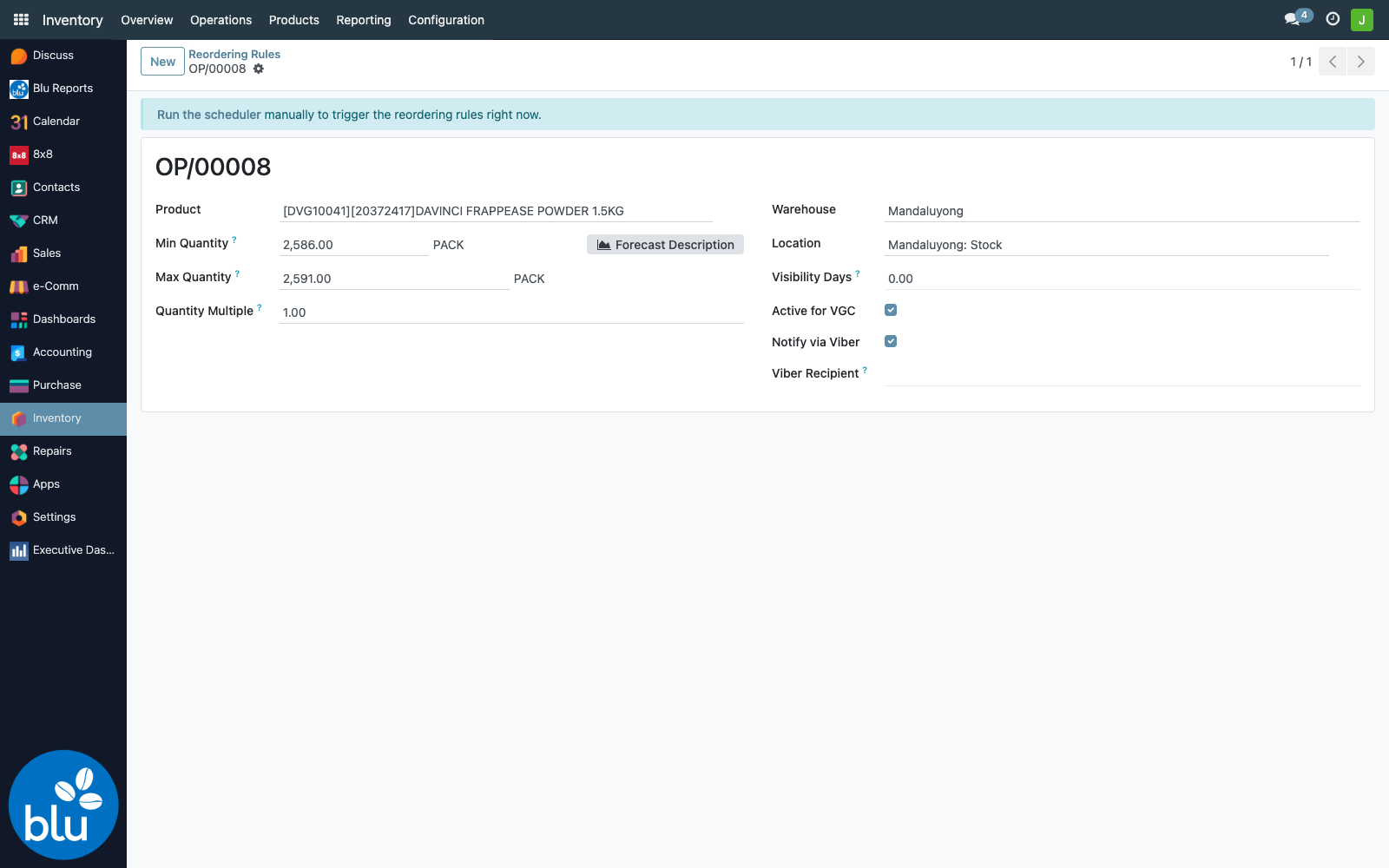
Two custom flags drive the auto-RFQ workflow:
- Active for VGC (default: ✓) — gate. The scheduler ignores rules where this is unchecked, even if
MinandMaxare set. Use it to phase out a rule without deleting it (matches the [[reference-blu-active]] convention used elsewhere in bc17). - Notify via Viber — when checked, the scheduler additionally fires an SMS and a Viber message via the 8x8 platform. The mail.activity and email always fire; this flag only adds the mobile-push channels.
- Viber Recipient (visible only when Notify via Viber is on) — optional. If left empty, all Purchasing Team members receive the SMS/Viber. Set a specific user to single out one recipient (e.g. the purchasing supervisor on call).
The procurement engine creates the RFQ against the first vendor listed in Purchase → Vendors on the product. Without a vendor, the scheduler logs the shortfall but can't create an RFQ.
Daily scheduler
Odoo's standard Procurement: run scheduler cron — stock.ir_cron_scheduler_action, daily, runs as OdooBot — is the trigger. bc17 hooks into procurement.group._run_scheduler_tasks to:
- Filter the orderpoint set to only those with
blu_active=True. - Run the standard procurement, but route reordering-rule shortfalls into a draft Purchase Requisition instead of straight into a draft PO (one PR per warehouse, lines grouped). See Purchase Requisitions.
- Wait for the warehouse to submit, and for an approver to approve via the tokenized Viber link.
- On approval, create the draft PO with the placeholder vendor, flag it with
auto_rfq_created=True, send the Purchasing Team notifications (once), then markauto_rfq_notified=True.
You can also run the scheduler manually from any reordering rule form via the "Run the scheduler" banner — handy when testing. (You'll see a draft PR appear, not a draft RFQ — the RFQ shows up once the PR is approved.)
What the Purchasing Team sees
Every member of the Purchasing Team security group receives:
1. A To-Do activity on the RFQ
Visible in the user's inbox and on the RFQ's chatter:
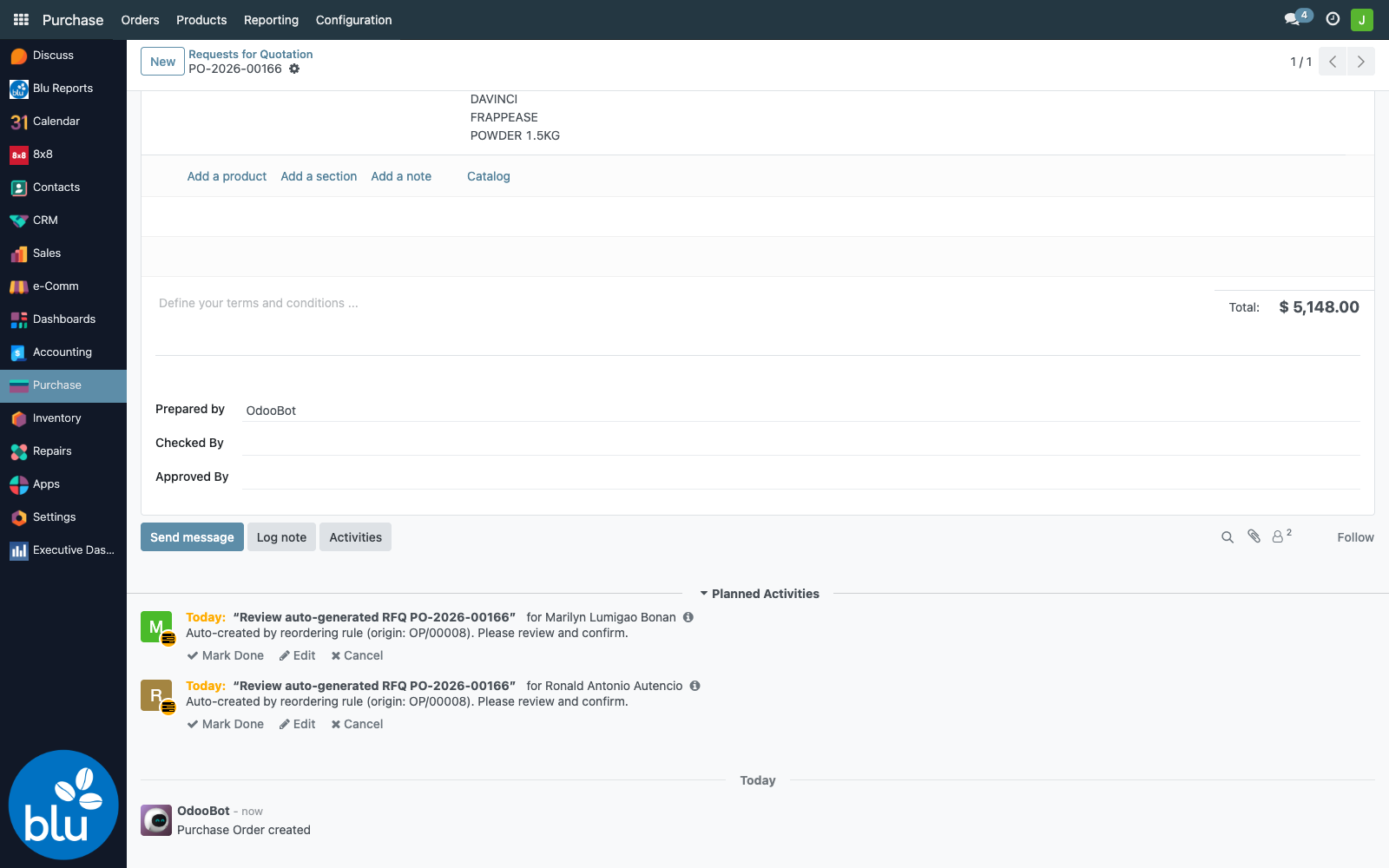
Summary: Review auto-generated RFQ PO-YYYY-XXXXX. Note: Auto-created by reordering rule (origin: OP/NNNNN). Please review and confirm.
2. An email
Two emails actually go out per auto-RFQ:
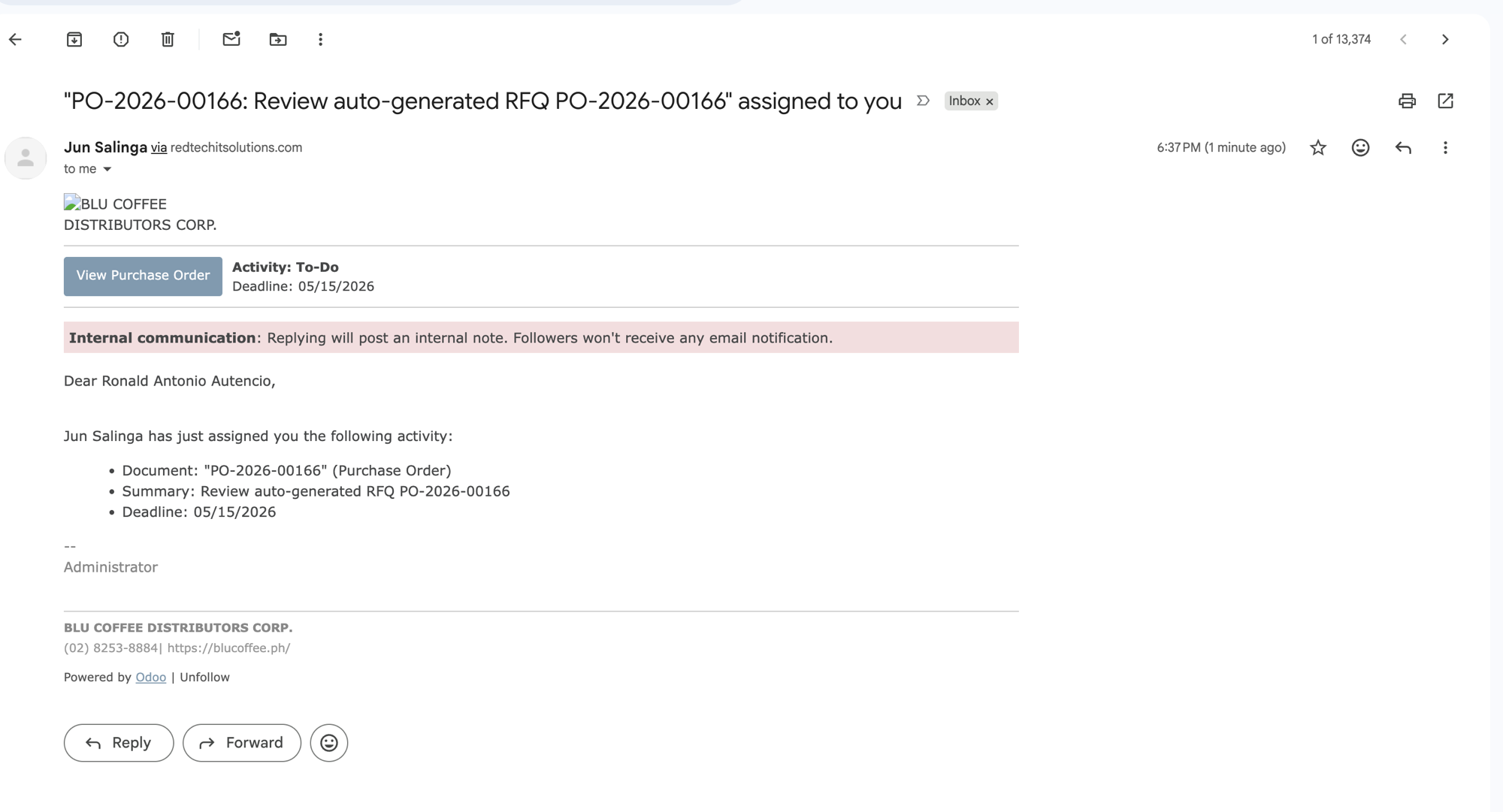
-
Activity assignment (one per group member) — Odoo's built-in "you have been assigned" notification. Includes a View Purchase Order button that deep-links to the RFQ:
-
Auto-RFQ template email (one batched email, sent once per RFQ to all group members with valid email) — uses the
bc17.mail_template_auto_rfqtemplate. Subject:Auto-RFQ: PO-YYYY-XXXXX for <Vendor Name>. Body includes the RFQ reference, vendor, source orderpoint, expected date, and the list of lines (product + qty + uom).
Edit the template under Settings → Technical → Email → Templates if you want to change the wording. Recipients whose email is blank or set to the "." placeholder (a legacy bc17 convention) are filtered out before sending.
3. SMS + Viber via 8x8 (when Notify via Viber is on)
Both an SMS and a Viber message are sent — one of each per recipient. They share the same body:
Auto-RFQ alert (1 item(s)):
- PO-2026-00166: [DVG10041][20372417]DAVINCI FRAPPEASE POWDER 1.5KG (qty 528)
Here's how it looks landing on a phone (Viber app):
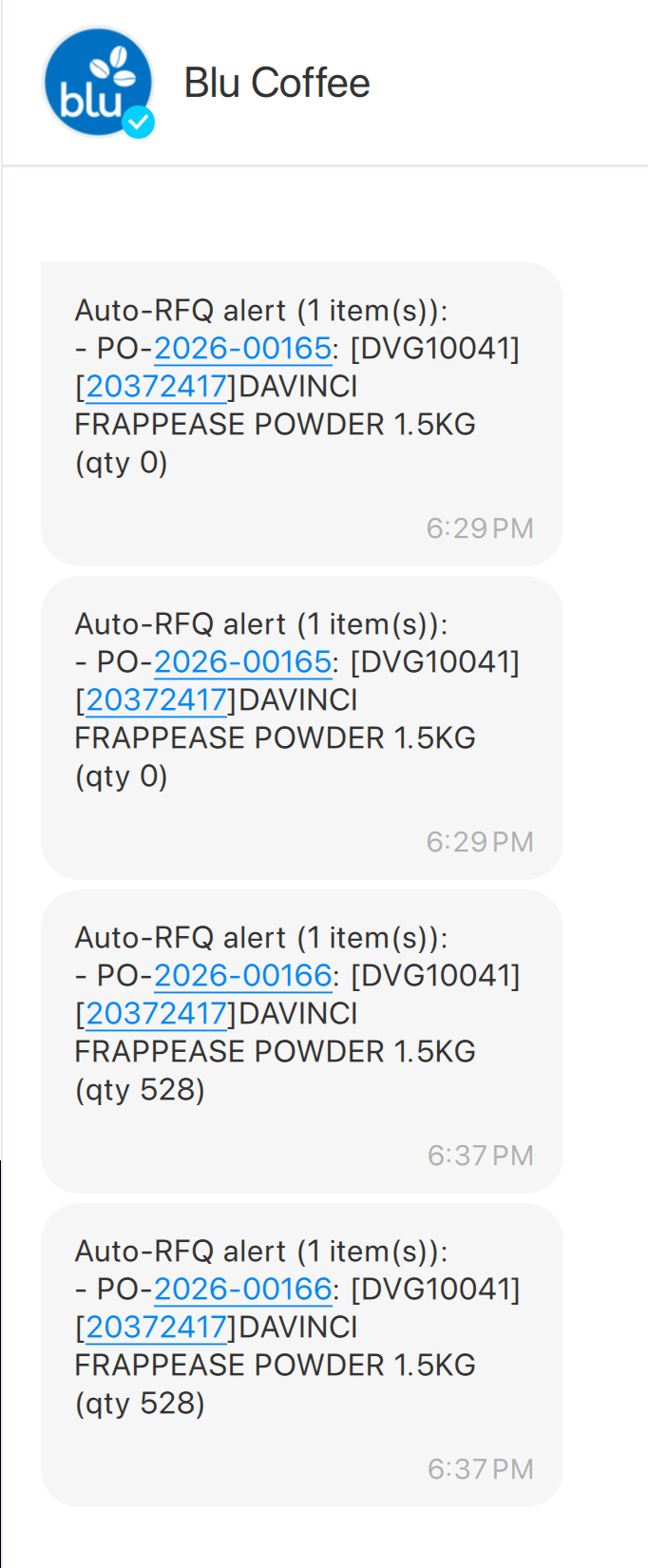
The first two messages (qty 0) are from an early development run where the body was reading the wrong field — the (qty 528) messages below them are the current behaviour.
| Channel | Routed through | bc17 Sender Account | Tracked in |
|---|---|---|---|
| SMS | sms.8x8.com → BluCoffeePH_NOTIF | Blu Intrnal | sms.sms (Settings → Technical → SMS) |
| Viber | chatapps.8x8.com → BluCoffeePH_TwoWayViber_NOTIF | Blu Intrnal | blu.viber.messages (Settings → Technical → Outgoing Viber Messages) |
The number used is partner.mobile (or partner.phone if mobile is blank). Users without either are skipped — the failure is logged but doesn't fail the rest of the scheduler run.
The auto-generated RFQ
The result is a vanilla purchase.order in draft state, except for one extra: an AUTO-RFQ ribbon in the top-right corner.
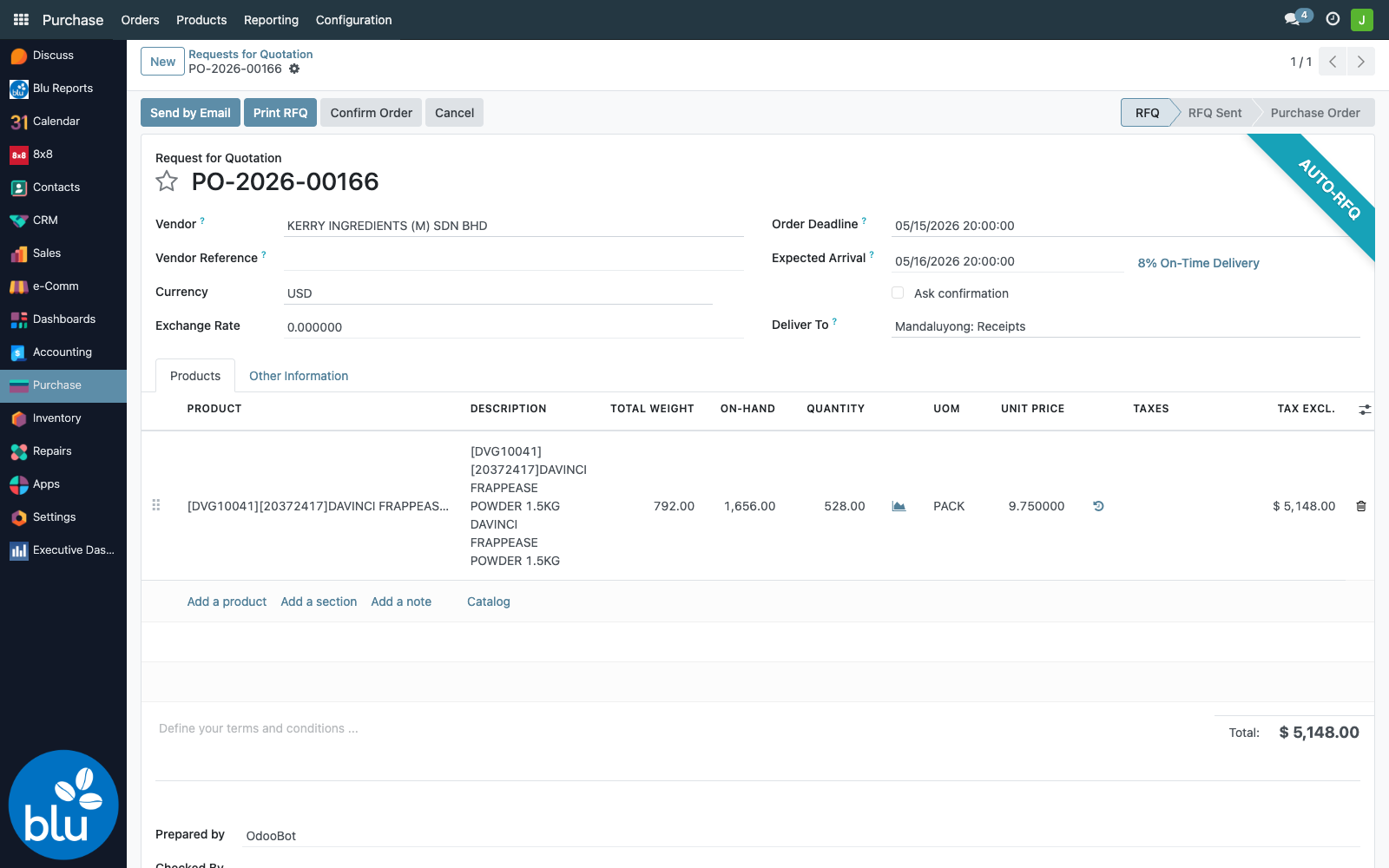
The origin field carries the orderpoint name (e.g. OP/00008) — that's how the notification routine traces an RFQ back to its source rule (and decides whether to fire SMS/Viber).
To find every auto-generated RFQ:
Purchase → Orders → Requests for Quotation → Filters → Auto-Generated RFQ
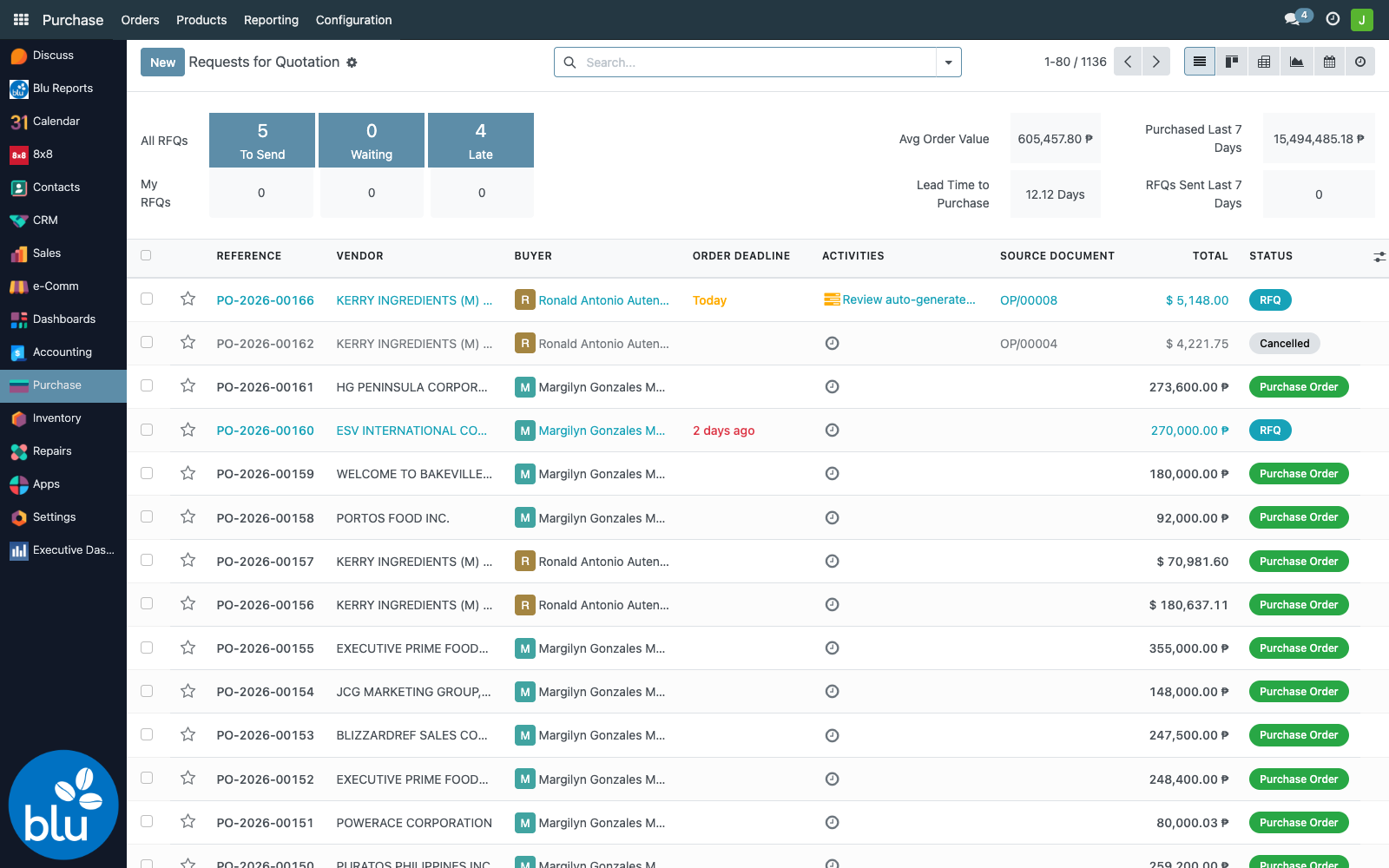
From here the purchaser can confirm, edit, or cancel as normal. Confirming flips the state to purchase, just like a manually-created RFQ.
Order vs Received report
After RFQs are confirmed and receipts start landing, Blu Reports → Purchase → Order vs Received lets the team see at-a-glance which PO lines are still open.
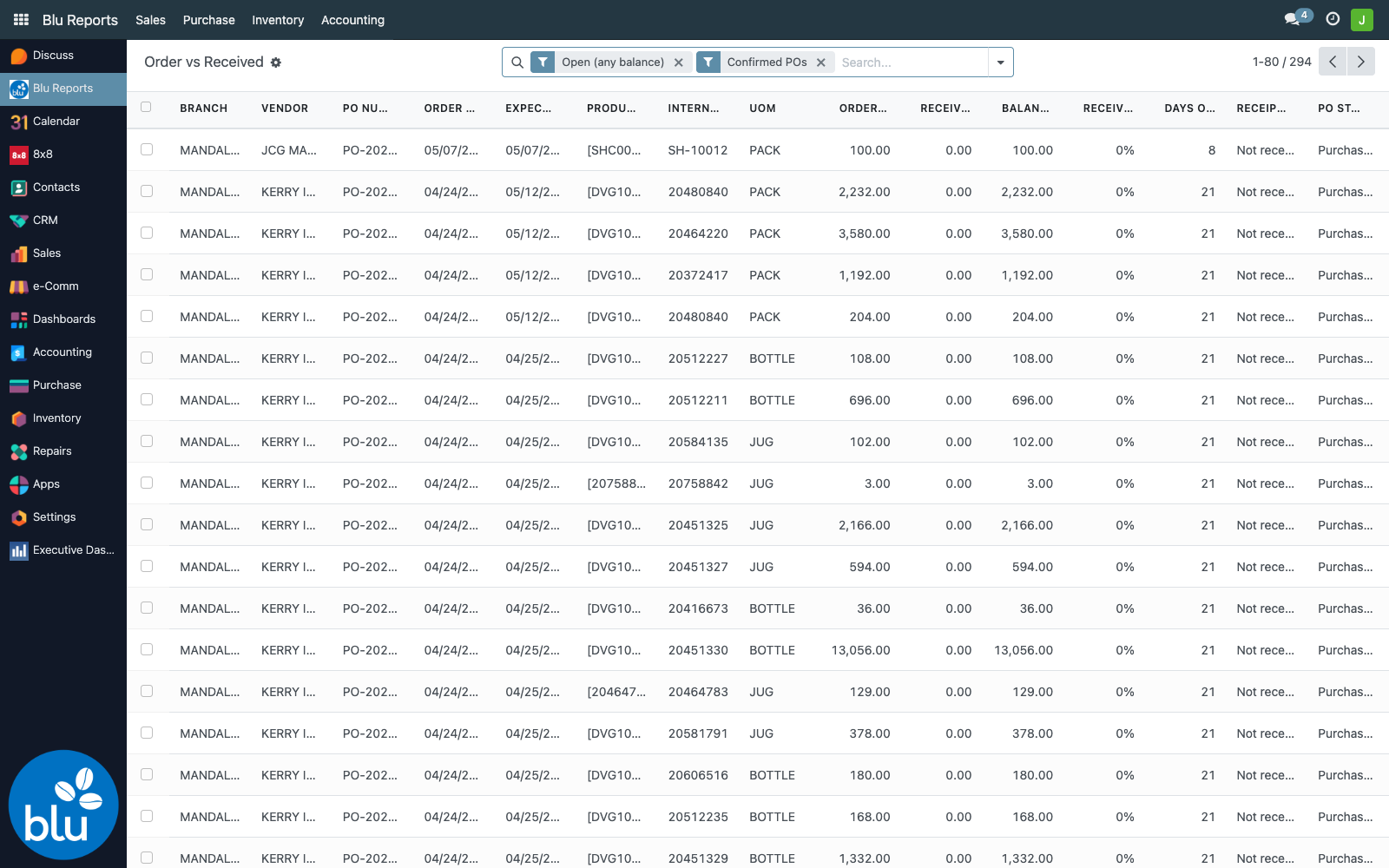
Each row is one PO line. Key columns:
| Column | Meaning |
|---|---|
| Branch | Warehouse the PO was raised against |
| Vendor | Supplier |
| Ordered Qty / Received Qty | What was requested vs. what's actually been received |
| Balance Qty | Outstanding (Ordered − Received) |
| Received % | Coverage |
| Days Open | Days since the PO was raised |
| Receipt Status | Not received / Partially received / Fully received / Over-received |
| PO Status | Draft RFQ / Confirmed / Locked / Cancelled |
Filters
- Not Received, Partially Received, Open (any balance), Fully Received, Over-Received
- Confirmed POs (excludes draft RFQs and cancellations)
- Order Date range
Group-by
Vendor, Branch, Receipt Status, or Order Month:
Excel export
Select rows (or just hit Action → Export Selection to Excel - PO vs Received without selecting to export the visible set). The xlsx mirrors the on-screen columns and is downloaded through the standard Blu Reports export wrapper.
Configuration
Who is in the Purchasing Team?
Settings → Users & Companies → Groups → Purchasing Team (bc17.blu_purchasing_team_group). Add or remove members to control who receives the notifications. The group is also what scopes access to the Order vs Received report.
Are user contacts in order?
Every recipient needs:
- A valid email (not blank, not
.) for the email channel. - A mobile (or phone as fallback) for the SMS and Viber channels.
If you suspect a user isn't receiving alerts, open their record under Settings → Users, click the contact's name to jump to the partner form, and verify both fields. The scheduler log entry will tell you exactly which channel was skipped:
Auto-RFQ: skipping SMS/Viber for marilynbonan@blucoffee.ph (no mobile/phone on partner)
Where to set the 8x8 API key
Settings → Technical → Parameters → System Parameters → bc17.api_key. Without this value the SMS and Viber channels can't reach the 8x8 gateway and the records sit in error state.
Troubleshooting
| Symptom | Likely cause |
|---|---|
| Scheduler runs but no RFQ created | Expected — the cron now creates a Purchase Requisition, not an RFQ. The RFQ is born when the PR is approved. Check Inventory → Purchase Requisitions for the draft PR |
| Scheduler runs but no PR created either | blu_active=False on the rule, or virtual_available is already above Min (in-flight POs/PRs already cover the shortfall), or the product isn't configured to buy |
| Auto-RFQ ribbon missing on an RFQ | The RFQ was created manually or by a different procurement path — auto_rfq_created is only set when an RFQ is born from an approved PR |
| Same RFQ triggers a second round of notifications | Shouldn't happen — auto_rfq_notified is checked before each send. If you see it, the boolean got cleared (a write somewhere, or the PO was manually duplicated) |
SMS records sit in outgoing forever | The standard sms.sms queue cron is disabled. Re-enable mail.ir_cron_mail_scheduler_action |
Viber records sit in outgoing forever | The 8x8 API key isn't set or is wrong — check the system parameter |
Email shows Malformed 'Return-Path' in the log | The outgoing mail server's smtp_user is missing a valid ASCII email — fix it under Settings → Technical → Outgoing Mail Servers |