Purchase Requisitions
A reordering rule firing no longer means a draft RFQ has already been promised to a vendor. Blu Coffee now inserts an explicit approval gate in front of every reordering-rule procurement: instead of an immediate RFQ, the daily scheduler creates a draft Purchase Requisition (PR) owned by the warehouse team. The warehouse reviews the lines, clicks Submit for Approval, the head of the PR Approvers group taps an Approve button on a Viber link (no Odoo login required), the PR locks, and only then is a draft RFQ born on purchase.order for the purchasing team to vendor-up and confirm.
The point of the gate: nothing — not a draft RFQ, not a notification to the purchasing team, not a vendor commitment — happens before the warehouse and an approver have both agreed on what is being asked for.
| Module | Provides |
|---|---|
bc17/blu_stock/ | blu.purchase.requisition model and lines, Inventory → Purchase Requisitions menu and views, state machine (draft → submitted → approved + cancelled), tokenized approval URL controller, [TBD] Vendor to be assigned placeholder partner bootstrap, hook into reordering-rule cron, PR Approvers security group |
bc17/blu_purchase/ | Reordering-rule cron override (creates PRs instead of POs), Requisition smart button on purchase.order, purchasing-team notification moved to PR-approval time |
bc17/blu_8x8/ | Viber delivery of the approval link (on submit) and of the existing purchasing-team alert (on approval) |
bc17/blu_base/ | Existing Purchasing Team security group (unchanged — now notified at approval time instead of cron time) |
Lifecycle
The PR is locked the moment it is approved — lines and notes become read-only and the draft RFQ takes over as the live document. Cancelled is terminal; rejection is not — a rejected PR drops back to Draft so the warehouse can revise and resubmit, with a fresh token issued each submission.
How a PR gets created
Automatically — from a reordering rule
Odoo's standard Procurement: run scheduler cron continues to fire daily. What changed is what it produces: one draft PR per warehouse per cron run, with all the warehouse's shortfall lines grouped under it.
The submitting user on the PR is OdooBot (the cron's runner). The warehouse team picks it up from the Inventory → Purchase Requisitions list and edits it as they would a manual PR.
Lines on a cron-generated PR are grouped by warehouse only. The PR is "what we need" — vendor selection happens later, on the RFQ, by purchasing. If you want one PR per vendor, that is a future enhancement; for now, one warehouse equals one PR.
Manually — by warehouse staff
Inventory → Purchase Requisitions → New opens an editable form where the warehouse can:
- pick a Warehouse;
- add lines (product + quantity — no vendor, no price);
- enter free-text notes explaining the request.
Same downstream approval flow as a cron-generated PR.
Submitting for approval
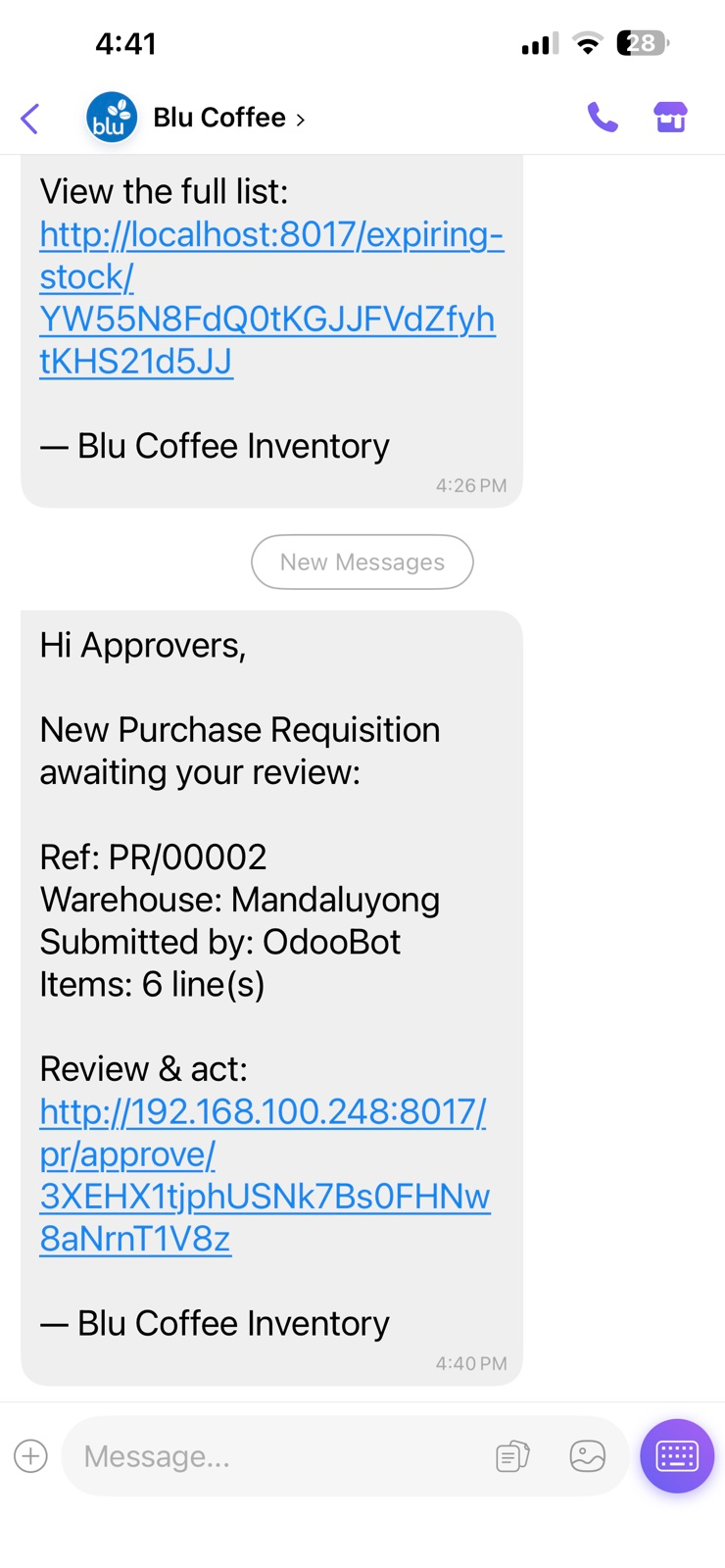
On the PR form, Submit for Approval transitions the PR to Submitted and fires one Viber per member of the PR Approvers group. The body carries:
- the PR reference;
- the warehouse;
- a one-line summary of the line items;
- a tokenized approval link.
The link is no-login by design — anyone with the link can act on that PR. Distribute it only via Viber to the PR Approvers group. Once anyone clicks Approve or Reject, the link burns — subsequent visits return an "already actioned" page. A new token is issued every time the warehouse resubmits a rejected PR.
What the approver sees
Tapping the link from Viber opens a no-login web page tailored for a phone:
- PR reference, warehouse, and submitted-by at the top;
- the line items — product and quantity only, no price, no vendor;
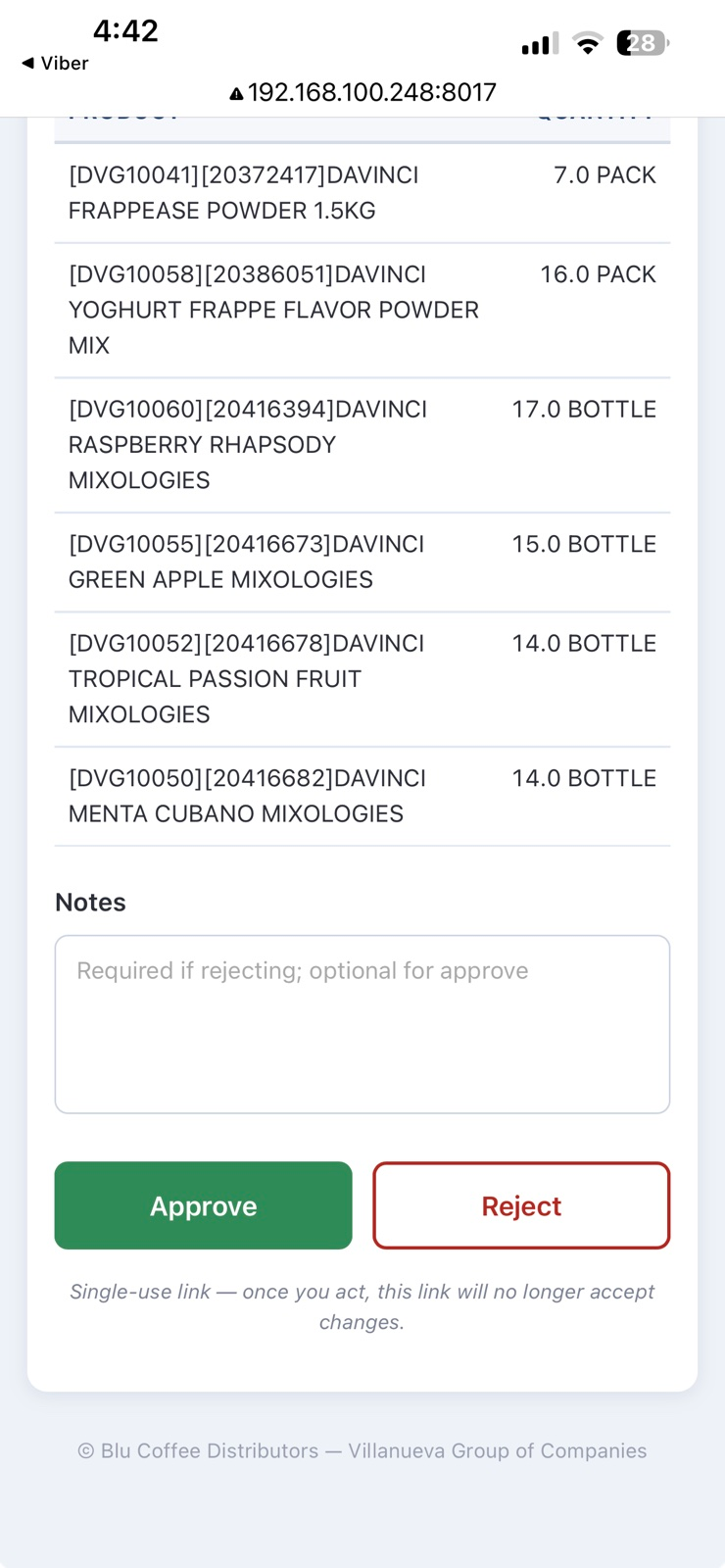
- a rejection notes textarea (optional);
- two large buttons: Approve and Reject.
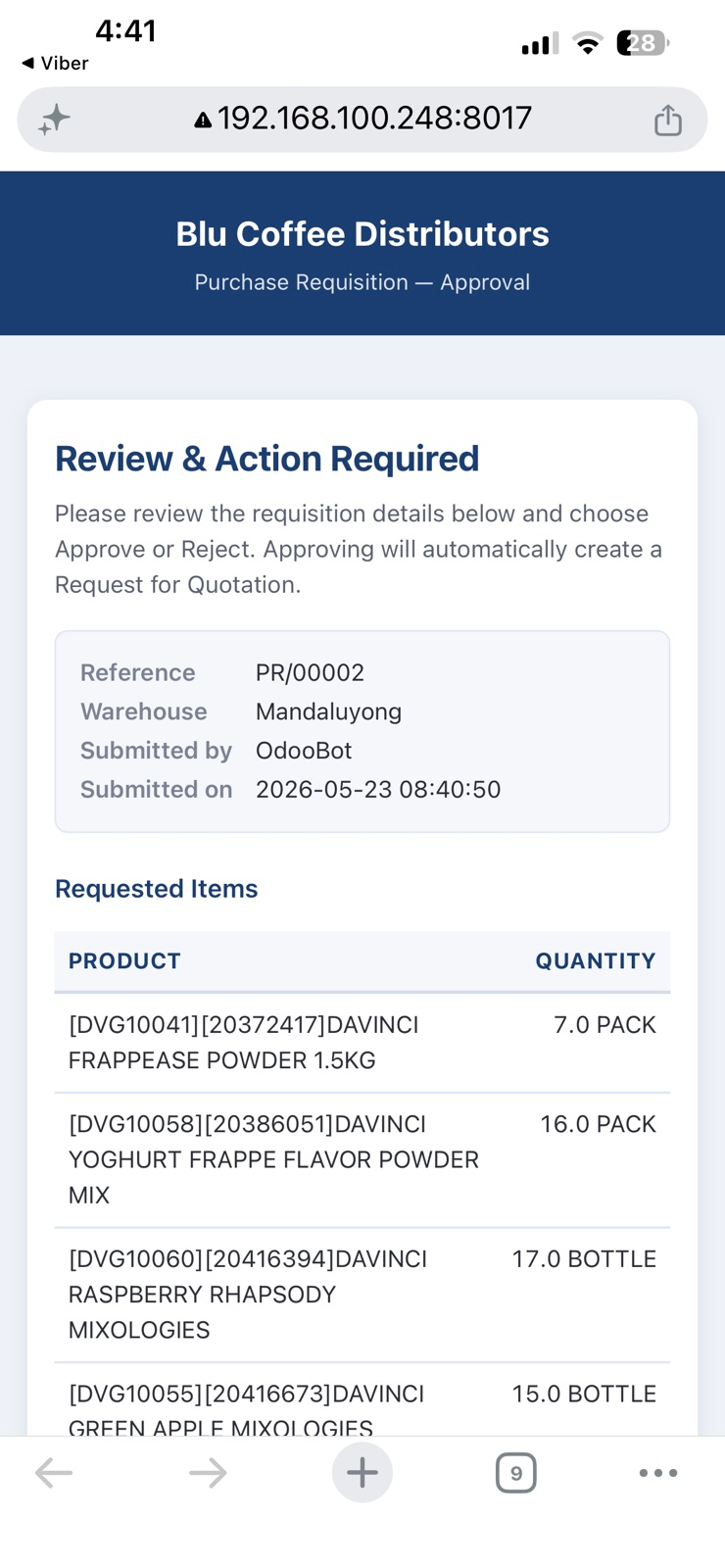
The page deliberately does not show prices or vendor information — those are purchasing's decisions, taken later, on the RFQ. Scrolling down reveals the rejection-notes field and the action buttons:
Approve
The PR transitions to Approved and locks. In the same call, the system:
- Creates a draft
purchase.orderwith all the PR's lines copied across. - Sets the RFQ's vendor to the placeholder partner
[TBD] Vendor to be assigned(see The placeholder vendor below). - Wires up the PR's RFQ smart button to jump to the new draft RFQ, and the RFQ's Requisition smart button to jump back to the PR.
- Notifies the Purchasing Team through the existing channels (To-Do activity, email, Viber, SMS) — the same notification that used to fire at cron time on the old auto-RFQ flow.
Purchasing then opens the draft RFQ, replaces the placeholder vendor with the real one, prices the lines, and confirms.
Reject
The PR drops back to Draft with the rejection notes attached to the chatter. The warehouse revises the lines or notes and clicks Submit for Approval again — a fresh token is issued and a new Viber goes out.
The placeholder vendor
Because vendor selection is purchasing's call (made on the RFQ, not the PR), the approved-PR-to-RFQ handoff needs a stand-in partner so the draft purchase.order is valid:
- The partner
[TBD] Vendor to be assignedis auto-created on first need and reused thereafter. - Its id is stored in
ir.config_parameterunder the keyblu_stock.pr_default_vendor_id. - If you ever delete that partner record, the system simply re-creates it the next time it needs it.
- Purchasing must change the vendor on the draft RFQ to a real supplier before confirming — leaving the placeholder in place would commit Blu Coffee to a non-existent partner.
The PR Approvers group
A new security group, PR Approvers, lives under Settings → Users & Companies → Groups. Membership controls who receives the Viber-with-approval-link at submission time and who can therefore act on the link.
The PR Approvers group ships empty. Until at least one user is added (with a mobile number on their partner record), submissions will produce a PR in Submitted state but no Viber will reach anyone, and the PR will sit there silently. Add the head of operations and at least one backup before going live.
Multiple approvers can sit in the group. The first to tap Approve or Reject wins — the link burns immediately after one action, so a second approver opening the link sees the "already actioned" page.
The originating PR on the RFQ
When the draft RFQ is born from an approved PR, a Requisition smart button is added to its button box. Click it to jump back to the originating PR — handy when purchasing wants to read the warehouse's notes or see who submitted it.
The reverse link is the RFQ smart button on the approved PR; once the PR is approved this button always resolves to the related draft (or later confirmed) purchase.order.
Configuration
Who is in PR Approvers?
Settings → Users & Companies → Groups → PR Approvers. Add the operations head and any deputies. Every member needs a mobile number on their partner record for the submission Viber to reach them.
Who is in Purchasing Team?
Unchanged. Settings → Users & Companies → Groups → Purchasing Team continues to control who receives the activity / email / SMS / Viber when the PR is approved and the draft RFQ is born — see Auto-RFQ for the channel-by-channel breakdown.
The placeholder vendor partner
Settings → Technical → Parameters → System Parameters → blu_stock.pr_default_vendor_id. The id of the [TBD] Vendor to be assigned partner used on freshly-created RFQs. Do not edit this manually; if the partner is missing the system will re-create it on next use.
Where to set the 8x8 API key
Same as every other 8x8 channel — Settings → Technical → Parameters → System Parameters → bc17.api_key. Without this the submission Viber and the post-approval purchasing notification can't reach the gateway.
Limitations and caveats
- Approval link is anonymous. The chatter logs the action and timestamp but does not attribute it to a specific user — anyone with the link can act. This is by design (no-login on phone) but worth knowing if you need accountability beyond "an approver did it".
- PR Approvers group is empty out of the box. Until populated, submissions silently fail to notify anyone. See the warning above.
- One PR per warehouse, not per vendor. The cron groups by warehouse only; multi-vendor splitting at PR stage is a future enhancement.
- The placeholder vendor is auto-managed. If
[TBD] Vendor to be assignedis deleted, it re-appears the next time a PR is approved. Purchasing must still change it to a real vendor on the RFQ before confirming. - PR gate applies only to reordering-rule procurements. Sale-order MTO, manufacturing buy procurements, and other non-orderpoint paths continue to create POs directly without going through a PR.
- Single-use token. Once a PR is actioned, the link is dead — even for the approver who acted. To re-open a decision, the PR has to be rejected and resubmitted (which mints a new token).
Troubleshooting
| Symptom | Likely cause |
|---|---|
| Cron ran but no PR appeared | All reordering rules have blu_active=False, or no shortfall exists (virtual_available above Min), or the products on the orderpoints aren't configured to buy |
| Submitted PR but no Viber went out | PR Approvers group is empty, or members have no mobile number on their partner record, or the 8x8 API key is missing |
| Approval link shows "already actioned" | The link is single-use — another approver acted first, or you (or someone you forwarded to) tapped it twice. To revisit the PR, reject and resubmit |
| Approved PR but no draft RFQ created | The placeholder vendor failed to bootstrap (rare — check the server log for an error around blu_stock.pr_default_vendor_id) |
Draft RFQ stuck on [TBD] Vendor to be assigned | Purchasing hasn't yet replaced the placeholder — that is the expected hand-off step before confirming the RFQ |
| Purchasing Team got two notifications for the same item | A PR was approved and the same orderpoint also triggered a separate path (e.g. an MTO sale order) that bypasses the PR gate — they are different POs |
| Rejected PR can't be resubmitted | It needs at least one line and a warehouse before Submit for Approval re-enables; check the rejection notes the approver attached for what to fix |