Customer Portal — Online Service Requests
The Blu Customer Portal was built in 09–10/2024 but is not live: no customer has a portal account and no request has come in through it. This page describes how it will work once it is switched on. Today every repair starts as a walk-in or phone call — see Repair Orders.
The portal lets a customer register their machine by serial number and ask for service online. Service verifies the account in Odoo, confirms the request and sets a schedule. That creates the repair order, sends the customer a Viber, and the customer sees the schedule on the portal.
| Who | Where | Does |
|---|---|---|
| Customer | The Blu portal (a separate web app) | Signs up, adds machines, books service, follows the status |
| Service Admin | Odoo: Repairs → Portal Access | Verifies accounts, confirms requests, sets the schedule |
The screenshots were taken on a test copy of Odoo with a sample customer, Demo Cafe (test).
Flow
1. Customer: sign up and sign in
-
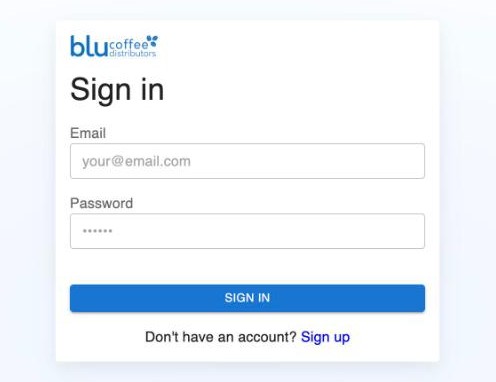
Open the portal. New customers click Sign up. Returning customers enter their email and password and click Sign in.
-
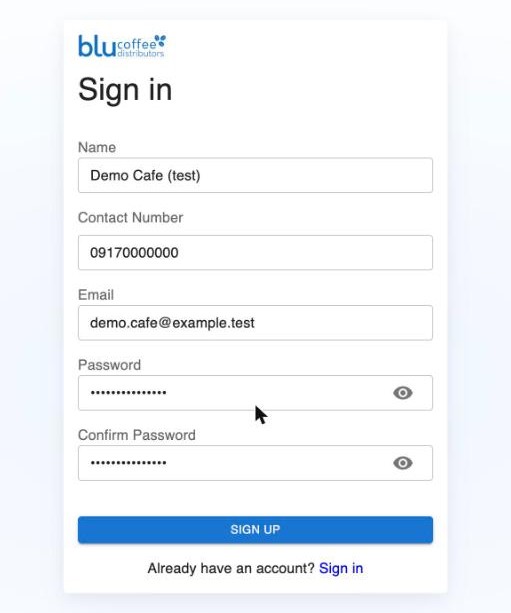
Fill in Name (company or person), Contact Number, Email, Password and Confirm Password, then click Sign up.
-
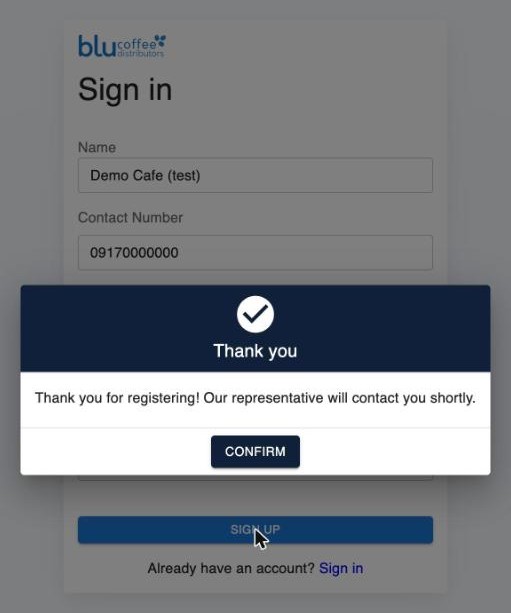
The portal thanks the customer and says a representative will contact them. Click Confirm to go back to Sign in, then sign in with the new email and password.
2. Customer: add a machine and book a service
-
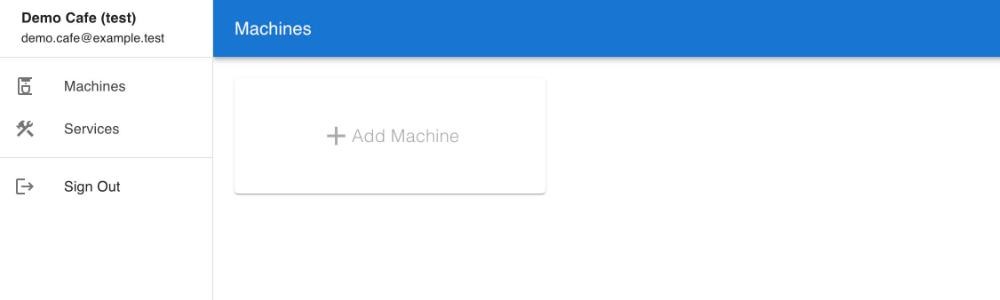
After signing in, the customer lands on Machines. A new account has no machines yet. Click Add Machine.
-
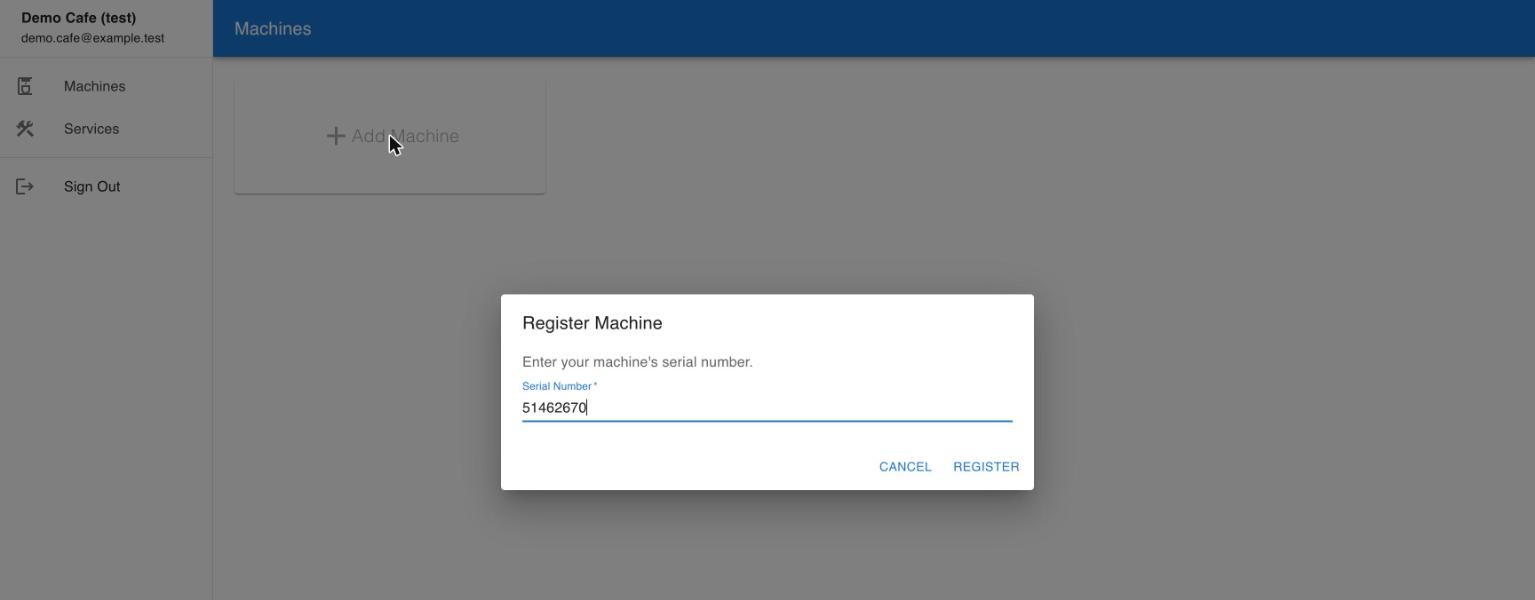
Enter the machine's Serial Number and click Register. The serial must already exist in Odoo — that is, the machine was sold with that serial. If it doesn't, the portal says no machine was found.
-
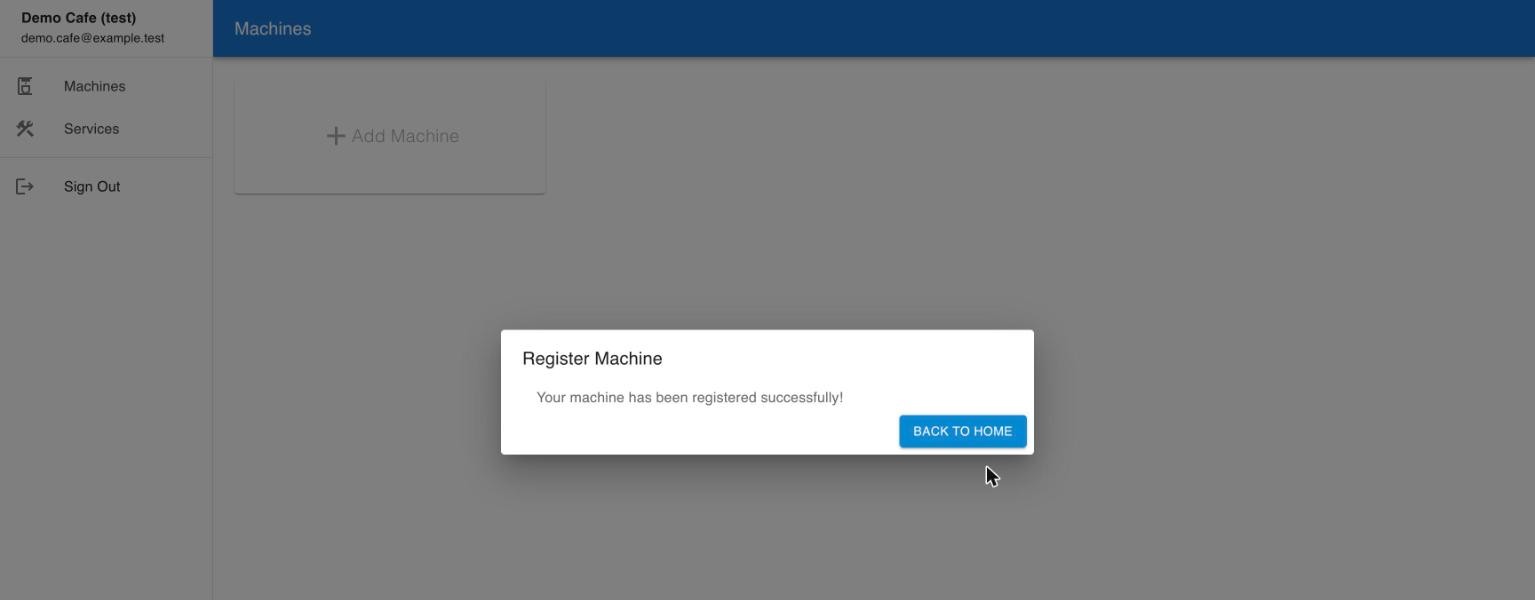
The portal confirms the machine is registered. Click Back to Home.
-
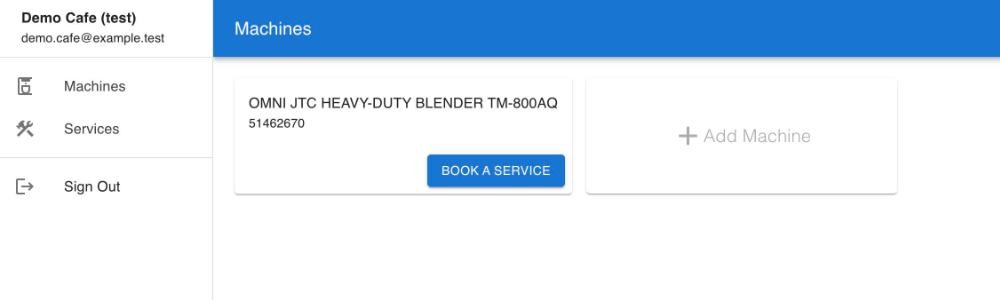
The machine shows as a card with its product name and serial. Click Book a Service on the machine that needs repair.
-
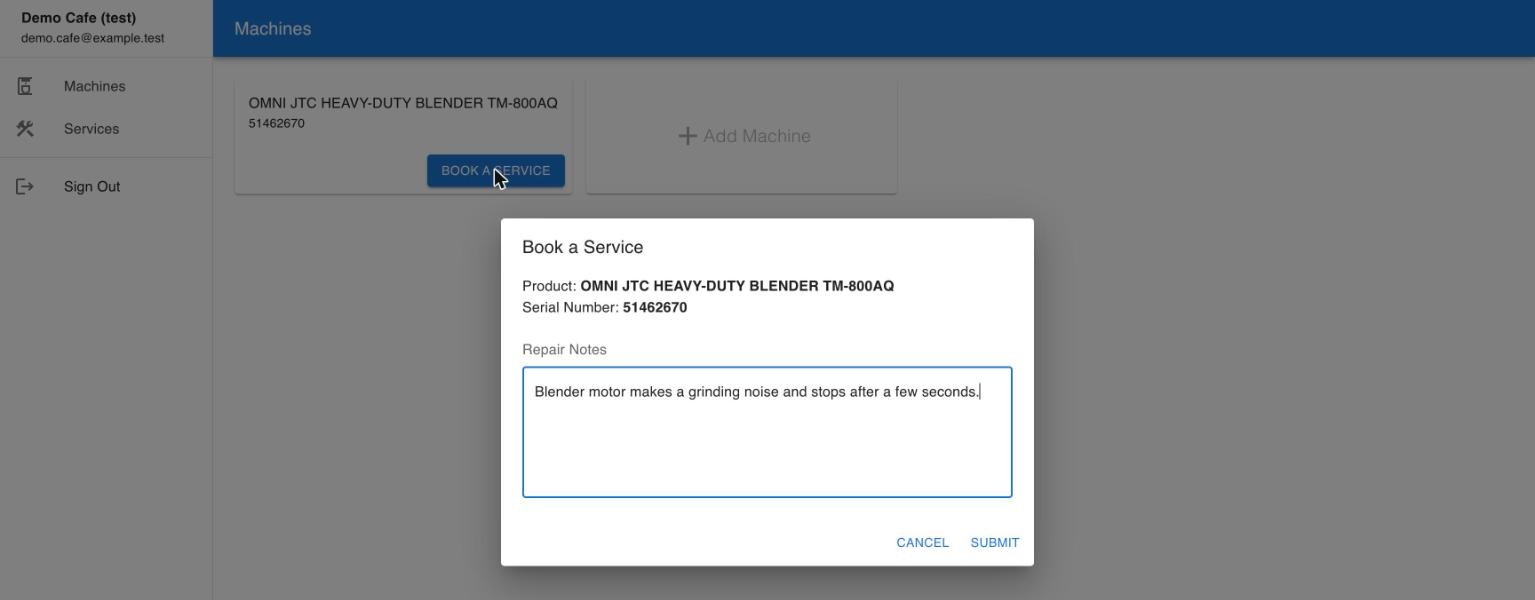
Describe the problem under Repair Notes and click Submit.
-
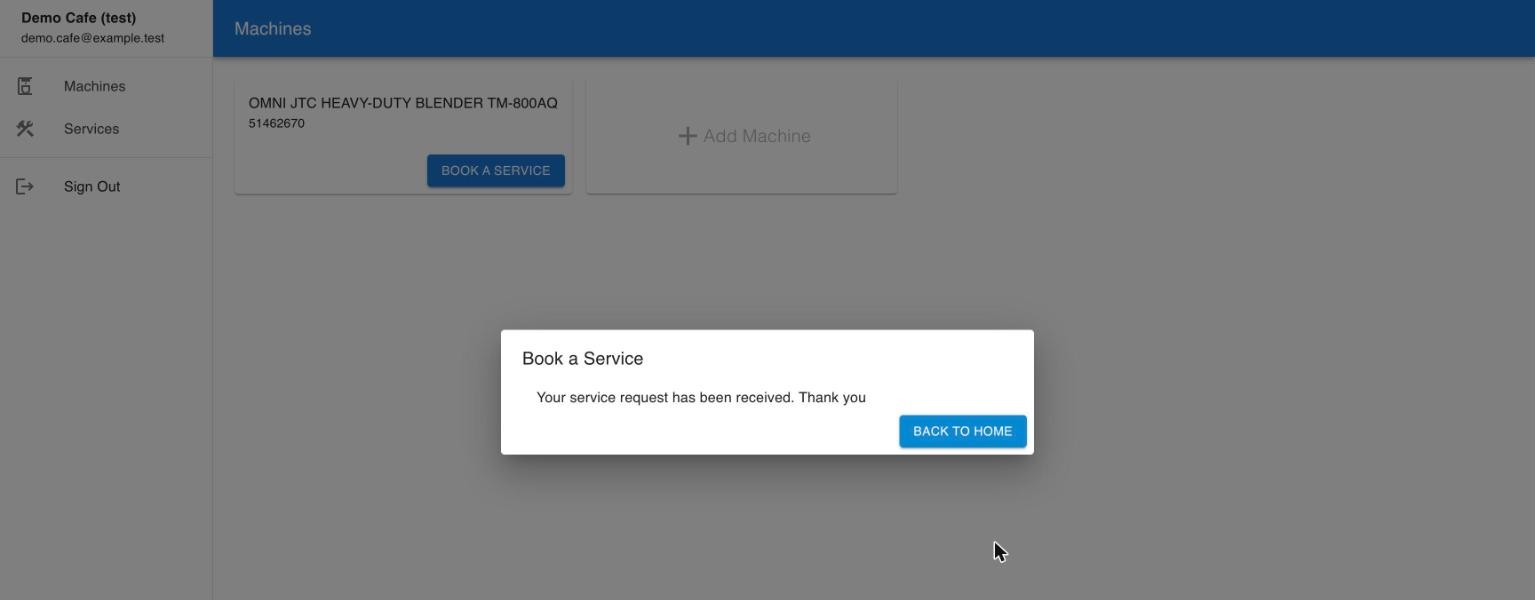
The portal confirms the request was received.
-
Services lists every request with its reference number (SVC…), machine, serial, notes, submission date and status. A new request is Draft.

3. Service Admin: handle the request in Odoo
3.1 Verify the account
-
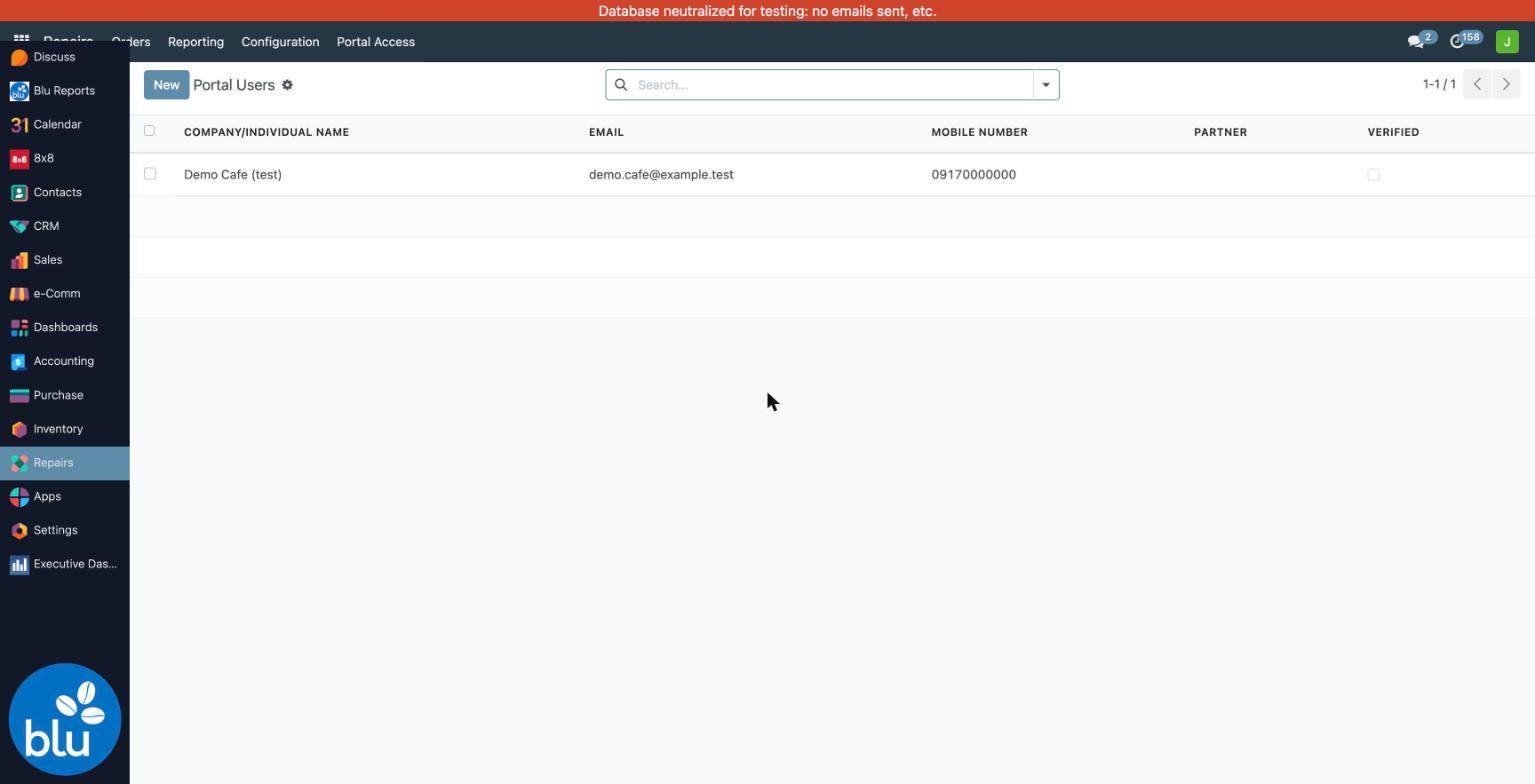
Go to Repairs → Portal Access → Users. New sign-ups appear here with Verified unticked.
-
Open the account. In Partner, pick the customer's Contact (create the Contact first in Contacts if the customer is new). Tick Verified and click Save.
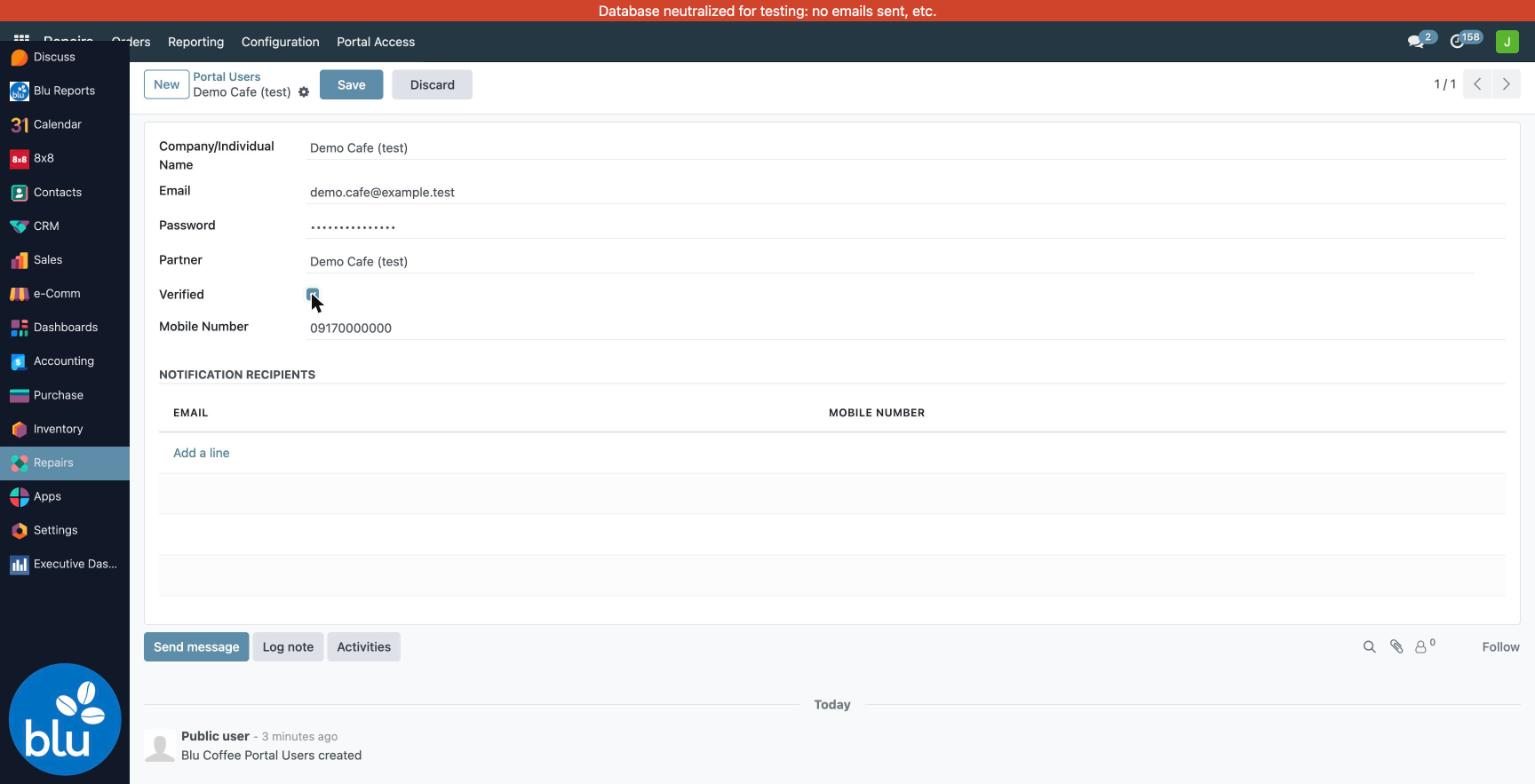
The repair order takes its customer from this Contact. Without it, the repair order has no customer and Create Quotation stops. Notification Recipients on the same form lets you add other emails and mobile numbers that should also get the Viber notices.
3.2 Confirm the request
-
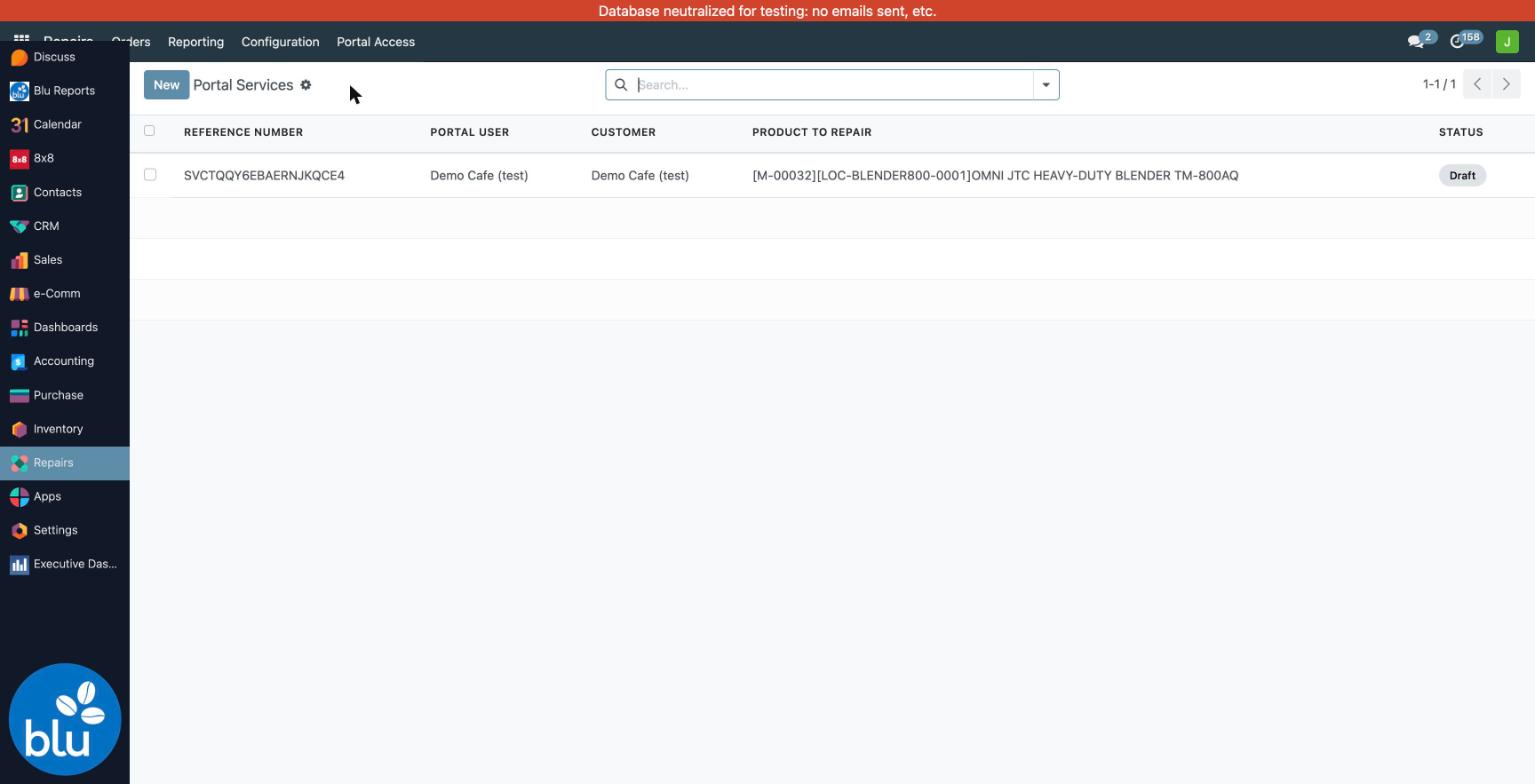
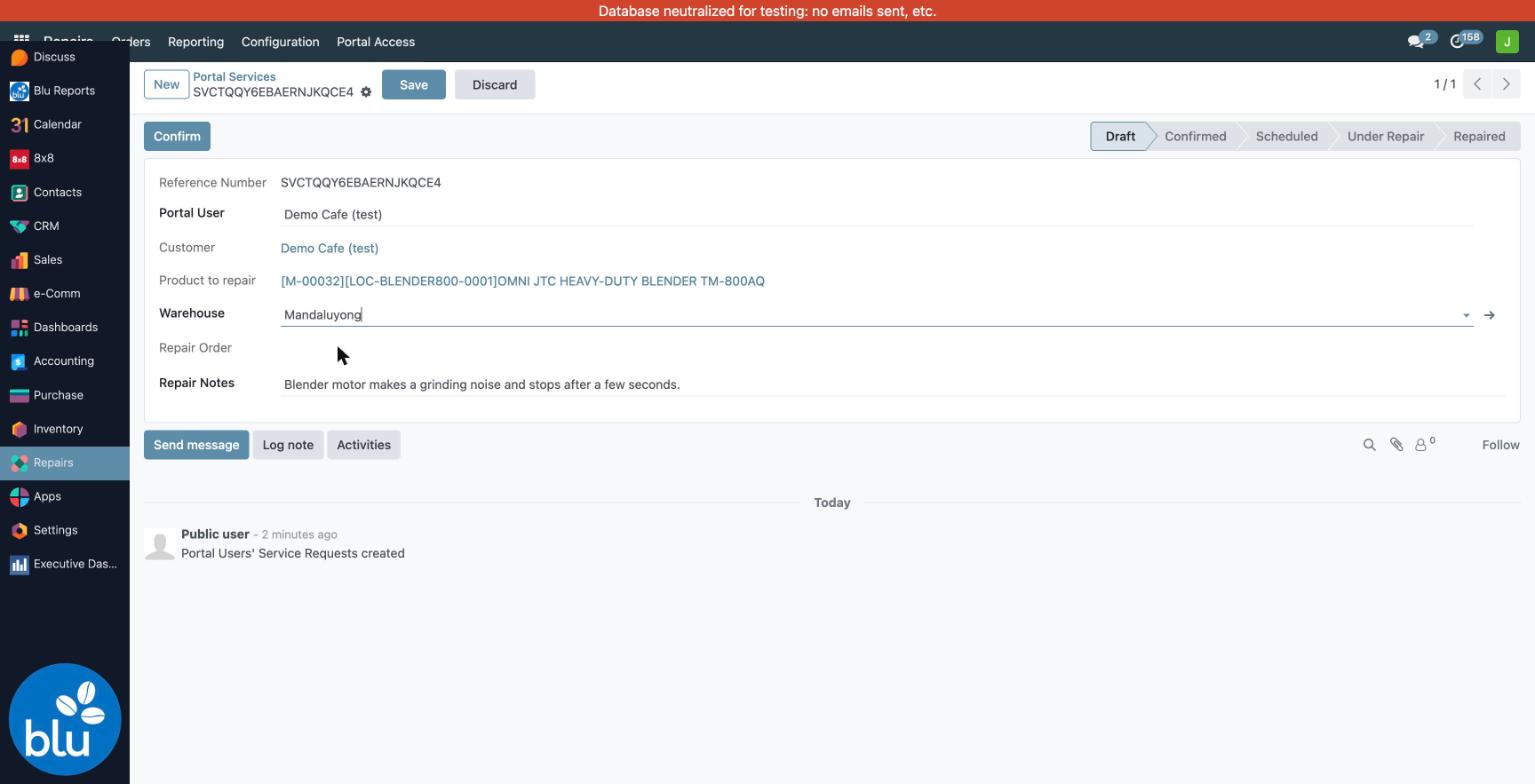
Go to Repairs → Portal Access → Services. New requests show as Draft.
-
Open the request and set the Warehouse that will do the repair. Confirm needs it.
-
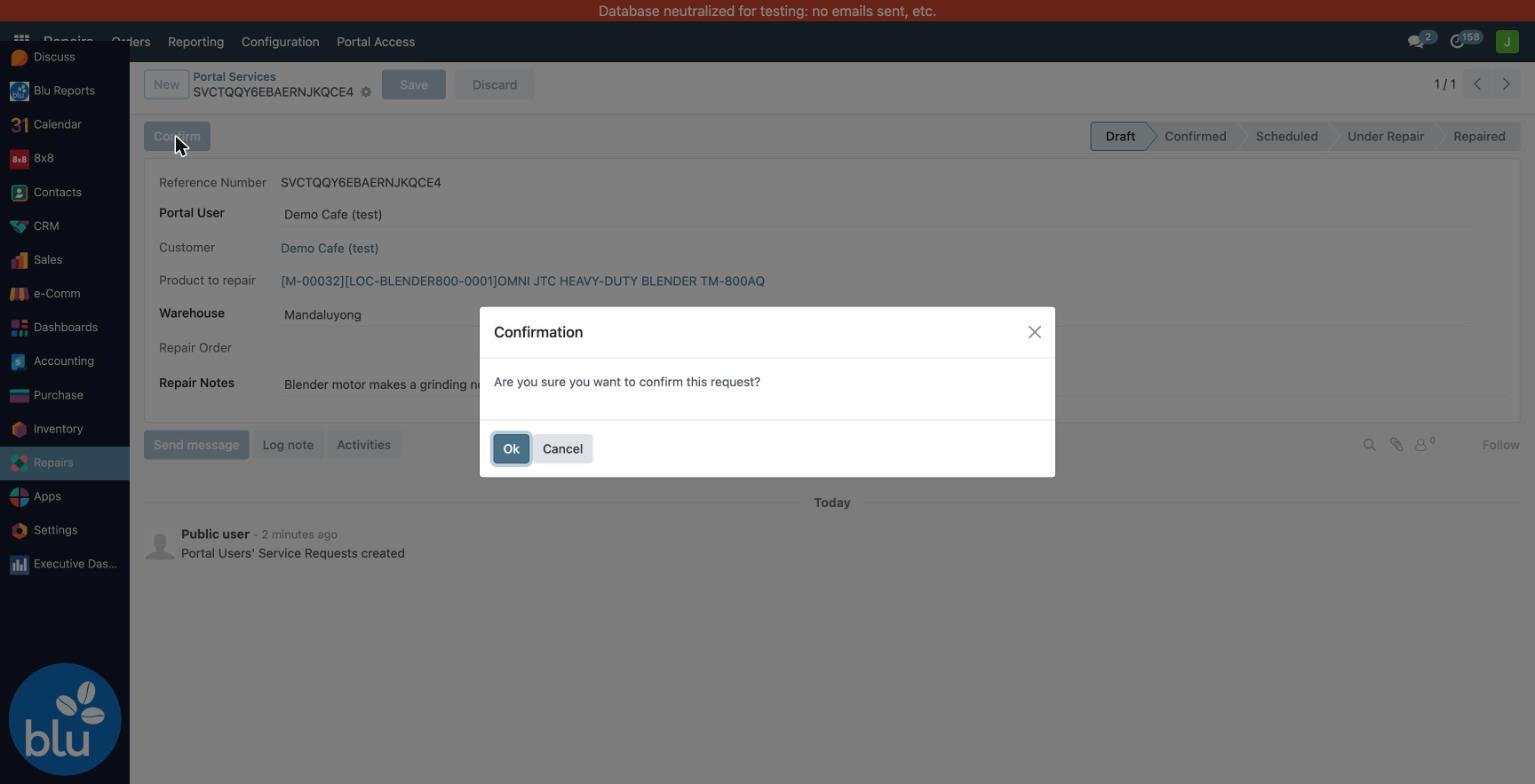
Click Confirm, then Ok in the confirmation box.
-
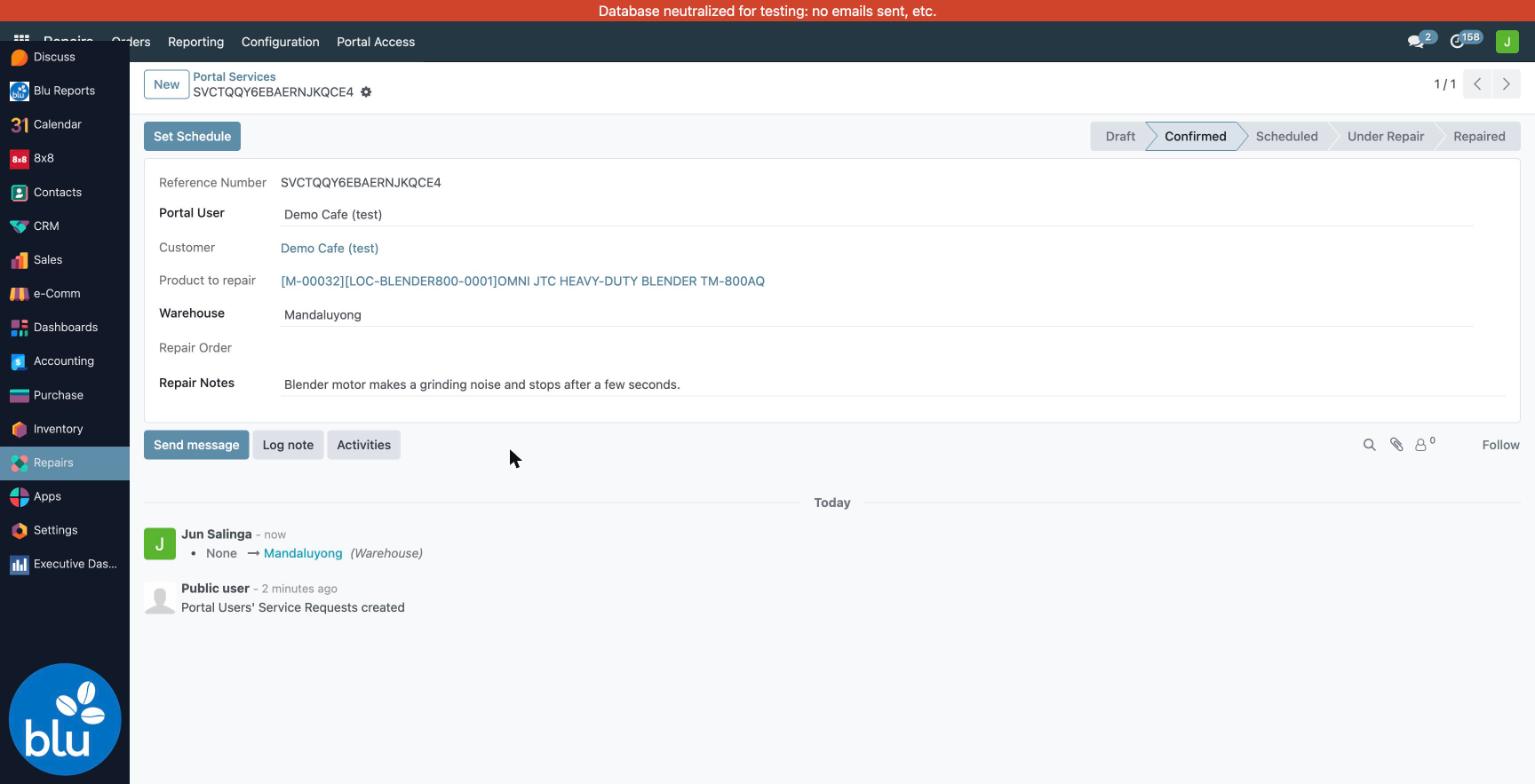
The request moves to Confirmed and the Set Schedule button appears.
3.3 Set the schedule
-
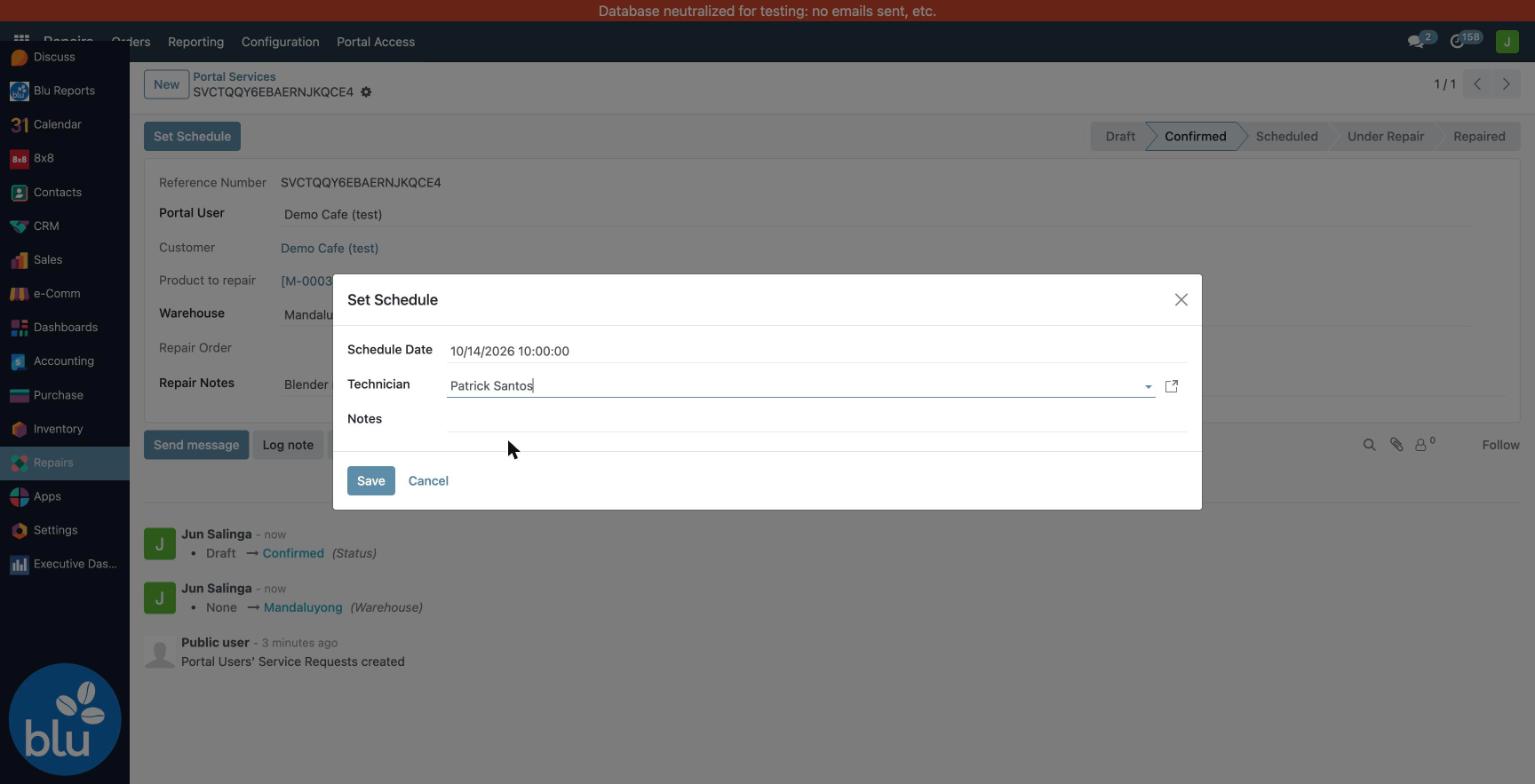
Click Set Schedule. Enter the Schedule Date and time, pick the Technician, add Notes if needed, then click Save.
-
The request moves to Scheduled and a repair order is created and linked (here MWH/RO/00593), in the request's warehouse, with the customer, machine and serial filled in. The customer gets a Viber with the technician and schedule.
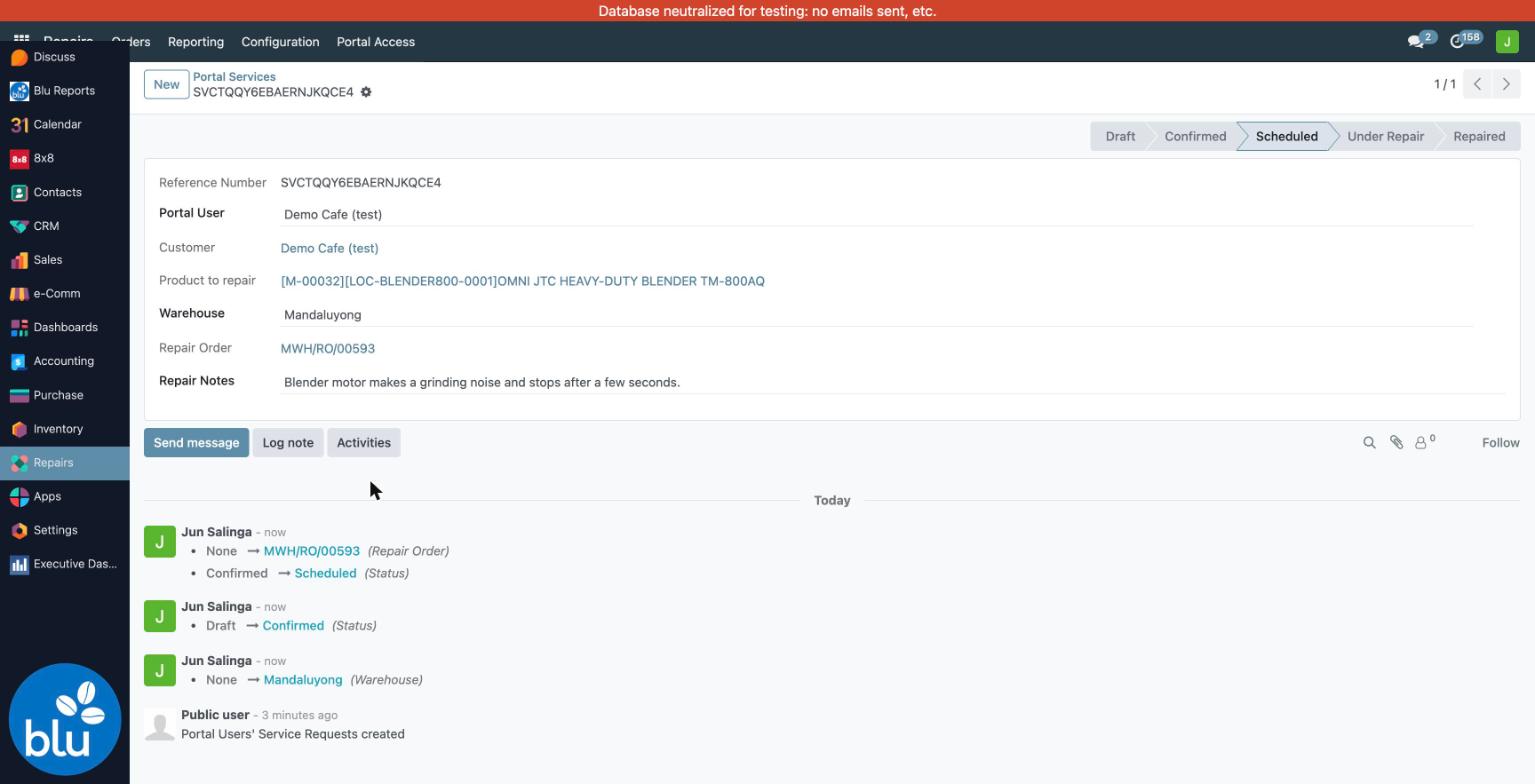
-
On the portal, the customer now sees Scheduled with the schedule date.

From here the repair follows the normal repair order flow: quotation, Start Repair, End Repair and the survey. Start Repair and End Repair on the repair order also move the request to Under Repair and Repaired, so the customer can follow it on the portal.
Set Schedule only shows while the request is Confirmed. To reschedule, change the Scheduled Date or Technician on the repair order, not on the request. The customer gets a RESCHEDULED Viber — see Service Workflow.
Request statuses
| Service request | Repair order | Moved by |
|---|---|---|
| Draft | — | Customer submits on the portal |
| Confirmed | — | Confirm on the request (Warehouse required) |
| Scheduled | New → Confirmed | Set Schedule creates the RO; Confirm Repair on the RO |
| Under Repair | Under Repair | Start Repair on the RO |
| Repaired | Repaired | End Repair on the RO (sends the survey) |
| Cancelled, On Hold | — | No button yet; cancelling the RO does not update the request |
Reference
| Module | Provides |
|---|---|
bc17/blu_portal/ | Portal accounts, registered machines and service requests (Repairs → Portal Access), the Set Schedule wizard, the portal's REST API |
bc17/frontend/ | The customer-facing portal web app |