Machine Service History
The Machine Service History is a printout of every repair order (RO) for one machine, by serial number, or for all of one customer's machines. Each visit shows the date, status, technician, notes, parts, labor and the customer's survey score. Service and Key Accounts can answer "what has been done on our machine?" from one page instead of opening ROs one by one.
It went live on 10/16/2026. Any Odoo user with Inventory access can print it, which includes all Sales users.
| Print from | You get |
|---|---|
| A repair order — Service History button | That machine's history if the RO has a serial number; otherwise the whole customer's history |
| A customer — Print → Machine Service History | Every RO of the customer, grouped by machine |
| A lot/serial number — Print → Machine Service History | Every RO for that one machine |
Print from a repair order
-
Open the repair order in Repairs → Orders.
-
Click Service History at the top left. The button is there in every status.

-
The PDF downloads. If the RO's Lot/Serial is filled in, it shows that machine's history. If not, it shows every RO of the customer. (With neither a serial nor a customer, Odoo asks you to set one.)
Print from a customer
-
Open the customer in Contacts, or from the Customer field on any order.
-
Click the gear icon next to the name, then Print → Machine Service History.
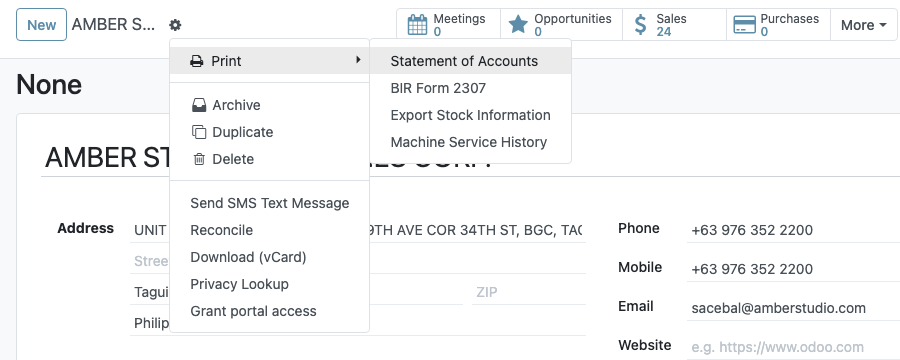
The printout covers the customer's main record and all of its branches and contacts.
Print from a serial number
-
Open the serial number in Inventory → Products → Lots/Serial Numbers. You can also reach it from the Lot/Serial field on a repair order or a delivery.
-
Click the gear icon, then Print → Machine Service History.
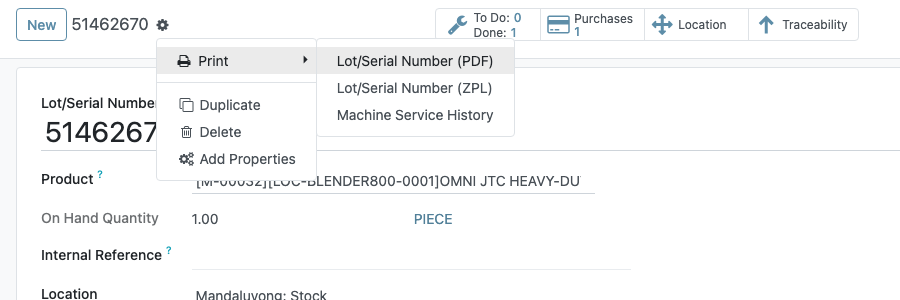
Reading the printout
The top shows the machine or the customer and the print date. Visits are grouped by machine and listed newest first. Each group header shows the number of visits and the date range.
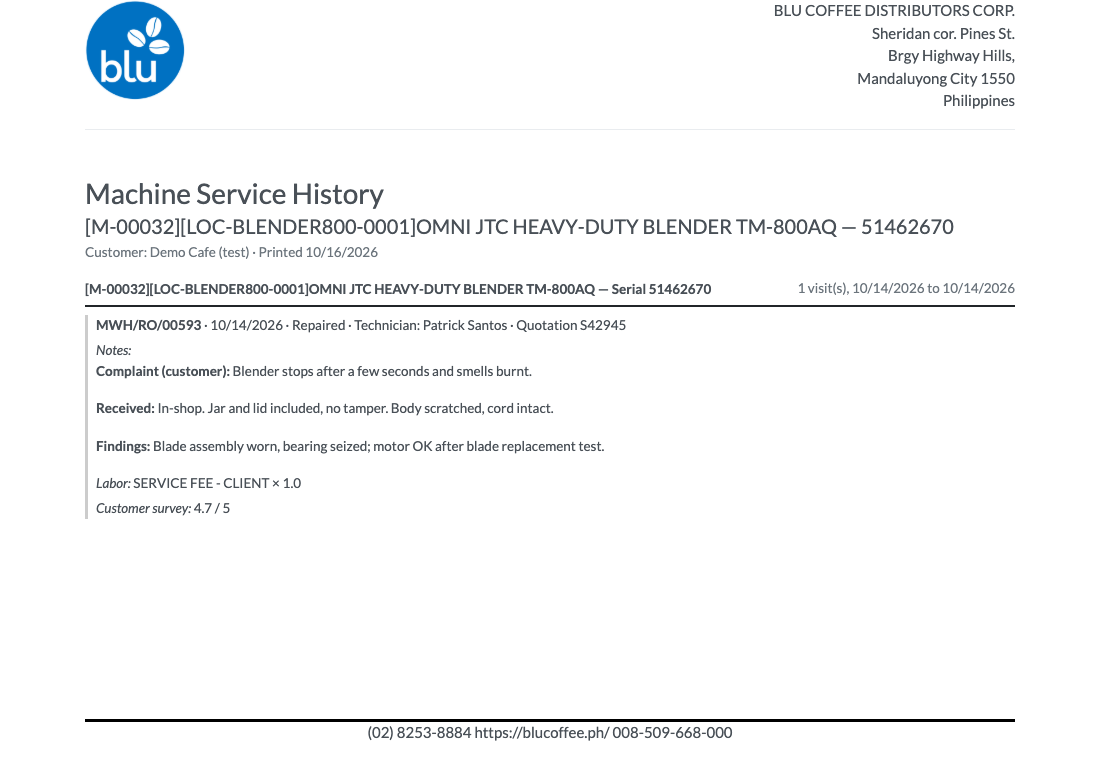
Each visit shows:
| Item | Comes from the RO's |
|---|---|
| RO number, date, status | Reference, Scheduled Date, status (New, Confirmed, Under Repair, Repaired) |
| Technician, WO# | Technician, Work Order# |
| Quotation | The quotation made with Create Quotation |
| Notes | Repair Notes tab (complaint, condition on arrival, findings, work done) |
| Parts | Parts tab. Parts taken out of the machine are marked (removed). |
| Labor | Labor tab. Warranty labor is marked (warranty). |
| Customer survey | Average score of the survey the customer answered after End Repair |
Cancelled ROs are left out.
Machine groups on a customer printout:
- Product — Serial 12345 — ROs with the serial number filled in.
- Product — serial not recorded — ROs with the machine model but no serial.
- Machine not recorded on the repair order — ROs with neither.
Why most printouts look empty today
The printout can only show what was entered on the RO. In the 10/02/2026 copy of prod, almost no RO had a machine and serial number, and fewer than 1% had notes or parts. Most customers' printouts therefore list their visits under Machine not recorded on the repair order, each with No diagnosis or work notes recorded.
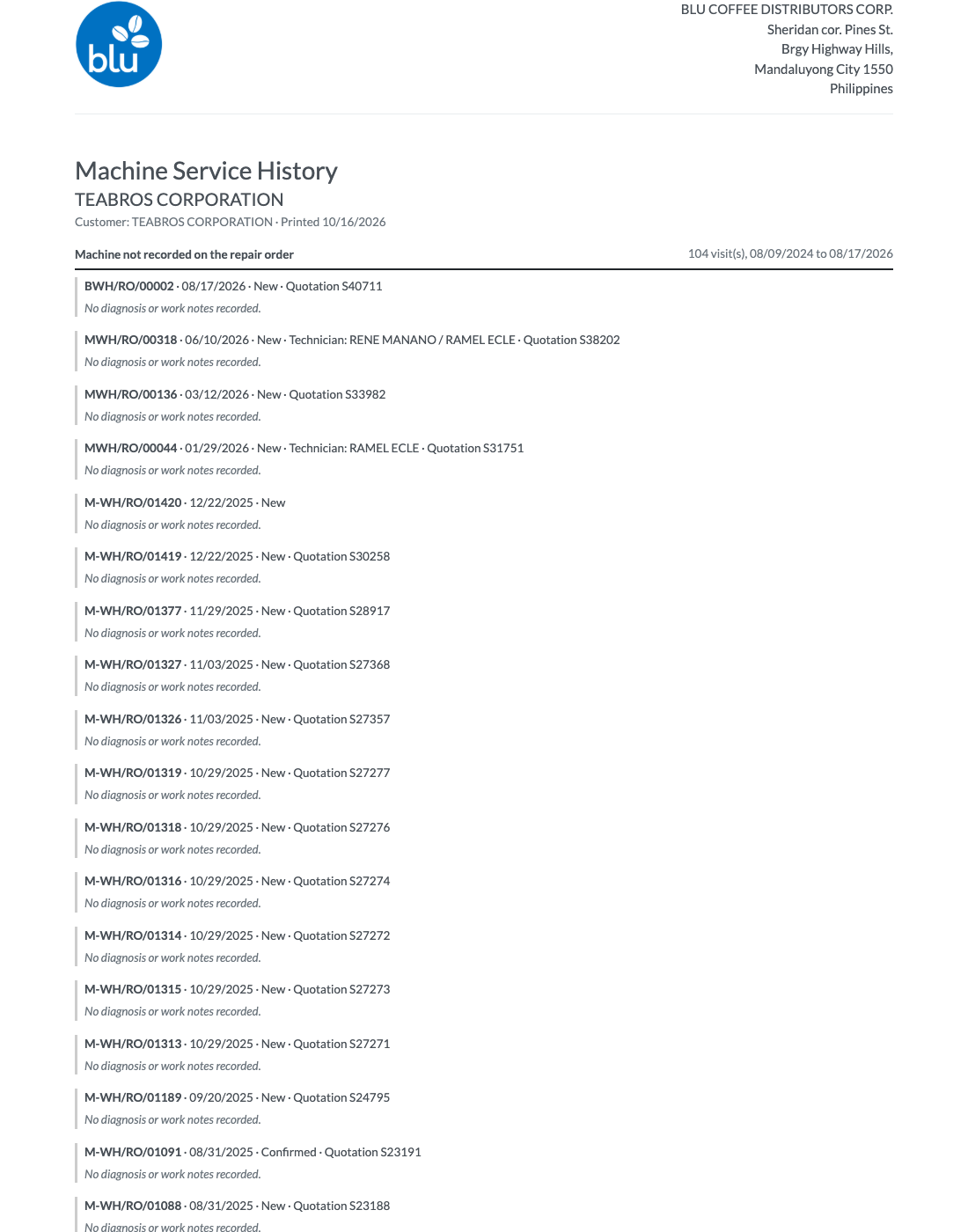
The printout fills in as ROs are completed properly. For a full history, each RO needs:
- the Product to Repair and Lot/Serial at intake,
- the complaint, findings and work done in Repair Notes,
- the parts and labor actually used on the Parts and Labor tabs.
See Repair Orders for the full RO workflow.
Reference
| Module | Provides |
|---|---|
bc17/blu_repair/ | Service History button on the RO; the two report actions (on Lot/Serial and on Contact), restricted to the Inventory user group |