Repair Orders — Intake to Invoice
Every machine repair, whether the customer walked in, called, or (once the portal is live) booked online, ends up as a repair order (RO) in Repairs → Orders. The RO holds the customer, the machine and its serial number, the technician and the schedule, the parts and labor, and the repair notes. From the RO the Service Admin makes a quotation, moves the job through Start Repair and End Repair, and the customer gets a Viber survey when it is done.
This page describes the repair module as it is built today, for the Service team.
Create Quotation turns the RO's labor and parts into a normal sales quotation. From there it follows the usual sales flow: a validator confirms it, Inventory delivers the parts, Accounting invoices and collects. The RO itself never posts an invoice.
The repair in six steps
| # | Step | Who | Where |
|---|---|---|---|
| 1 | Intake — walk-in / phone, or a portal request | Service Admin | Repairs → Orders → New, or Repairs → Portal Access → Services |
| 2 | Schedule — technician and date | Service Admin | The RO (or Set Schedule on a portal request) |
| 3 | Quotation — Create Quotation; the customer agrees; a validator confirms | Service Admin, Validator | RO → Create Quotation → Sales |
| 4 | Repair — Start Repair, do the work, record findings and parts | Service Admin, Technician | RO |
| 5 | End Repair — the customer gets the survey link on Viber | Service Admin, Customer | RO |
| 6 | Invoice — deliver parts, invoice, collect | Sales Invoicing, Accounting | The quotation's sales order |
Two ways in
| Channel | What happens |
|---|---|
| Walk-in or phone — the only channel in use today | The Service Admin creates the RO directly. There is no service request and no schedule Viber; the survey is still sent at End Repair. |
| Customer portal — built, not live yet | The customer registers the machine by serial number and requests service online. Service confirms and schedules the request, which creates the RO and sends the customer a Viber. See Customer Portal. |
Both end up at the same RO, and from there the steps are the same.
Flow
Who does what
| Role | Does |
|---|---|
| Service Admin | Creates the RO, makes the quotation, clicks Start and End Repair. For portal requests: verifies accounts, confirms and schedules requests |
| Technician | Does the repair on site or in the shop and reports findings and parts used. Kept in Repairs → Configuration → Repair Technicians |
| Validator | Confirms the quotation like any sales order (Special Pricing Validator if it has a discount) |
| Sales Invoicing / Accounting | Deliver the parts, invoice and collect from the quotation's sales order |
| Customer | Approves the quotation, answers the survey |
Repair order list
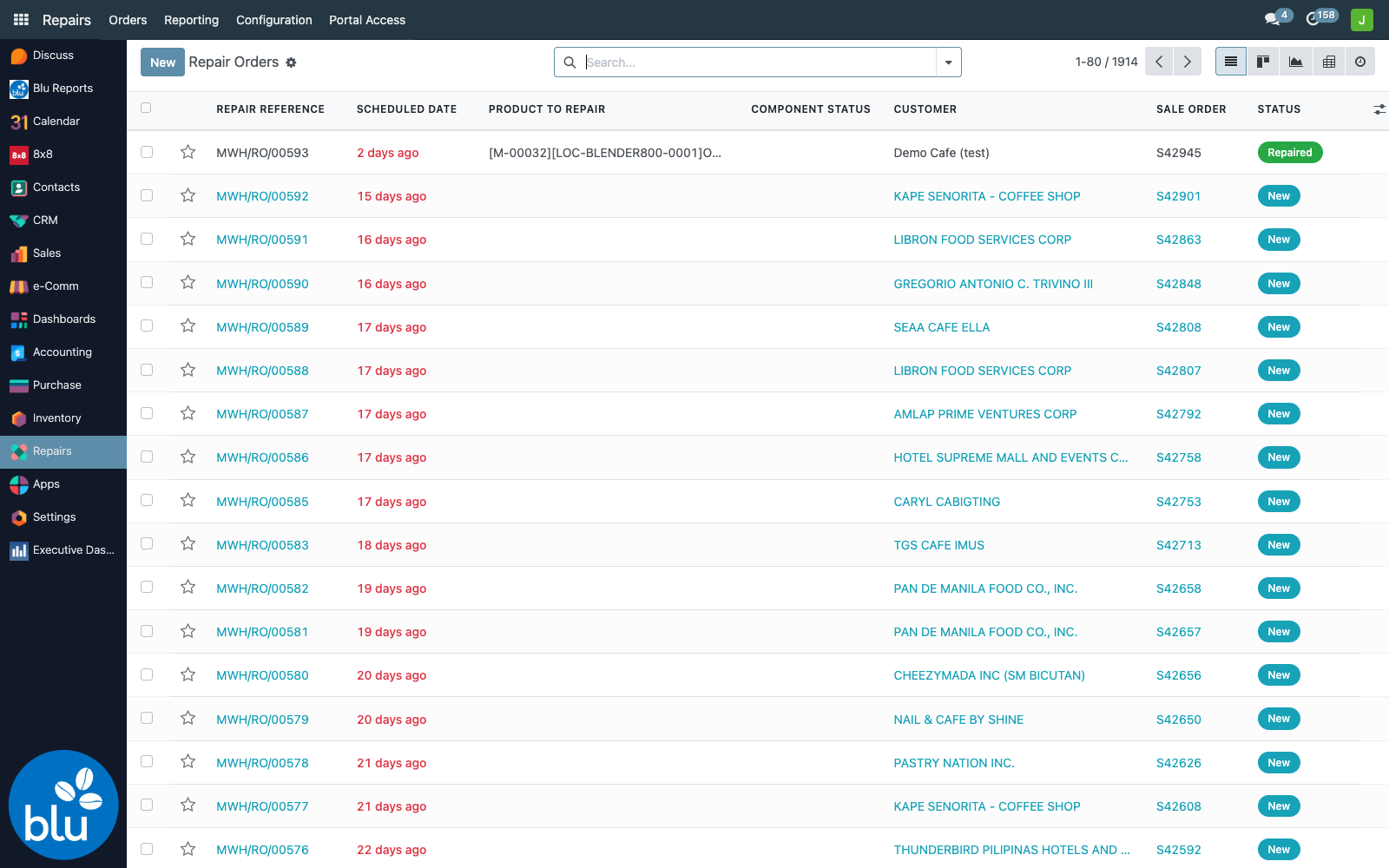
Repairs → Orders lists every RO with its schedule date, machine, customer, linked sales order and status.
1. Create the repair order
Repairs → Orders → New (or open the RO that Set Schedule made from a portal request).
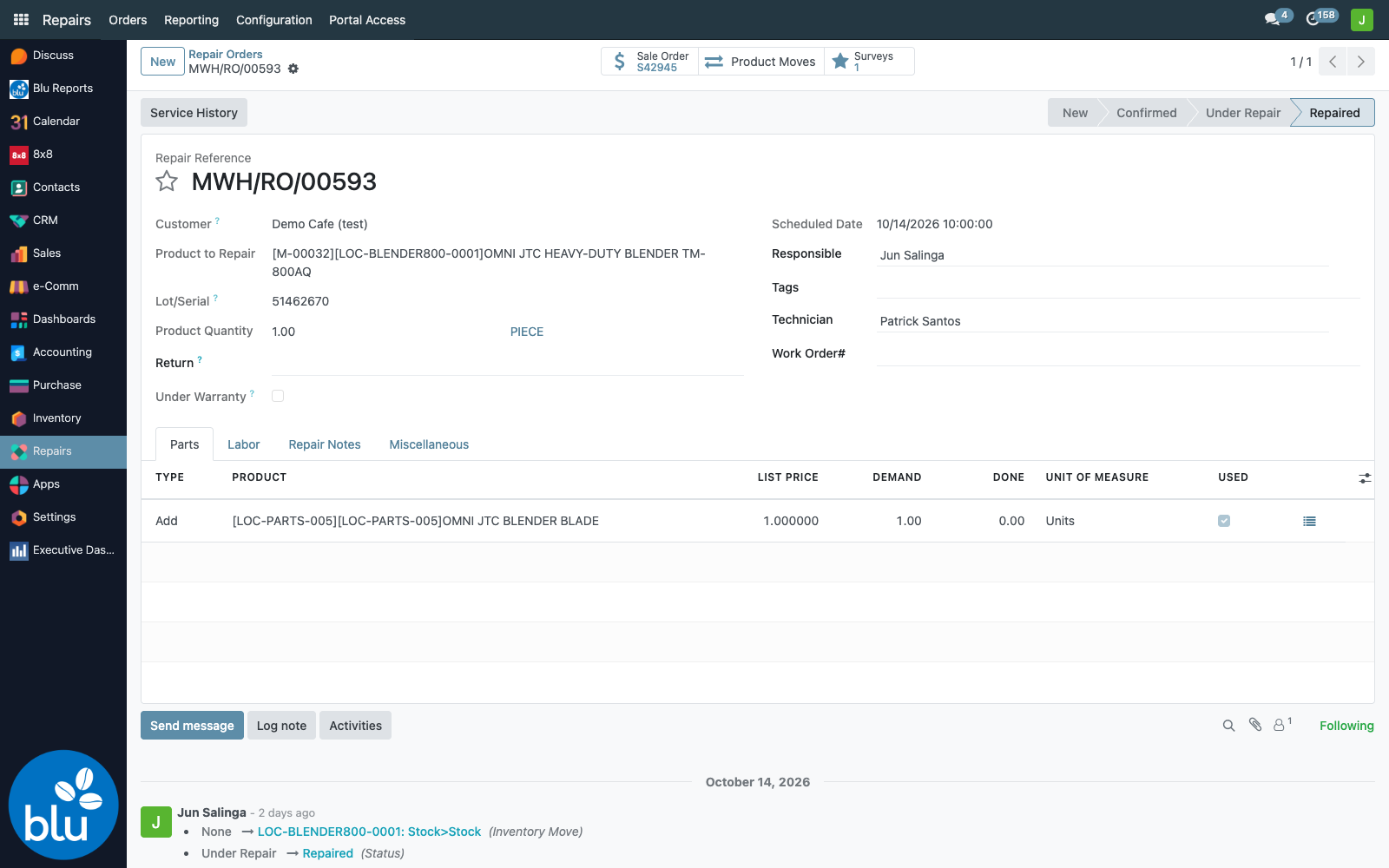
| Field | Notes |
|---|---|
| Customer | Required. Must already exist in Contacts — it cannot be created from the RO. |
| Product to Repair | The machine model. Only serial-tracked products are offered, and it cannot be created from the RO. |
| Lot/Serial | The machine's serial number. Needed for the Machine Service History to group repairs by machine. |
| Under Warranty | Ticked: the parts go on the quotation at ₱0. |
| Scheduled Date | When the technician is expected. |
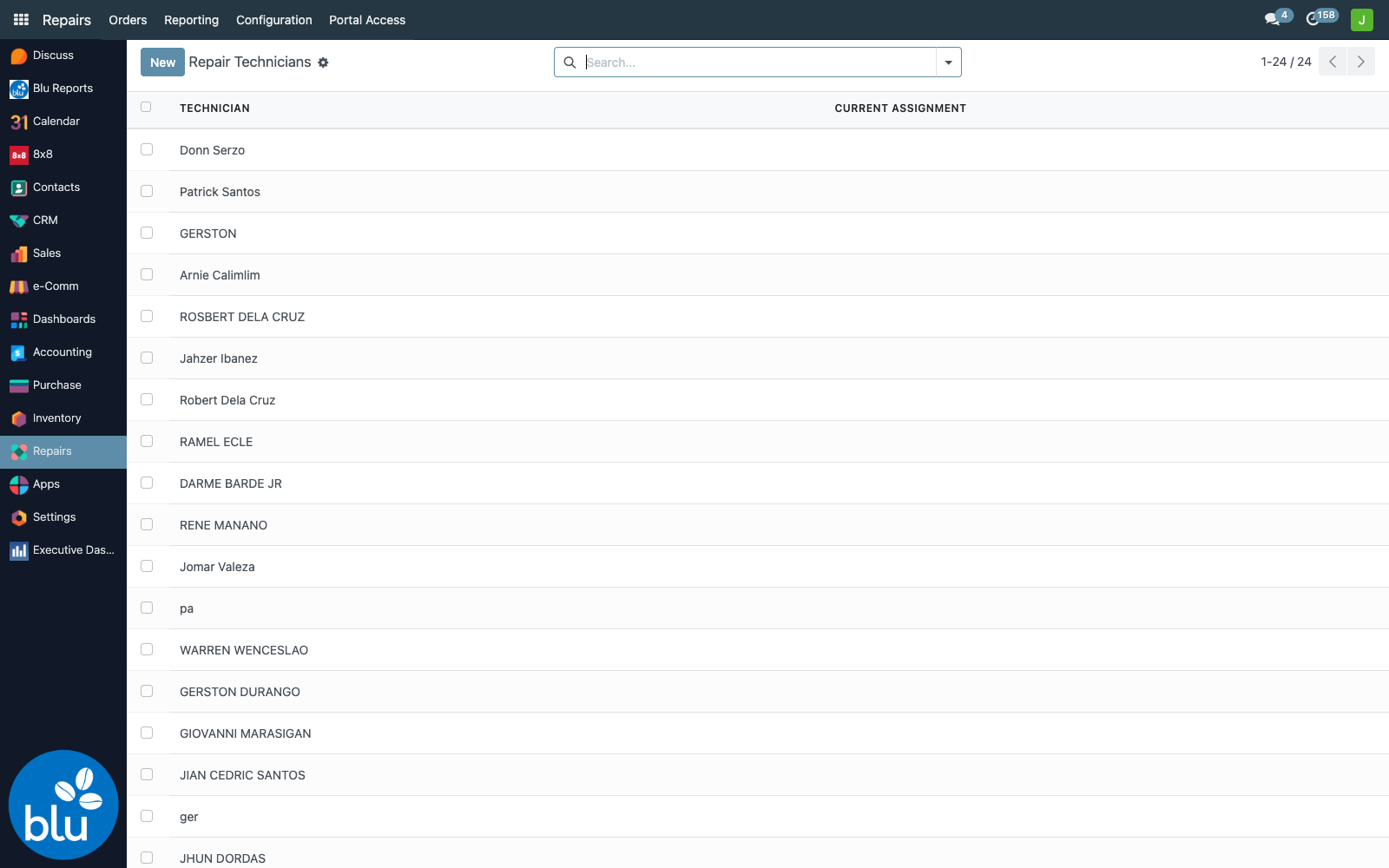
| Technician | Picked from Repairs → Configuration → Repair Technicians. |
| Work Order# | The paper work-order number, if there is one. |
Smart buttons at the top link to the Sale Order (once a quotation exists), the Product Moves, and the Surveys for this RO. The Service History button prints the machine's past repairs — see Machine Service History.
A new RO opens under the repair operation of your default warehouse. Check the operation type when you are encoding a repair for another branch.
2. Parts and labor
Parts tab — parts used (Add) or taken out of the machine (Remove). The product list shows only parts set as compatible with the machine; a List Price column shows each part's price.
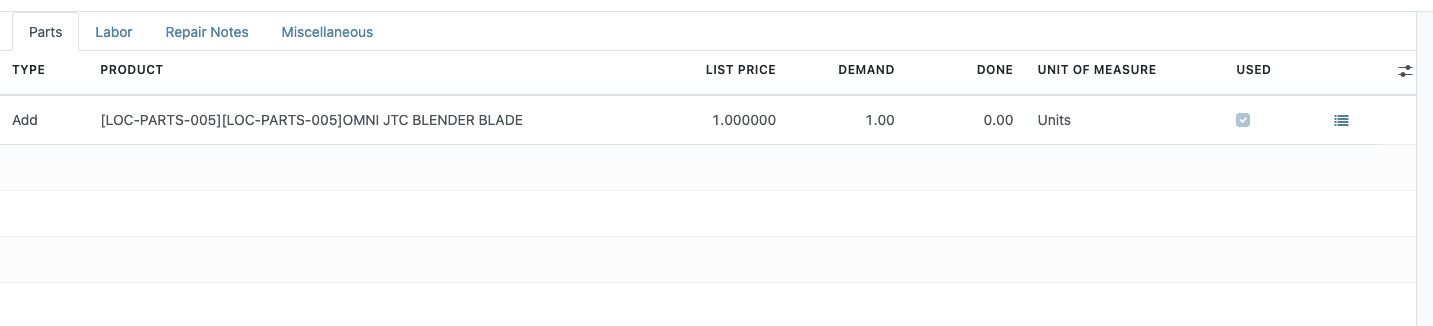
The part has not been marked compatible with this machine. On the part's product form, Inventory tab → Compatible Machines, add the machine model.
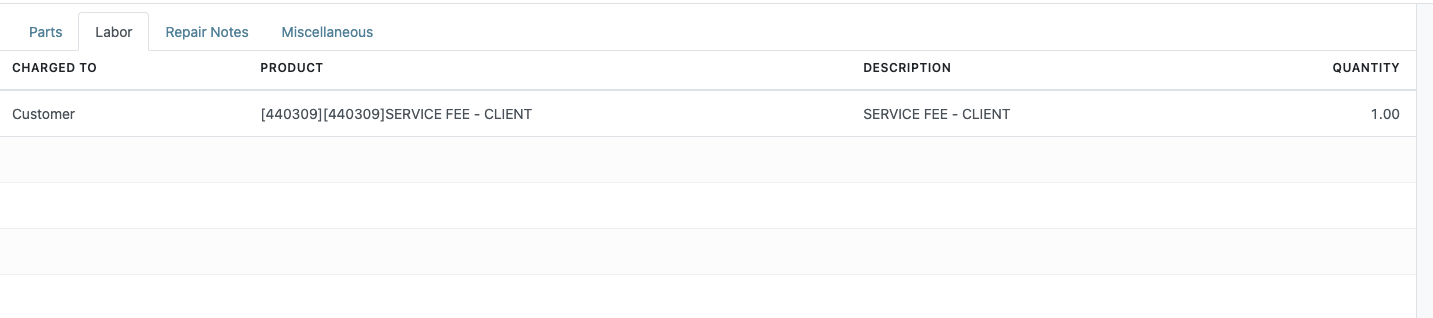
Labor tab — the service fees (service fee, travel fee and so on). Only service-type products can be picked. Each line has Charged to: Customer (the product's sales price) or Warranty (₱0 on the quotation).
Repair Notes tab — the customer's complaint, how the machine was received (in-shop or on-site, accessories, condition), the technician's findings, the work done and the test result. These notes print on the RO and on the Machine Service History.

3. Confirm Repair and Create Quotation
-
Write the reported problem in Repair Notes and click Confirm Repair. The RO moves to Confirmed.
“Insufficient Quantity To Repair”Odoo may warn this because the customer's machine is not in our stock. Click Confirm to go on.
-
Click Create Quotation and OK in the confirmation box. Odoo creates a sales quotation for the RO's customer and warehouse with:
- one line per labor line, at the product's sales price, or ₱0 when Charged to is Warranty;
- one line per part added on the Parts tab, at its price (₱0 if the RO is Under Warranty).
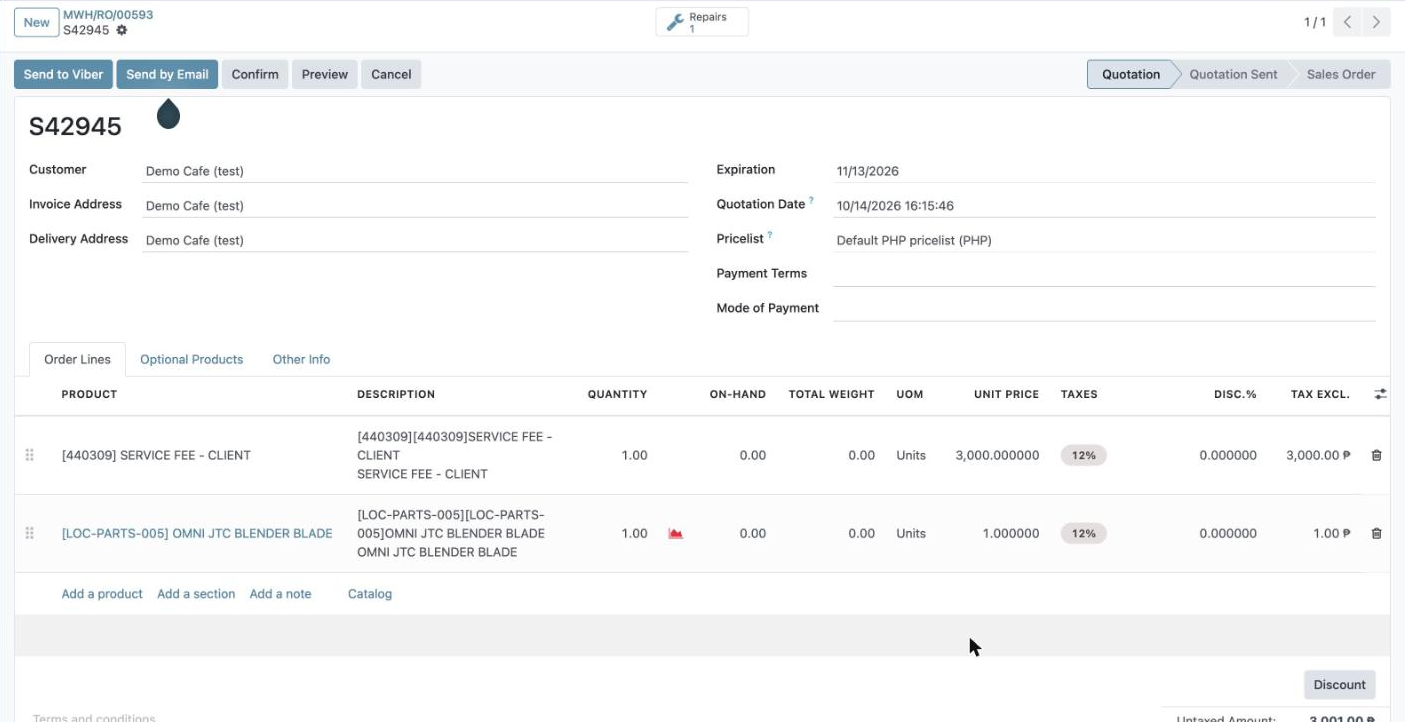
- Send it to the customer with Send to Viber or Send by Email. When the customer agrees, a validator confirms it like any sales order. If the customer declines, cancel both the quotation and the RO (Cancel Repair).
Create Quotation disappears once the RO has a sales order. Parts added to the RO afterwards are added to the quotation by Odoo; labor added afterwards is not — add it on the quotation directly.
4. Start Repair
On the visit day, click Start Repair. The RO moves to Under Repair (and a linked portal request too).

When the technician reports back, record the findings and work done in Repair Notes, add any extra parts on the Parts tab, and tick Used on each part actually used.
5. End Repair and the survey
When the work is finished, click End Repair. The RO moves to Repaired and Odoo creates the customer survey and sends its link by Viber.

If a part's done quantity differs from its demand (usually a part not ticked Used, or not in stock), Odoo asks first. Discard to go back and fix the Parts tab, or Validate to end the repair as it is.
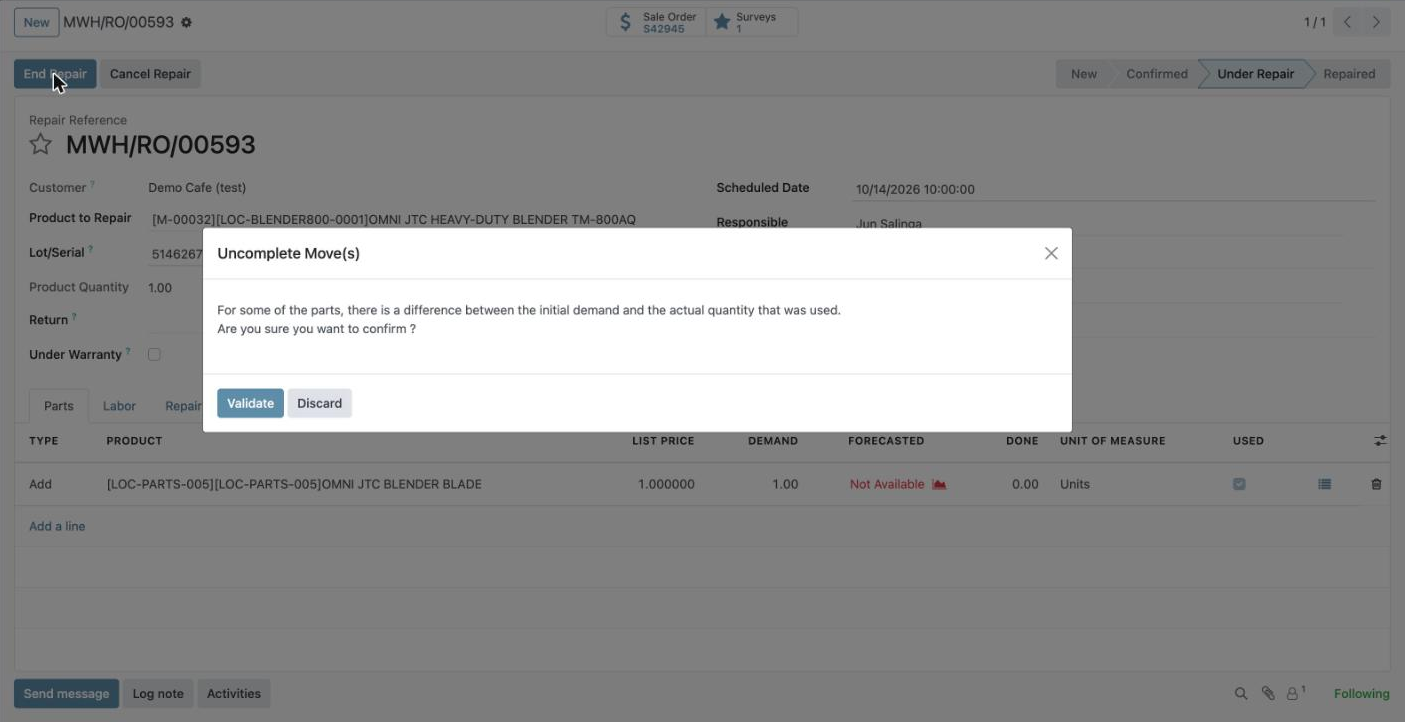
End Repair is what sends the survey. A repair left at New, Confirmed or Under Repair never sends one.
6. Invoice and collect
Delivery of the parts, the invoice and the collection all run from the quotation's sales order, the same as any sale — see Sales Order. Open it from the Sale Order smart button on the RO.
Viber notices and the survey
Odoo sends these on its own and logs each send in the RO's chatter. The details — message wording, the survey page, where to read the answers — are on Service Workflow.
| Sent when | Message | Applies to |
|---|---|---|
| Set Schedule saved on a portal request | Schedule confirmation: RO number, technician, date | Portal requests only |
| Scheduled Date or Technician changed on the RO | RESCHEDULED notice | Portal requests that are Scheduled, On Hold or Under Repair |
| End Repair | Survey link | Every RO |
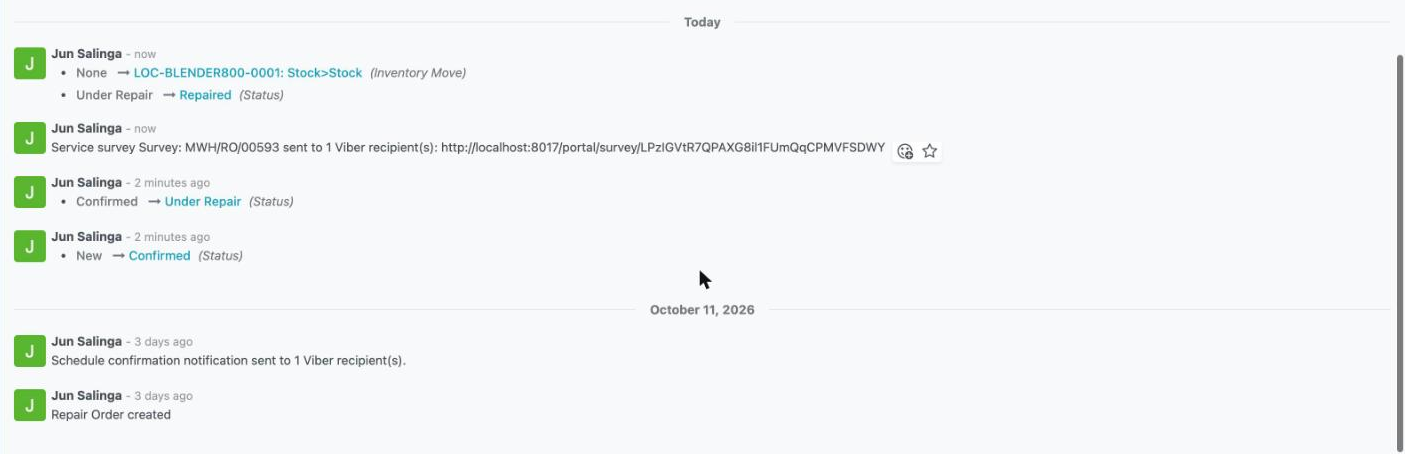
Who gets it: the customer Contact's mobile (else phone), plus — when the RO came from a portal request — the portal account's mobile and its Notification Recipients. A number is sent to once. With no number at all nothing is sent, and the repair still goes on.
Statuses
| Repair order | Meaning | Button that gets it there | Portal request (if any) |
|---|---|---|---|
| New | Encoded, not yet confirmed | Save (or Set Schedule) | Scheduled |
| Confirmed | The repair is booked | Confirm Repair | Scheduled |
| Under Repair | The technician is working on it | Start Repair | Under Repair |
| Repaired | Finished; the survey is sent | End Repair | Repaired |
| Cancelled | Will not be done (Set to Draft brings it back) | Cancel Repair | not updated |
Technicians
Repairs → Configuration → Repair Technicians holds the list used on ROs and in the Set Schedule wizard. Add a technician here before assigning them.
Rules that trip people up
- Charged through the quotation, not the RO. The RO's prices only matter once they are on the quotation.
- One quotation per RO. Add later charges to that same quotation.
- Product to Repair must be serial-tracked, and the customer must already exist in Contacts.
- Parts list = compatible parts only. A missing part means its compatibility is not set on the product.
- Default warehouse. New ROs open under your default warehouse's repair operation.
- Reschedule on the RO, not with a new request. Only ROs from portal requests send the RESCHEDULED Viber.
- Click End Repair when the work is finished — it sends the survey.
Known gaps
| Gap | Effect |
|---|---|
| Walk-in ROs get no schedule Viber | Only the survey is sent. Tell the customer the schedule yourself. |
| Labor added after Create Quotation | Does not reach the quotation (parts do). Add it on the quotation. |
| No button for a portal request's On Hold or Cancelled | A cancelled RO leaves its portal request at Scheduled. The request's status bar also lists a "waiting parts" step that does not exist. |
| Technician's Current Assignment is not filled in | It is not set from ROs, so it does not show who is busy. |
| Most ROs stay at New | In the 10/02/2026 copy of prod, about 1,550 of 1,900 ROs were still New, and almost none had a machine and serial recorded. Their quotations were made, but the RO was never moved through Confirm, Start and End Repair — so no survey went out and the Machine Service History has little to show. |
Reference
| Module | Provides |
|---|---|
bc17/blu_repair/ | Labor tab (repair.order.labor), Work Order#, Create Quotation with labor lines, default-warehouse repair operation, Repair Technicians, Service History button and printout |
bc17/blu_stock/ | Compatible-parts filter on the Parts tab, List Price column |
bc17/blu_portal/ | Technician field, Start/End Repair that also move the portal request, schedule/reschedule Viber, the survey |