Repair Service Workflow — Client Notifications & Post-Service Survey
When a customer's machine needs work, Blu Coffee's service team runs the job through a fixed sequence: approve the quotation, schedule a date, assign a technician, do the repair, close it out. Two parts of that sequence are now automated so the customer stays in the loop without anyone having to pick up the phone:
- A Viber message goes out the moment a service is scheduled (and again if it's later rescheduled), telling the client who is coming and when.
- A post-service satisfaction survey is created and Viber-linked the moment the repair is marked complete, so the client can rate the job from their phone with no login.
Both pieces ride on the same 8x8 messaging plumbing used by Auto-RFQ and Receipt Notifications.
| Module | Provides |
|---|---|
bc17/blu_portal/ | portal.services request workflow, the "Set Schedule" wizard, the repair.order extensions (technician field, schedule/reschedule Viber notifications, survey trigger on completion), the blu.repair.survey model, and the public survey web page |
bc17/blu_8x8/ | Viber delivery through the 8x8 chat-apps API |
Lifecycle
The end-to-end workflow
The job moves through these stages. Stages 5 and 6 are the new automated pieces.
1. Quotation approved
Once the customer accepts the service quotation, scheduling can begin. This is a manual, off-system step (or a sales quotation) — the documentation below picks up from the service request in Odoo.
2 & 3. Supervisor sets the service date and assigns a technician
The Supervisor opens the service request and assigns both the date and the technician in one step.
Repairs → Portal Access → Services — open the request (it must be in Confirmed state) and click Set Schedule.
The Set Schedule wizard asks for:
- Schedule Date — the date and time the technician is expected on site.
- Technician — picked from the repair technician list (
repair.technician). - Notes — optional.
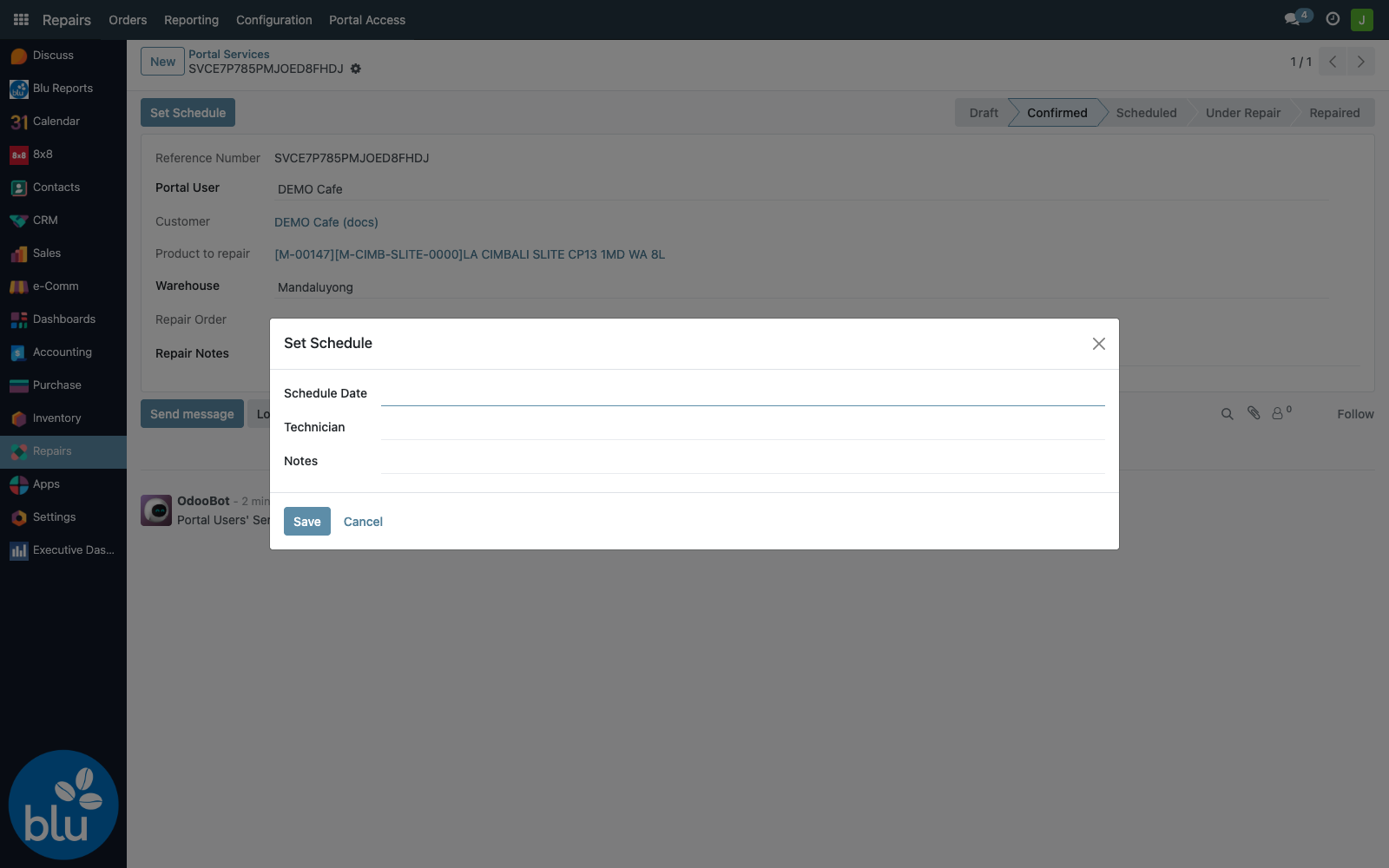
4. Request confirmed and updated in the system
Clicking Save on the wizard:
- creates (or updates) the linked Repair Order with the chosen date and technician;
- moves the service request to Scheduled.
From here the technician runs the job on the Repair Order itself — Start Repair moves it to Under Repair, End Repair moves it to Repaired.
A portal.services request flows through Draft → Confirmed → Scheduled → Under Repair → Repaired (with On Hold available when a job is waiting on parts). The matching Repair Order carries the technician, the schedule date, and — once complete — the survey.
NEW — Automatic client schedule notification (Viber)
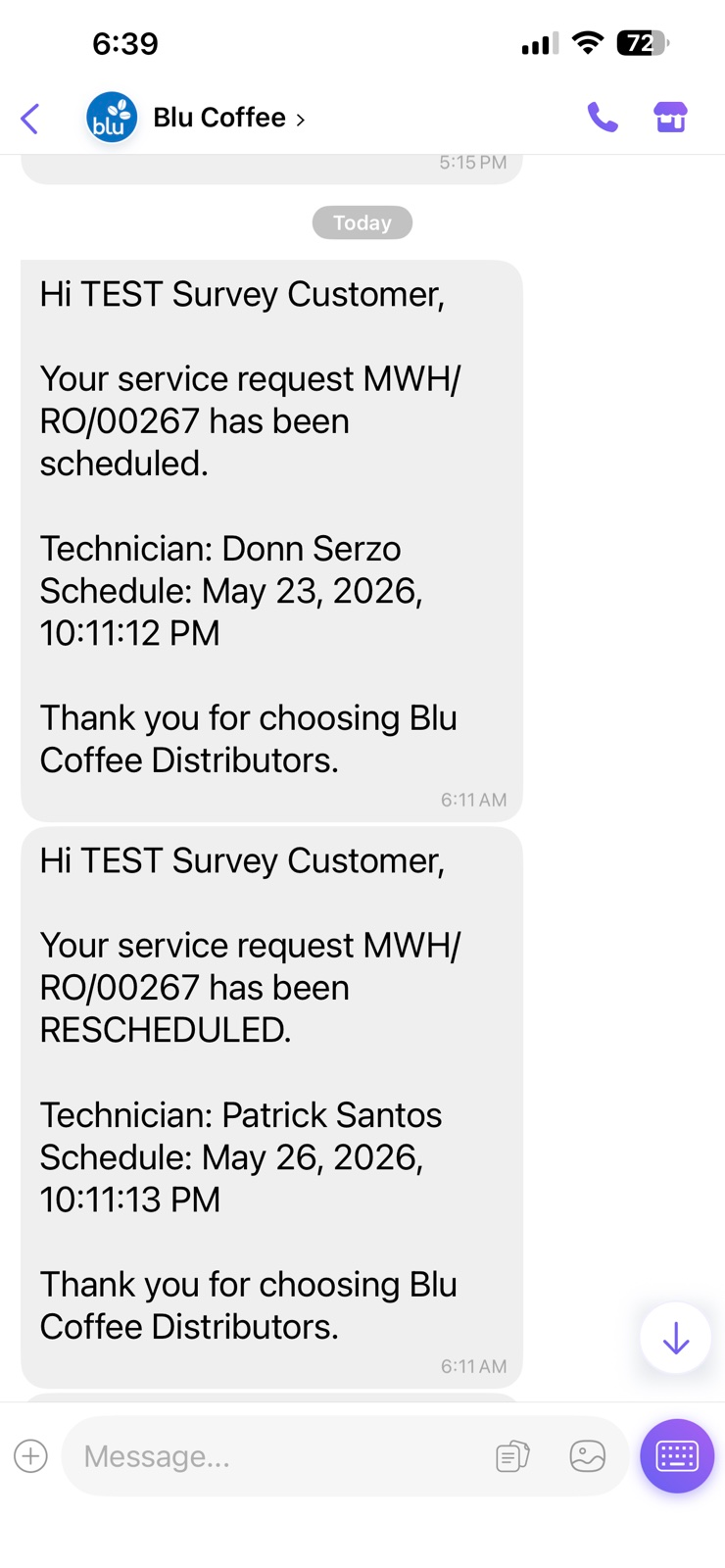
When the Set Schedule wizard is saved, the client automatically receives a Viber message. Staff do not press anything extra — saving the schedule is the trigger.
What the client receives:
Hi <Customer>,

Your service request <Repair Ref> has been scheduled.

Technician: <Technician Name>
Schedule: <Date and time>

Thank you for choosing Blu Coffee Distributors.
Reschedules are covered too
If the job is later moved — the scheduled date or the technician on the Repair Order is changed — the client automatically gets an updated message. The wording switches to "has been RESCHEDULED" so the customer can tell it apart from the first notification.
This fires whenever the Repair Order's schedule_date or technician_id is edited and the request is still active (Scheduled, On Hold, or Under Repair). It does not re-fire for completed jobs.
Each send is also logged in the Repair Order's chatter — e.g. "Schedule confirmation notification sent to 2 Viber recipient(s)." — so staff can confirm the customer was reached.
| Trigger | Message | Where it fires from |
|---|---|---|
| Schedule first set | …has been scheduled. | Set Schedule wizard → Save |
| Date or technician changed afterwards | …has been RESCHEDULED. | Editing the Repair Order |
Both messages as the customer sees them in Viber — the first notification, then the later reschedule:
NEW — Post-service satisfaction survey
When the technician marks the job done — the Repair Order reaches Repaired (the End Repair button) — bc17 automatically:
- creates a survey record (
blu.repair.survey) linked to that Repair Order; - sends the client a Viber message with a link to a public survey page (no login required).
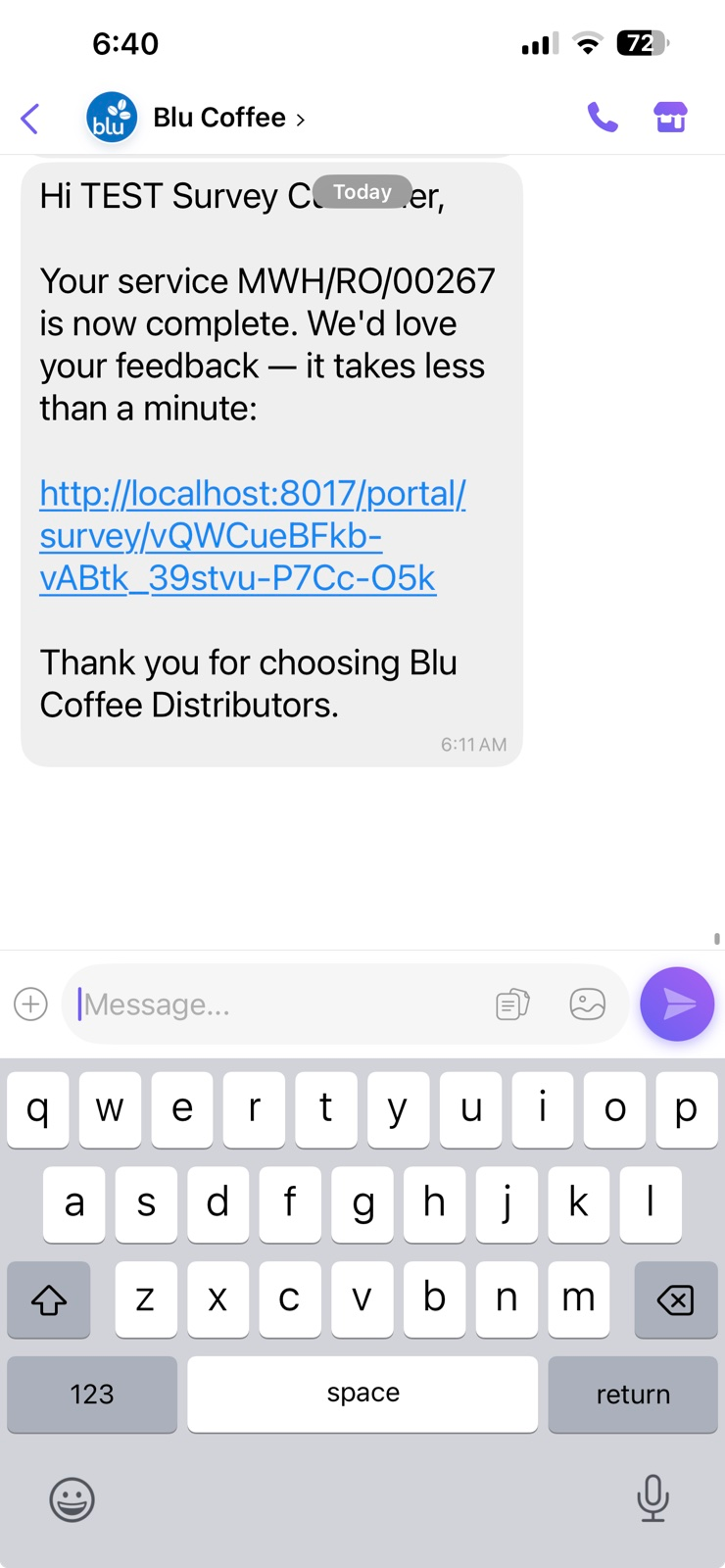
What the client receives:
Hi <Customer>,

Your service <Repair Ref> is now complete. We'd love your feedback —
it takes less than a minute:

https://blu.panville.com/portal/survey/<unique-token>

Thank you for choosing Blu Coffee Distributors.
The message the customer receives in Viber, with the tappable survey link:
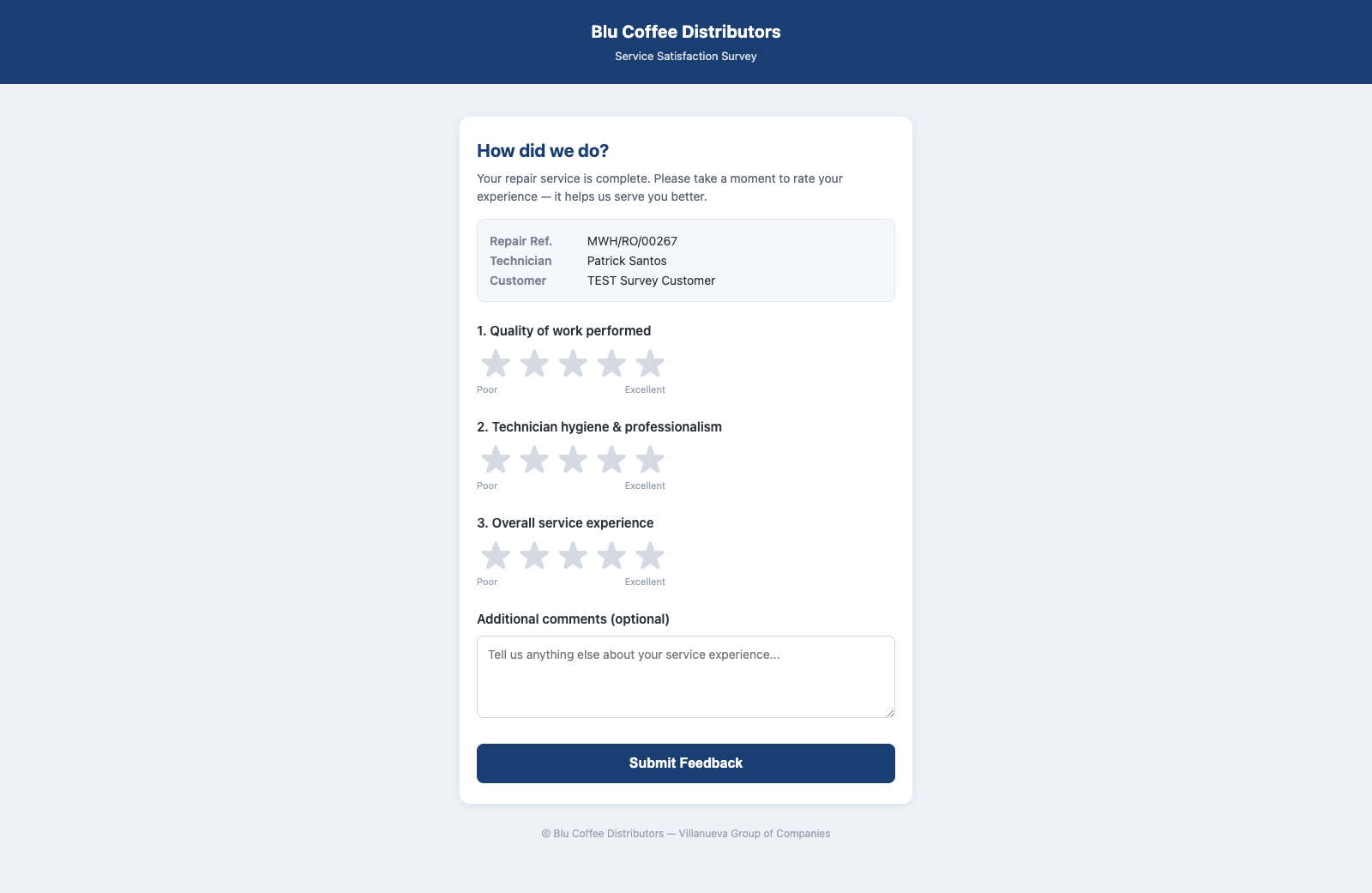
What the client sees on the survey page
The link opens a standalone web page — it does not require a portal login. The customer answers three 1–5 star questions:
- Quality of work performed
- Technician hygiene & professionalism
- Overall service experience
…plus an optional free-text comment. All three star ratings are required to submit; the comment can be left blank.
After submitting, the customer sees a thank-you screen. The link is single-use per repair — opening it again after a response shows the thank-you page, so a customer cannot overwrite their own answers.
Where staff review the results
Submitted responses are stored on the survey record and are reviewable in two places.
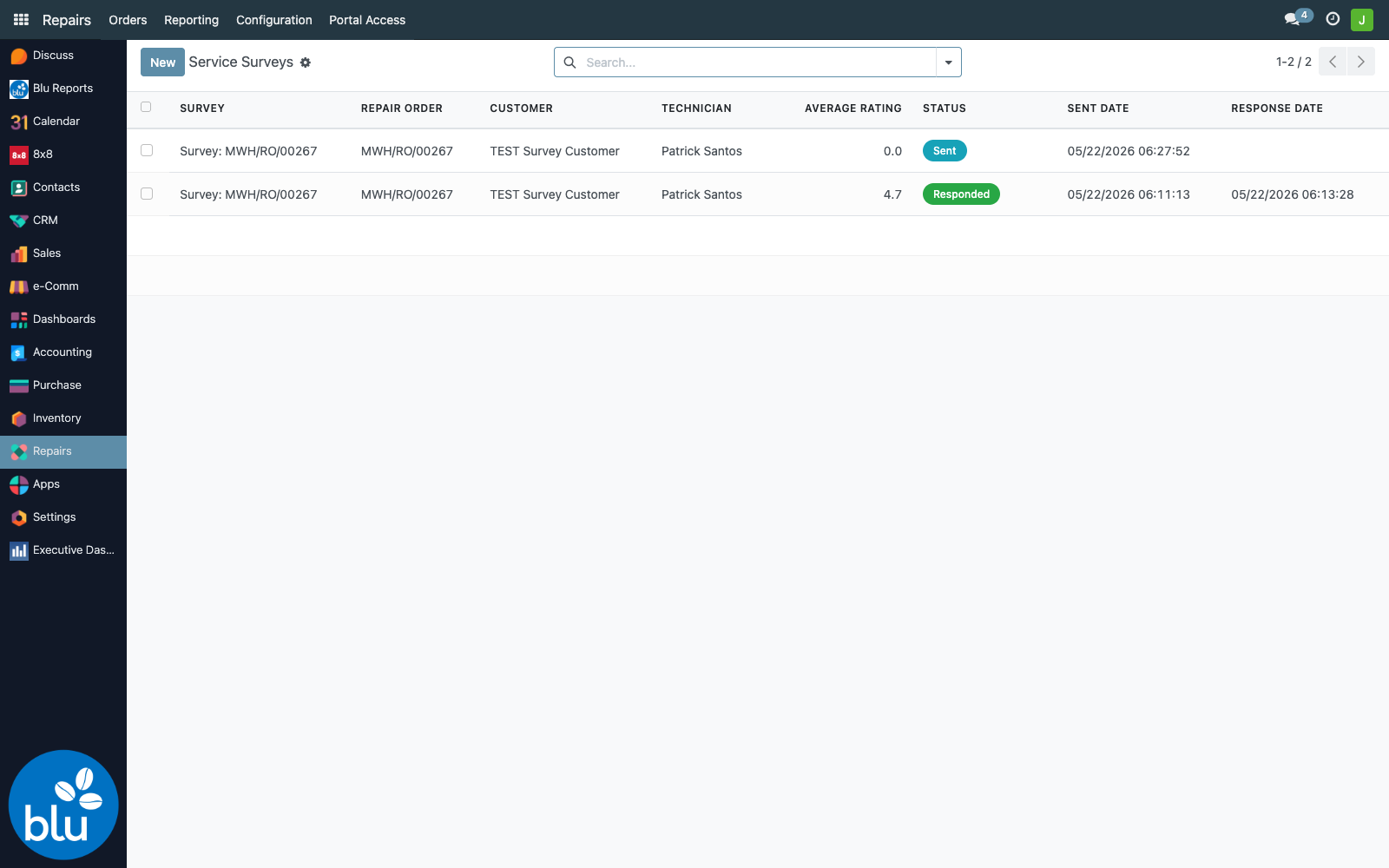
1. The "Service Surveys" menu — Repairs → Portal Access → Service Surveys. A list of every survey with its customer, technician, average rating, and status (Sent / Responded). Filter by status or group by technician or status.
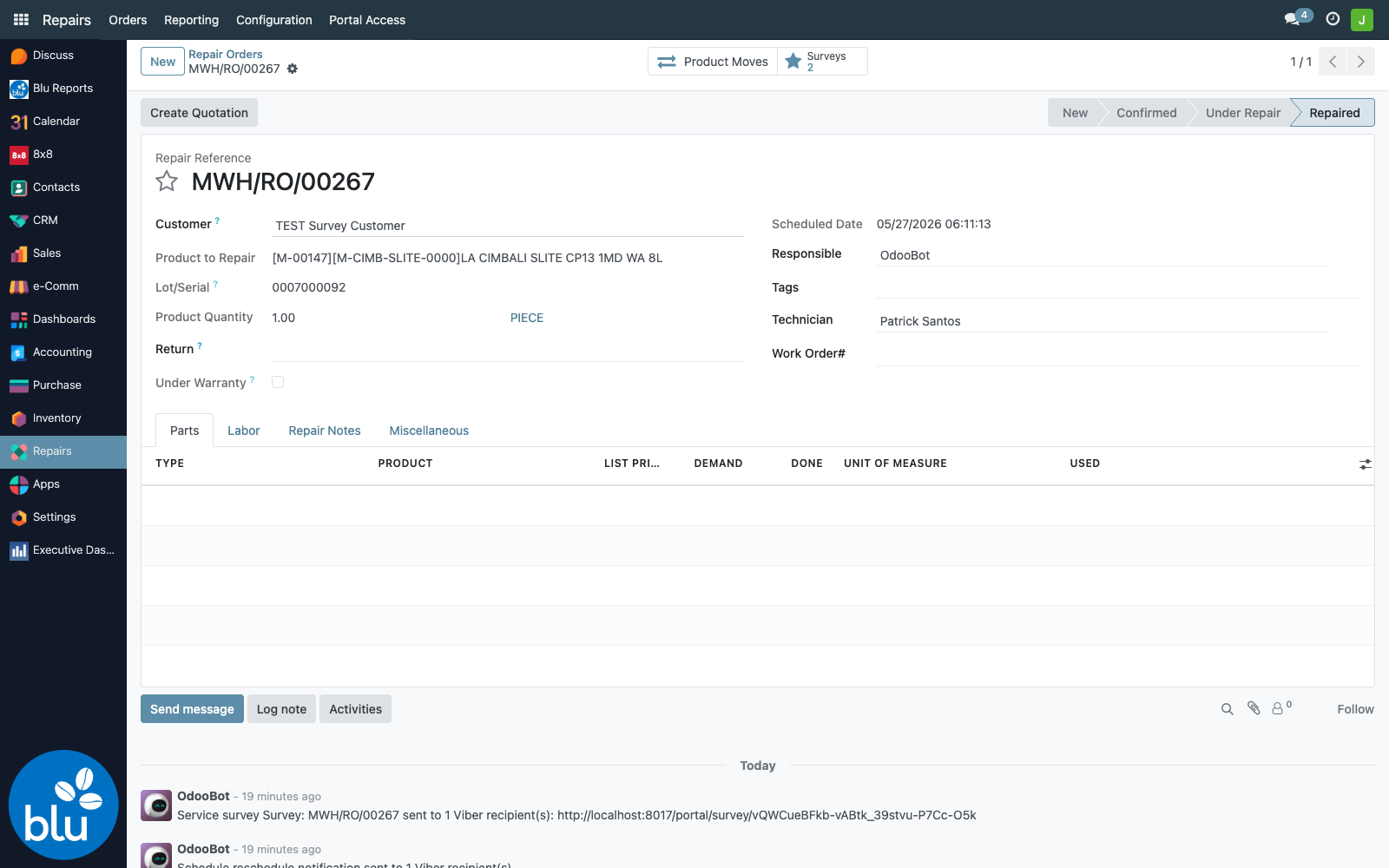
2. The "Surveys" smart button on the Repair Order — every Repair Order form carries a star-icon Surveys smart button showing the survey count. Click it to jump straight to that job's survey.
Each survey record shows the three individual ratings, a computed Average Rating, and the customer's comments:
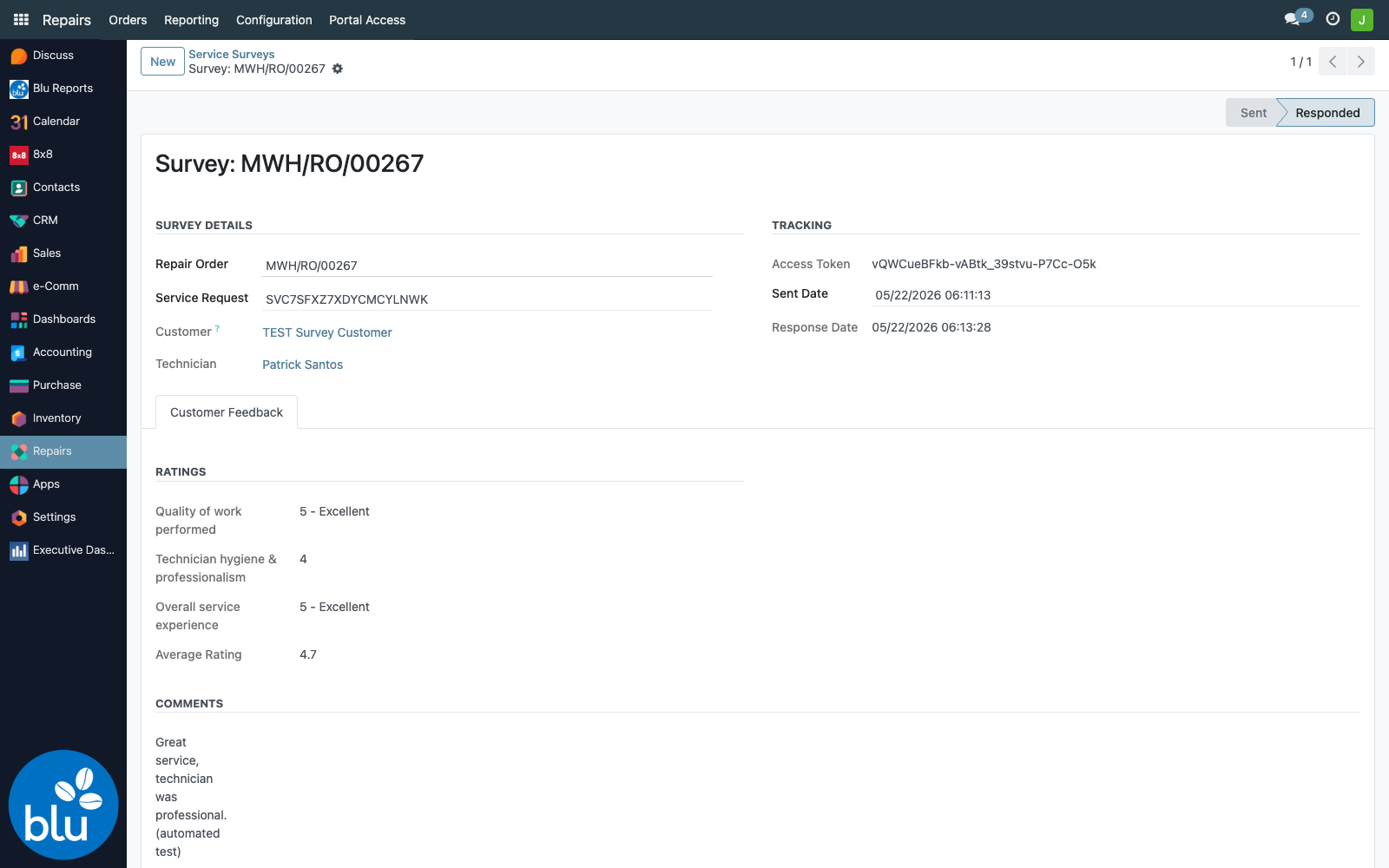
| Field | Meaning |
|---|---|
| Repair Order | The job the survey belongs to |
| Customer / Technician | Pulled from the Repair Order |
| Quality / Hygiene / Overall | The three 1–5 star ratings the customer gave |
| Average Rating | Mean of the three answered ratings |
| Additional comments | The customer's free-text feedback (may be blank) |
| Status | Sent (link issued, no response yet) or Responded |
| Sent Date / Response Date | When the link went out, and when the customer answered |
Notes / limitations
- Viber needs a mobile number. Both the schedule notification and the survey link are sent via Viber only if the client/contact has a mobile number on file (the customer's partner record, the linked portal user, and any extra notification recipients are all checked). If no number is found, the send is skipped and logged — the workflow still proceeds normally.
- The survey link is unique per repair order. Each survey carries its own access token; the URL works for exactly that one job and becomes read-only once the customer has answered.
- One survey per repair. Re-running End Repair on a job that already has a survey will not create or send a second one.
- The survey page is public. It deliberately needs no login so customers can answer in seconds — anyone with the link can view it, so it is not a place for sensitive data.
- Notifications are best-effort. If the 8x8 gateway or the Viber channel is unavailable, the message is skipped and logged; the schedule or repair completion itself is never blocked.
Troubleshooting
| Symptom | Likely cause |
|---|---|
| Client got no schedule Viber | The customer/portal contact has no mobile number — check their partner record |
| No "RESCHEDULED" message after a date change | The linked service request isn't in an active state (Scheduled / On Hold / Under Repair), or the change was made with notifications suppressed |
| Repair completed but no survey appeared | Confirm the Repair Order actually reached Repaired via End Repair; check the server log for a survey-creation error |
| Survey link shows "not found" | The token is wrong or the survey record was deleted |
| Survey link shows the thank-you page | The customer has already responded — the link is single-use |
| Survey sent but Surveys smart button shows 0 | The survey is linked to a different Repair Order — confirm via Service Surveys which Repair Order it points to |