Order-to-Cash
This page follows one sale through Odoo from start to finish: the client profile, the quotation, confirmation, delivery, the invoice and the collection. Each step links to the page that covers it in detail.
Who does what
| Role | Does | Odoo access needed |
|---|---|---|
| Sales / Account Executive | Sets up client profiles, encodes and sends quotations, revises them | Sales user, Contacts |
| SO Validator | Reviews a quotation and clicks Confirm. Cannot confirm one with a discount | Sales Order Validators |
| Special Pricing Validator | Confirms quotations where any line has a discount | Sales Order Special Pricing Validators |
| Warehouse | Picks and loads the order, enters the Official DR No., validates and prints the DR | Allow Validation of Deliveries and Receipts |
| Delivery / Logistics | Trip tickets, dispatch, post-validation of what was actually delivered | Delivery Accountability Encoders |
| Sales Invoicing | Creates the invoice from the SO, confirms it, enters the SI No. | Sales Invoicing |
| Accounting / Collection | Countering, collection, registering payments with the CR No. | Accounting |
Rules that trip people up
- The customer must exist before the quotation. The Customer field on a quotation only picks from Contacts. It cannot create one.
- A branch is not a new customer. Add it under the main customer as a Delivery Address. Branches cannot be picked as the Customer on a quotation or invoice. See Customers & Addresses.
- Payment Terms and Mode of Payment are required before a quotation can be saved.
- Any discount on a line makes it special pricing. Only a Special Pricing Validator can confirm it. An SO Validator gets "You are not allowed to confirm quotations with special pricing."
- Confirming the SO creates the delivery (DR). The warehouse sees nothing while the order is still a quotation.
- Sales orders cannot be deleted, so the numbering has no gaps. Cancel a quotation instead.
Flow 1 — Create a client profile
Do this once per customer, in the Contacts app, before their first quotation.
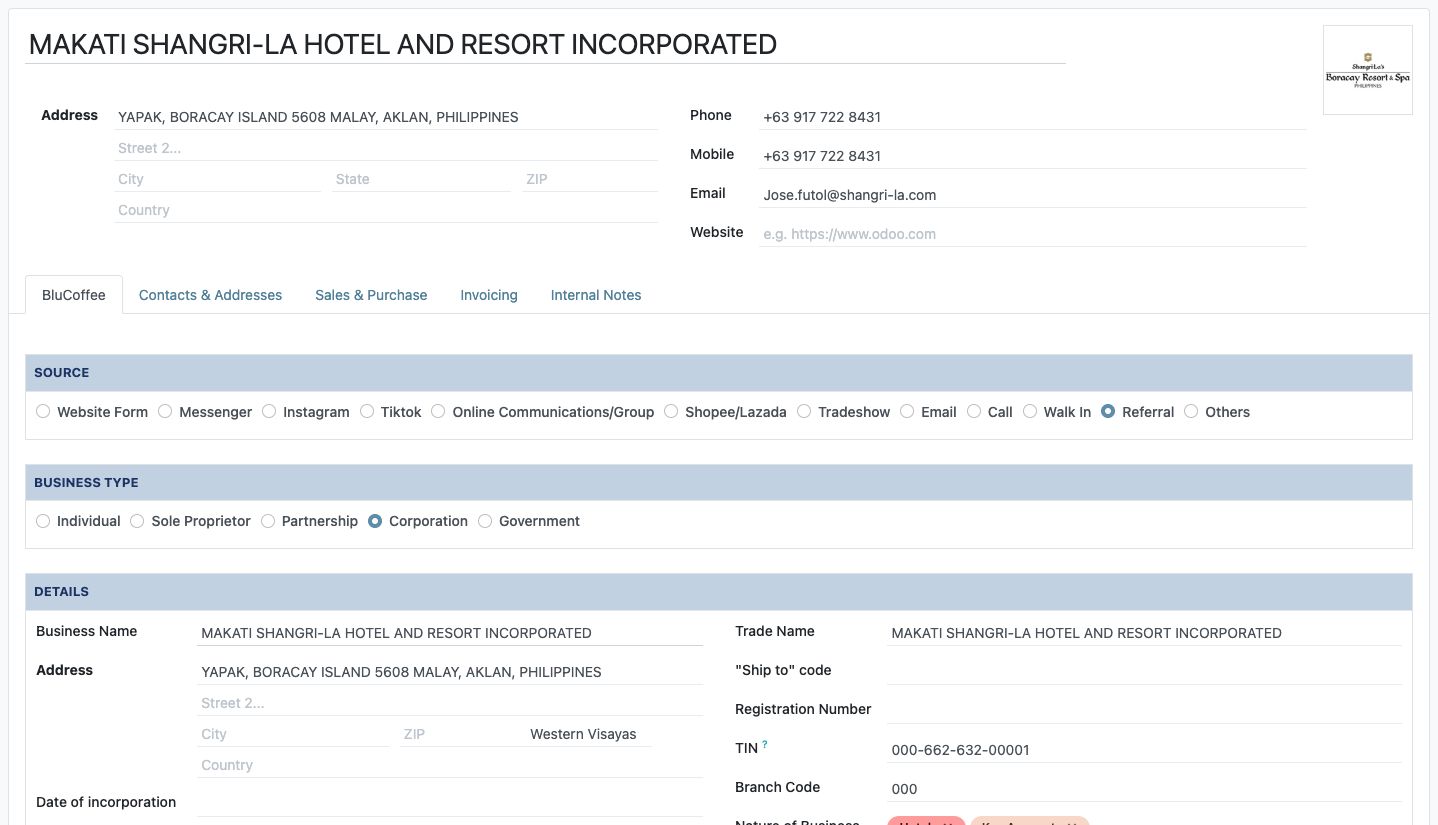
- Individual or Company. Choosing Individual sets Business Type to Individual. Any other Business Type makes the record a Company, and Source, Business Type and Business Name become required.
- The document boxes are a checklist. Ticking BIR COR, Business Permit, DTI, SEC, License to Operate or the 2 Government IDs records that you received the document. Keep the documents themselves on file.
- Region drives the SLA. The customer's Region sets the delivery target on every order. See Delivery Orders SLA.
How to add branches and billing addresses, and why they never appear as customers on their own, is on Customers & Addresses.
Flow 2 — Quotation to confirmed Sales Order
In the Sales app. Only validators see the Confirm button.
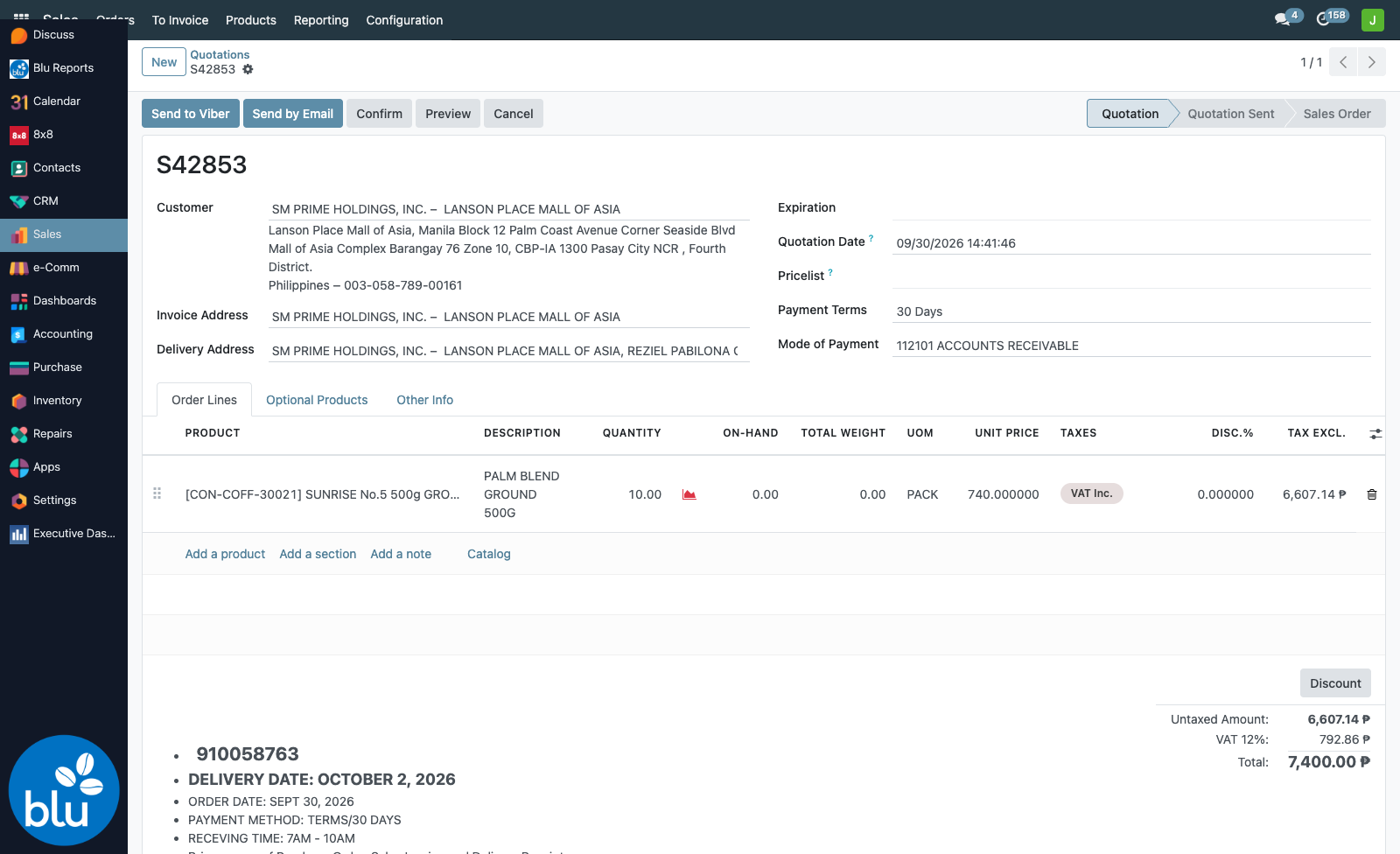
- Addresses. Invoice and Delivery Address only offer the customer's own addresses. If a branch is missing, add it to the customer first (Flow 1, step 1a).
- Warehouse. It is filled in from the encoder's default warehouse (Other Info tab). Check it before confirming: the DR is created in that warehouse and takes its stock from there.
- Not approved? The validator returns it to Sales, who revise it (step 4) and ask again. To change an order that is already confirmed, a validator clicks Cancel and then Set to Quotation. Do this before anything is delivered.
Sending to Viber, the special-pricing check and Force Close are covered on Sales Order.
Flow 3 — Delivery, invoicing and collection
In the Inventory, Sales and Accounting apps, after the SO is confirmed. Delivery and invoicing run side by side once the DR is validated.
Delivery (steps 1–7)
The DR carries the Official DR No. from the BIR loose-leaf booklet. Enter it before validating, then print the DR with one of the DR buttons:
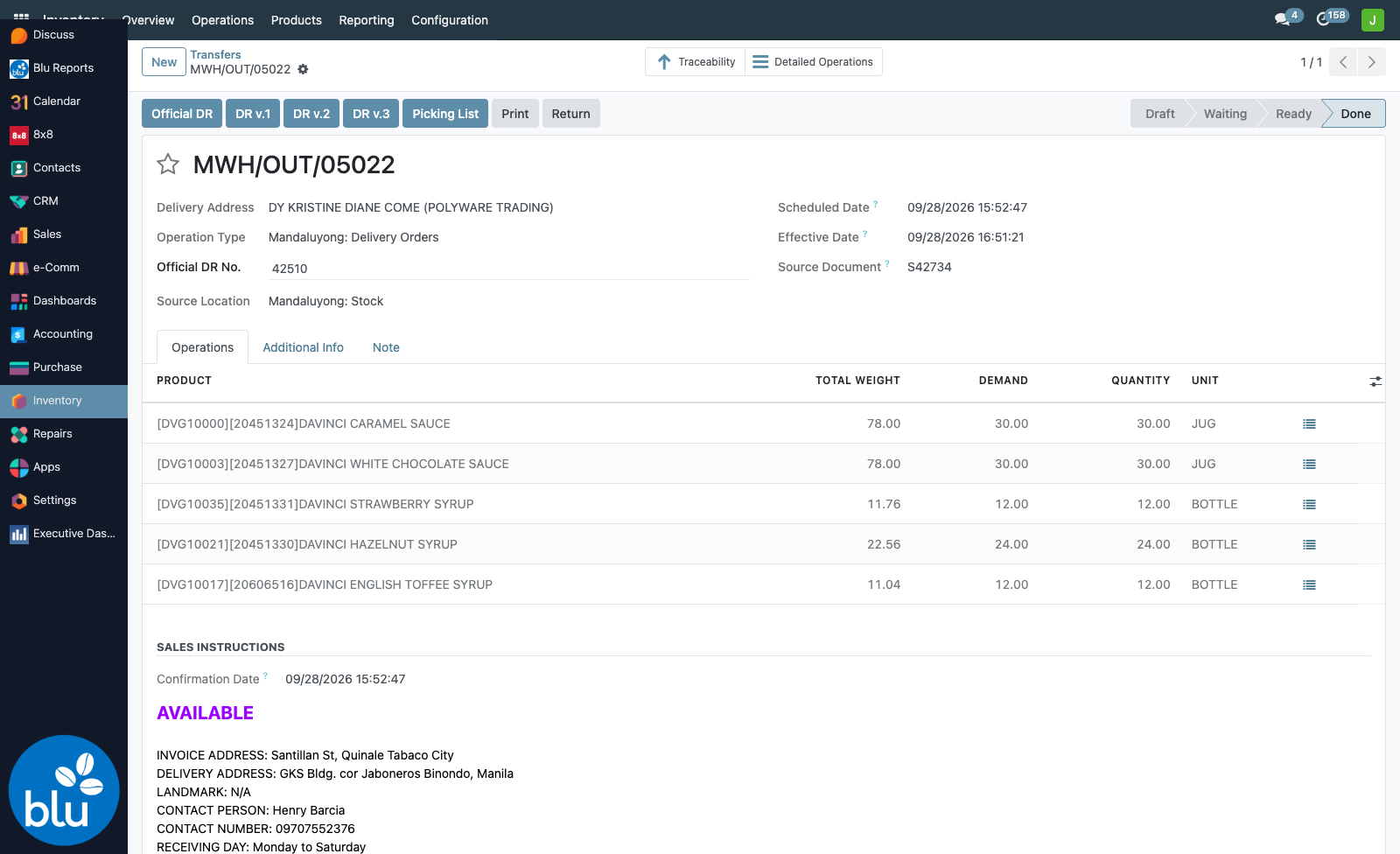
- Partial deliveries. If only part of the order ships, validate what was loaded and choose Create Backorder. The rest stays open as a new DR.
- Who picked and loaded is recorded on the DR. See Delivery Accountability.
- The trip — dispatch, what the client actually received, and variances — is recorded on the Trip Ticket.
- SLA. Every DR shows the order's SLA badge. See Delivery Orders SLA.
Invoice (steps 8–10)
From the confirmed SO, Create Invoice (Sales Invoicing group only) makes a draft invoice. Check it against the DR, Confirm it, then key the BIR Sales Invoice number into Official Invoice #:
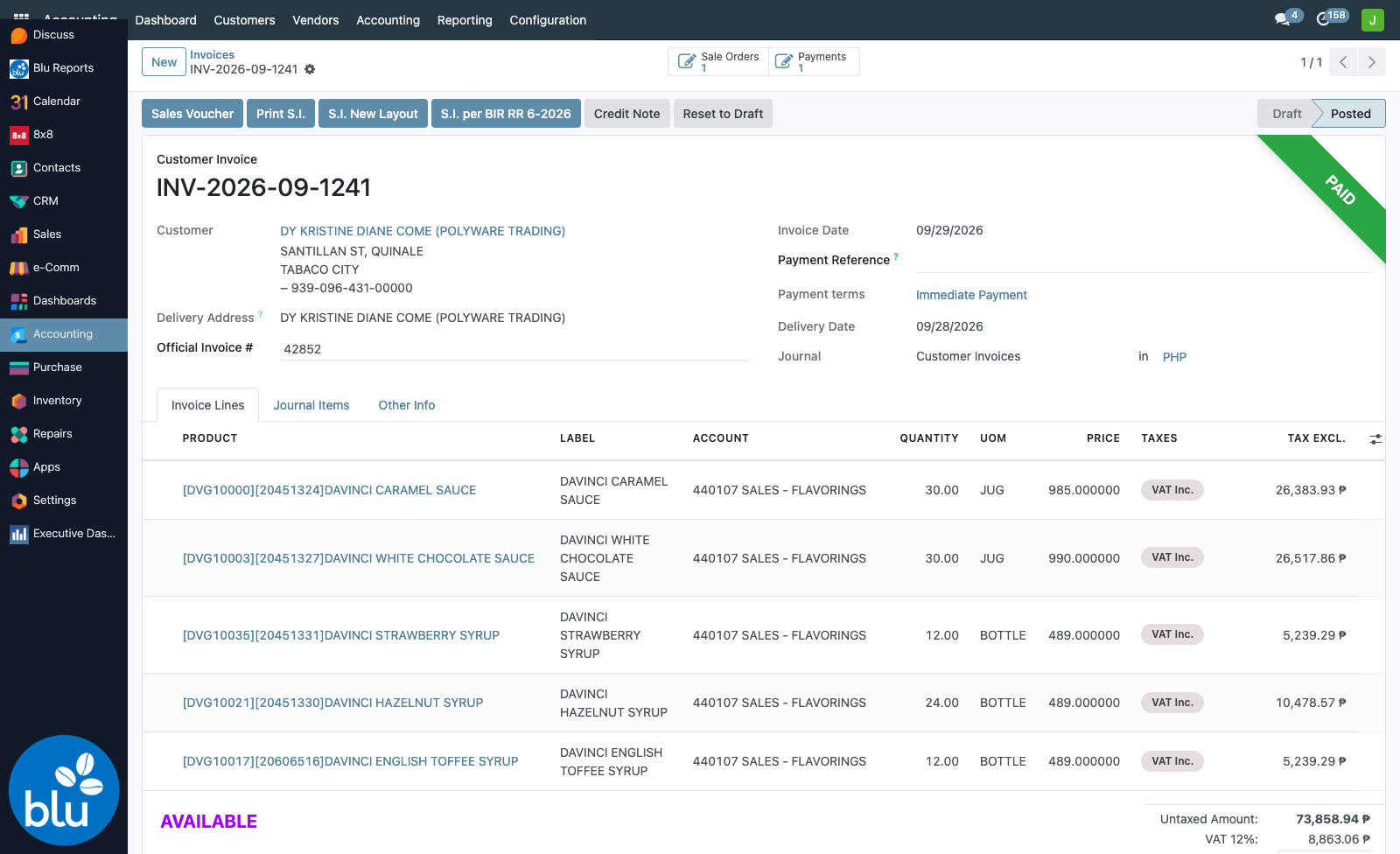
- Invoice after the DR. Odoo allows invoicing as soon as the SO is confirmed. Most orders are invoiced after the DR is validated, so the invoice matches what actually left the warehouse.
- Invoice only what was delivered when an order ships in parts.
- The invoice's Delivery Address follows the same rule as the order: pick only, and only the customer's own addresses.
Collection (steps 11–12)
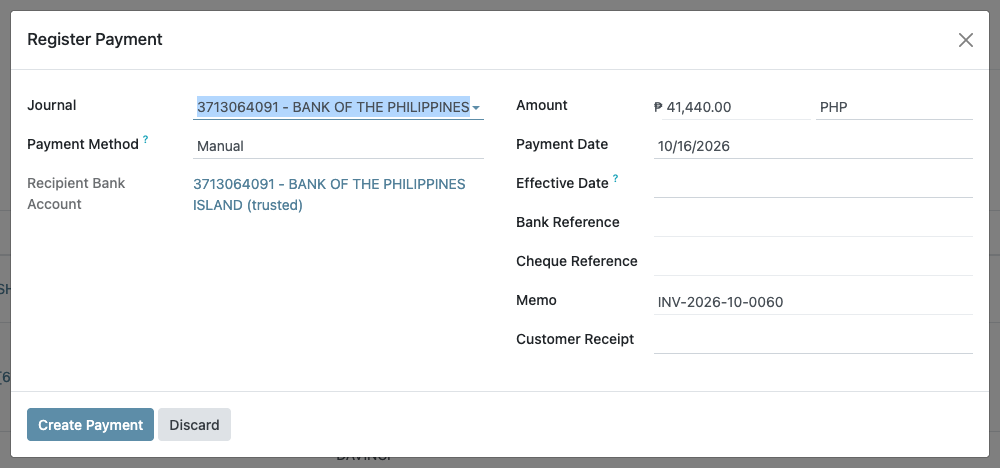
Countering and collection follow the days and times on the client profile. When the client pays, open the invoice, click Register Payment, and type the BIR Collection Receipt number into Customer Receipt:
Following the order from the Sales list
Each step above shows up on the Sales → Orders list, so Sales can check an order without asking the warehouse or Accounting:
| Step | Column on the order list |
|---|---|
| Delivery | Delivery Status (Not Delivered → Partially Delivered → Fully Delivered), Trip Ticket, SLA Status |
| Invoice | Invoice Status, Invoice No., SI No. |
| Collection | Collection Status (Not Collected → Partially Collected → Fully Collected), CR No. |
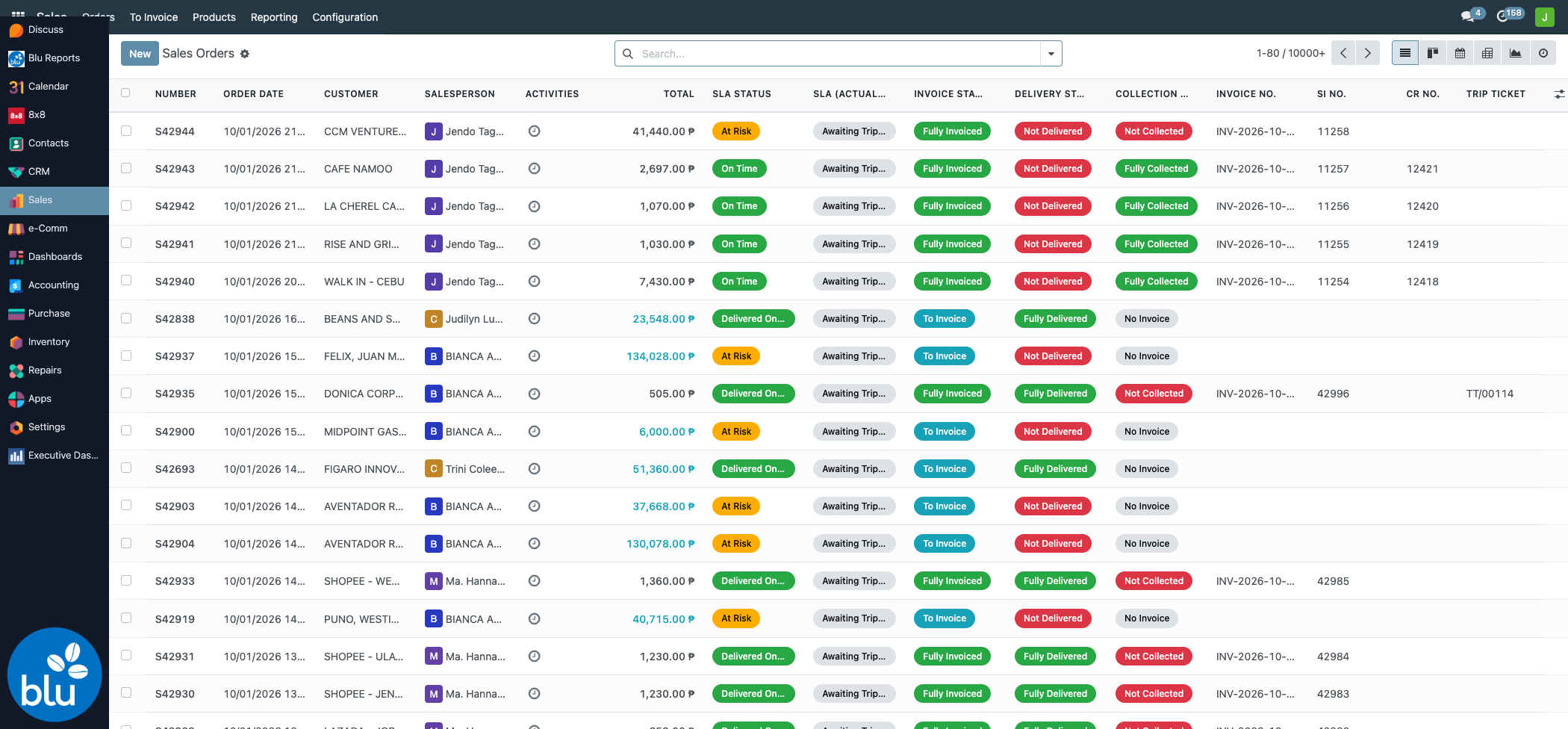
Any of the numbers (order, INV-, SI or CR) can be pasted in the search box to find the order. See Sales Order → Tracking an order from the list.